Demos
How to import
<script setup lang="ts">
    import { Upload } from '@fibrous/semi-ui-vue';
</script>
Basic usage
The most basic usage is to place a Button in the trigger area; clicking it opens the file selection box, and the upload starts automatically after the selection is completed
Code
<script setup lang="ts">
    import { IconUpload } from '@fibrous/semi-icons-vue';
    import { Button, Upload } from '@fibrous/semi-ui-vue';
</script>

<template>
    <Upload action="https://api.semi.design/upload">
        <Button theme="light">
            <template #icon>
                <IconUpload />
            </template>
            点击上传
        </Button>
    </Upload>
</template>
File name too long ellipsis
Customize the file name tooltip using the showTooltip property
When the type is boolean, control whether to show the tooltip
Code
<script setup lang="ts">
    import { IconUpload } from '@fibrous/semi-icons-vue';
    import { Button, Upload } from '@fibrous/semi-ui-vue';
</script>

<template>
    <Upload action="https://api.semi.design/upload" :showTooltip="false">
        <Button theme="light">
            <template #icon>
                <IconUpload />
            </template>
            点击上传
        </Button>
    </Upload>
</template>
Customize the popup through the #ellipsisTooltip slot, which receives content (the full file name) and trigger (the file name element, placed in the popup with <component :is="trigger" />); an object showTooltip configures the tooltip type and the props passed to it.
Code
<script setup lang="ts">
    import { IconUpload } from '@fibrous/semi-icons-vue';
    import { Button, Tooltip, Upload } from '@fibrous/semi-ui-vue';
</script>

<template>
    <Upload action="https://api.semi.design/upload" showTooltip>
        <template #ellipsisTooltip="{ content, trigger }">
            <Tooltip :content="content" position="bottom">
                <component :is="trigger" />
            </Tooltip>
        </template>
        <Button theme="light">
            <template #icon>
                <IconUpload />
            </template>
            点击上传
        </Button>
    </Upload>
</template>
Add prompt text
Set a custom prompt text through the prompt slot. Set the slot position by promptPosition, optional left, right, bottom, the default is right
Code
<script setup lang="ts">
    import { IconUpload } from '@fibrous/semi-icons-vue';
    import { Button, Upload, type PromptPositionType } from '@fibrous/semi-ui-vue';

    const action = 'https://api.semi.design/upload';
    const marginStyle: Partial<Record<PromptPositionType, string>> = {
        left: 'margin-right: 10px',
        right: 'margin-left: 10px',
    };
    const promptStyle = (pos: PromptPositionType) => `display: flex; align-items: center; color: var(--semi-color-text-2); height: 32px; ${marginStyle[pos] ?? ''}`;
    const positions: PromptPositionType[] = ['right', 'left', 'bottom'];
</script>

<template>
    <template v-for="(pos, index) in positions" :key="pos">
        <div v-if="index" style="margin-bottom: 12px; margin-top: 12px; border-bottom: 1px solid var(--semi-color-border)" />
        <Upload :action="action" :promptPosition="pos">
            <template #prompt>
                <div :style="promptStyle(pos)">请上传资格认证材料</div>
            </template>
            <Button theme="light">
                <template #icon>
                    <IconUpload />
                </template>
                点击上传
            </Button>
        </Upload>
    </template>
</template>
When listType is picture, the reference object at promptPosition is the whole picture wall list


Code
<script setup lang="ts">
    import { IconPlus } from '@fibrous/semi-icons-vue';
    import { Upload, type FileItem, type PromptPositionType } from '@fibrous/semi-ui-vue';

    const action = 'https://api.semi.design/upload';
    const marginStyle: Partial<Record<PromptPositionType, string>> = {
        right: 'margin-left: 10px',
    };
    const promptStyle = (pos: PromptPositionType) => `display: flex; align-items: center; color: var(--semi-color-text-2); height: 100%; ${marginStyle[pos] ?? ''}`;
    const defaultFileList: FileItem[] = [
        {
            uid: '1',
            name: 'dy.jpeg',
            status: 'success',
            size: '130kb',
            url: '/assets/placeholder/avatar-a.svg',
        },
        {
            uid: '5',
            name: 'resso.jpeg',
            status: 'wait',
            percent: 50,
            size: '222kb',
            url: '/assets/placeholder/avatar-b.svg',
        },
    ];
    const positions: PromptPositionType[] = ['right', 'bottom'];
</script>

<template>
    <template v-for="(pos, index) in positions" :key="pos">
        <div v-if="index" style="margin-bottom: 12px; margin-top: 12px; border-bottom: 1px solid var(--semi-color-border)" />
        <Upload :action="action" :defaultFileList="defaultFileList" listType="picture" :promptPosition="pos">
            <template #prompt>
                <div :style="promptStyle(pos)">请上传认证材料</div>
            </template>
            <IconPlus aria-label="上传图片" size="extra-large" />
        </Upload>
    </template>
</template>
Click on the avatar to trigger upload
Code
<script setup lang="ts">
    import { ref } from 'vue';
    import { IconCamera } from '@fibrous/semi-icons-vue';
    import { Avatar, Toast, Upload } from '@fibrous/semi-ui-vue';

    const url = ref('/assets/placeholder/avatar-a.svg');

    const onSuccess = () => {
        Toast.success('头像更新成功');
        url.value = '/assets/ttmoment.jpeg';
    };

    const maskStyle = {
        backgroundColor: 'var(--semi-color-overlay-bg)',
        height: '100%',
        width: '100%',
        display: 'flex',
        alignItems: 'center',
        justifyContent: 'center',
        color: 'var(--semi-color-white)',
    };
</script>

<template>
    <Upload accept="image/*" action="https://api.semi.design/upload" class="avatar-upload" :showUploadList="false" @error="Toast.error('上传失败')" @success="onSuccess">
        <!-- the avatar is the whole content of the upload button, so its alt names the button -->
        <Avatar alt="上传头像" :src="url" :style="{ margin: '4px' }">
            <template #hoverMask>
                <div :style="maskStyle">
                    <IconCamera />
                </div>
            </template>
        </Avatar>
    </Upload>
</template>
.avatar-upload .semi-upload-add {
border-radius: 50%; // Make sure that only the circle is clicked on the hot zone
}Custom upload attributes
Custom upload attributes can be added by setting data, headers
Code
<script setup lang="ts">
    import { IconUpload } from '@fibrous/semi-icons-vue';
    import { Button, Upload } from '@fibrous/semi-ui-vue';

    // A data function is evaluated per upload, so time is the upload moment
    const data = () => ({
        role: 'ies',
        time: new Date().getTime(),
    });
    const headers = {
        'x-tt-semi': 'semi-upload',
    };
</script>

<template>
    <Upload action="https://api.semi.design/upload" :data="data" :headers="headers">
        <Button theme="light">
            <template #icon>
                <IconUpload />
            </template>
            点击上传
        </Button>
    </Upload>
</template>
Upload file type
The type of files uploaded can be restricted through the accept attribute (the native html attribute of input).
accept supports the following two types of strings:
- A collection of file extensions (recommended), such as .jpg, .png, etc.;
- MIME types collection of file types, please refer to MDN document
For example, only allowing users to upload PNG and PDF files, accept can be written like this: accept ='.pdf,.png' or accept ='application/pdf,image/png' (the MIME type of PNG and PDF Connect through ,).
Code
<script setup lang="ts">
    import { IconUpload } from '@fibrous/semi-icons-vue';
    import { Button, Upload } from '@fibrous/semi-ui-vue';

    const action = 'https://api.semi.design/upload';
    const imageOnly = 'image/*';
    const videoOnly = 'video/*';
    const fileLimit = '.pdf,.png,.jpeg';
</script>

<template>
    <Upload :accept="imageOnly" :action="action" :style="{ marginBottom: '12px' }">
        <Button theme="light">
            <template #icon>
                <IconUpload />
            </template>
            上传图片
        </Button>
    </Upload>
    <Upload :accept="videoOnly" :action="action" :style="{ marginBottom: '12px' }">
        <Button theme="light">
            <template #icon>
                <IconUpload />
            </template>
            上传视频
        </Button>
    </Upload>
    <Upload :accept="fileLimit" :action="action">
        <Button theme="light">
            <template #icon>
                <IconUpload />
            </template>
            上传 PDF, PNG, JPEG
        </Button>
    </Upload>
</template>
Upload folder
By passing in directory as true, all files in the folder can be uploaded
Code
<script setup lang="ts">
    import { IconUpload } from '@fibrous/semi-icons-vue';
    import { Button, Upload } from '@fibrous/semi-ui-vue';
</script>

<template>
    <Upload action="https://api.semi.design/upload" directory>
        <Button theme="light">
            <template #icon>
                <IconUpload />
            </template>
            上传文件夹
        </Button>
    </Upload>
</template>
Select multiple files at once
You can select multiple files to upload at the same time by setting the multiple attribute.
Code
<script setup lang="ts">
    import { IconUpload } from '@fibrous/semi-icons-vue';
    import { Button, Upload } from '@fibrous/semi-ui-vue';
</script>

<template>
    <Upload action="https://api.semi.design/upload" multiple>
        <Button theme="light">
            <template #icon>
                <IconUpload />
            </template>
            点击上传
        </Button>
    </Upload>
</template>
Limit the total number of files
You can limit the maximum number of files that can be uploaded by setting the limit property. When limit is 1, always replace the current one with the latest upload, and will not emit the exceed event
Code
<script setup lang="ts">
    import { IconUpload } from '@fibrous/semi-icons-vue';
    import { Button, Upload, type UploadOnChangeProps } from '@fibrous/semi-ui-vue';

    const limit = 1;
    const onChange = (props: UploadOnChangeProps) => {
        console.log(props.fileList);
    };
</script>

<template>
    <Upload action="https://api.semi.design/upload" :limit="limit" @change="onChange">
        <Button theme="light">
            <template #icon>
                <IconUpload />
            </template>
            点击上传(最多{{ limit }}项)
        </Button>
    </Upload>
</template>
When the limit is reached, disable the trigger control rather than Upload, so uploaded files can still be removed.
Code
<script setup lang="ts">
    import { ref } from 'vue';
    import { IconUpload } from '@fibrous/semi-icons-vue';
    import { Button, Toast, Upload, type UploadOnChangeProps } from '@fibrous/semi-ui-vue';

    const limit = 2;
    // Only the trigger button is disabled; Upload itself stays enabled so files can still be removed.
    const disabled = ref(false);
    const onChange = (props: UploadOnChangeProps) => {
        disabled.value = props.fileList.length === limit;
    };
</script>

<template>
    <Upload action="https://api.semi.design/upload" :limit="limit" @change="onChange" @exceed="Toast.warning(`最多只允许上传${limit}个文件`)">
        <Button :disabled="disabled" theme="light">
            <template #icon>
                <IconUpload />
            </template>
            点击上传(最多{{ limit }}项)
        </Button>
    </Upload>
</template>
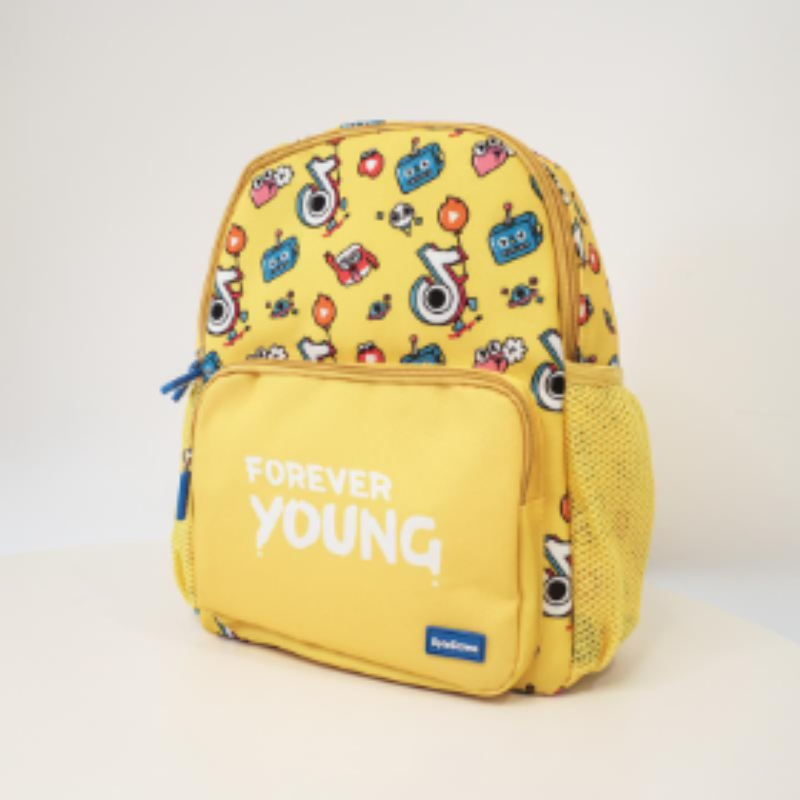
In the photo wall mode, when the number of uploaded files is equal to the limit, the upload entry will be automatically hidden
Code
<script setup lang="ts">
    import { IconPlus } from '@fibrous/semi-icons-vue';
    import { Toast, Upload, type FileItem } from '@fibrous/semi-ui-vue';

    const defaultFileList: FileItem[] = [
        {
            uid: '1',
            name: 'dyBag.png',
            status: 'success',
            size: '130KB',
            preview: true,
            url: '/assets/root-web-sites/edit-bag.jpeg',
        },
        {
            uid: '2',
            name: 'dyBag2.jpeg',
            status: 'success',
            size: '222KB',
            preview: true,
            fileInstance: new File([new ArrayBuffer(2048)], 'dyBag2.jpeg', { type: 'image/png' }),
            url: '/assets/root-web-sites/edit-bag.jpeg',
        },
    ];
</script>

<template>
    <Upload accept="image/*" action="https://api.semi.design/upload" :defaultFileList="defaultFileList" :limit="2" listType="picture" @exceed="Toast.warning('最多只允许上传2个文件')">
        <IconPlus aria-label="上传图片" size="extra-large" />
    </Upload>
</template>
Limit upload file size
The upload file size limit can be customized through the maxSize and minSize properties, and you can listen to @sizeError to be notified when the limit is exceeded.
Code
<script setup lang="ts">
    import { IconUpload } from '@fibrous/semi-icons-vue';
    import { Button, Toast, Upload, type CustomFile } from '@fibrous/semi-ui-vue';

    const onSizeError = (file: CustomFile) => Toast.error(`${file.name} size invalid`);
</script>

<template>
    <Upload action="https://api.semi.design/upload" :maxSize="1024" :minSize="200" @sizeError="onSizeError">
        <Button theme="light">
            <template #icon>
                <IconUpload />
            </template>
            点击上传(最小 200KB,最大 1MB)
        </Button>
    </Upload>
</template>
Custom list operation area
When listType is list, you can customize the list operation area through the #fileOperation slot, which receives UploadFileItemSlotProps
Code
<script setup lang="ts">
    import { IconDelete, IconDownload, IconEyeOpened, IconUpload } from '@fibrous/semi-icons-vue';
    import { Button, Upload, type FileItem } from '@fibrous/semi-ui-vue';

    const action = 'https://api.semi.design/upload';
    const defaultFileList: FileItem[] = [
        {
            uid: '1',
            name: 'dyBag.png',
            status: 'success',
            size: '130KB',
            preview: true,
            url: '/assets/root-web-sites/edit-bag.jpeg',
        },
    ];
</script>

<template>
    <Upload :action="action" :defaultFileList="defaultFileList" :itemStyle="{ width: '300px' }">
        <template #fileOperation="{ onRemove }">
            <div style="display: flex; column-gap: 8px; padding: 0 8px">
                <Button aria-label="预览" size="small" theme="borderless" type="tertiary">
                    <template #icon>
                        <IconEyeOpened />
                    </template>
                </Button>
                <Button aria-label="下载" size="small" theme="borderless" type="tertiary">
                    <template #icon>
                        <IconDownload />
                    </template>
                </Button>
                <Button aria-label="删除" size="small" theme="borderless" type="tertiary" @click="onRemove">
                    <template #icon>
                        <IconDelete />
                    </template>
                </Button>
            </div>
        </template>
        <Button theme="light">
            <template #icon>
                <IconUpload />
            </template>
            点击上传
        </Button>
    </Upload>
</template>
Custom file list title
When listType is list, you can customize the title area at the top of the file list through two slots:
Replace only the title text
#fileListTitle replaces only the title text, and the clear button retains its default style:
Code
<script setup lang="ts">
    import { IconUpload } from '@fibrous/semi-icons-vue';
    import { Button, Upload, type FileItem } from '@fibrous/semi-ui-vue';

    const action = 'https://api.semi.design/upload';

    const defaultFileList: FileItem[] = [
        {
            uid: '1',
            name: 'document.pdf',
            status: 'success',
            size: '130KB',
        },
        {
            uid: '2',
            name: 'report.xlsx',
            status: 'success',
            size: '222KB',
        },
    ];
</script>

<template>
    <Upload :action="action" :defaultFileList="defaultFileList" style="margin-bottom: 20px">
        <template #fileListTitle>已上传文件</template>
        <Button theme="light">
            <template #icon>
                <IconUpload />
            </template>
            自定义标题文字
        </Button>
    </Upload>
    <Upload :action="action" :defaultFileList="defaultFileList">
        <template #fileListTitle>
            <span style="color: var(--semi-color-primary); font-weight: 600">📁 重要文件</span>
        </template>
        <Button theme="light">
            <template #icon>
                <IconUpload />
            </template>
            带样式的标题
        </Button>
    </Upload>
</template>
Replace the whole title area
#fileListHeader replaces the whole title area, including the clear button. Once the slot is provided, the default title does not come back even when it renders nothing. The slot receives the following parameters:
fileList: Current file listonClear: Function to clear filesclearText: Default text for the clear button (based on current locale)
Code
<script setup lang="ts">
    import { IconClose, IconUpload } from '@fibrous/semi-icons-vue';
    import { Button, Upload, type FileItem } from '@fibrous/semi-ui-vue';

    const action = 'https://api.semi.design/upload';

    const defaultFileList: FileItem[] = [
        {
            uid: '1',
            name: 'document.pdf',
            status: 'success',
            size: '130KB',
        },
        {
            uid: '2',
            name: 'report.xlsx',
            status: 'success',
            size: '222KB',
        },
    ];
</script>

<template>
    <Upload :action="action" :defaultFileList="defaultFileList" style="margin-bottom: 20px">
        <template #fileListHeader="{ fileList, onClear, clearText }">
            <div style="display: flex; align-items: center; justify-content: space-between; width: 100%">
                <span style="color: var(--semi-color-primary)">📂 共 {{ fileList.length }} 个文件</span>
                <Button size="small" type="danger" @click="onClear">
                    <template #icon>
                        <IconClose />
                    </template>
                    {{ clearText }}
                </Button>
            </div>
        </template>
        <Button theme="light">
            <template #icon>
                <IconUpload />
            </template>
            自定义清空按钮样式
        </Button>
    </Upload>
    <Upload :action="action" :defaultFileList="defaultFileList">
        <template #fileListHeader="{ fileList, onClear }">
            <div style="display: flex; align-items: center; justify-content: space-between; width: 100%">
                <span>
                    已选择
                    <strong style="color: var(--semi-color-danger)">{{ fileList.length }}</strong>
                    个文件
                </span>
                <button style="padding: 0; border: none; background: none; font: inherit; cursor: pointer; color: var(--semi-color-link); font-size: 12px" type="button" @click="onClear">全部移除</button>
            </div>
        </template>
        <Button theme="light">
            <template #icon>
                <IconUpload />
            </template>
            完全自定义标题区域
        </Button>
    </Upload>
</template>
Custom preview logic
When listType is list, the preview logic can be implemented through the #previewFile slot. Its content replaces the thumbnail, and the default thumbnail does not come back even when the slot renders nothing.
For example, when you don't need thumbnail preview for image types, you can constantly render a <IconFile /> in #previewFile.
If you want to enlarge and preview the image when clicked, you can use the Image component in #previewFile.
Or if you want to use an additional operation area to achieve enlarged preview when clicked, you can also combine #fileOperation to place some custom elements such as Icon to achieve enlarged preview when clicked.
Code
<script setup lang="ts">
    import { IconFile, IconUpload } from '@fibrous/semi-icons-vue';
    import { Button, Image, Upload, type FileItem } from '@fibrous/semi-ui-vue';

    const url = '/assets/root-web-sites/edit-bag.jpeg';
    const defaultFileList: FileItem[] = [
        { uid: '1', name: 'dyBag.png', status: 'success', size: '130KB', url },
        { uid: '2', name: 'dyBag2.png', status: 'success', size: '130KB', url },
    ];
</script>

<template>
    <Upload action="https://api.semi.design/upload" :defaultFileList="defaultFileList">
        <template #previewFile="{ file }">
            <IconFile v-if="file.uid === '1'" size="large" />
            <Image v-else alt="" :src="file.url" />
        </template>
        <Button theme="light">
            <template #icon>
                <IconUpload />
            </template>
            点击上传
        </Button>
    </Upload>
</template>
The following is an example of combining #fileOperation and ImagePreview. In this example, clicking the first Icon on the right can enlarge the image for preview.
Code
<script setup lang="ts">
    import { ref } from 'vue';
    import { IconDelete, IconDownload, IconExpand, IconUpload } from '@fibrous/semi-icons-vue';
    import { Button, ImagePreview, Upload, type FileItem } from '@fibrous/semi-ui-vue';

    const visible = ref(false);
    const defaultFileList: FileItem[] = [
        {
            uid: '1',
            name: 'dyBag.png',
            status: 'success',
            size: '130KB',
            preview: true,
            url: '/assets/root-web-sites/edit-bag.jpeg',
        },
    ];
</script>

<template>
    <Upload action="https://api.semi.design/upload" :defaultFileList="defaultFileList" :itemStyle="{ width: '300px' }">
        <template #fileOperation="{ file, onRemove }">
            <div style="display: flex; column-gap: 8px; padding: 0 8px">
                <Button aria-label="预览" size="small" theme="borderless" type="tertiary" @click="visible = true">
                    <template #icon>
                        <IconExpand />
                    </template>
                </Button>
                <Button aria-label="下载" size="small" theme="borderless" type="tertiary">
                    <template #icon>
                        <IconDownload />
                    </template>
                </Button>
                <Button aria-label="删除" size="small" theme="borderless" type="tertiary" @click="onRemove()">
                    <template #icon>
                        <IconDelete />
                    </template>
                </Button>
                <ImagePreview v-model:visible="visible" :src="file.url" />
            </div>
        </template>
        <Button theme="light">
            <template #icon>
                <IconUpload />
            </template>
            点击上传
        </Button>
    </Upload>
</template>
Default file list
The uploaded files can be displayed through defaultFileList. When you need to preview the thumbnail of the default file, you can set the preview attribute of the corresponding item in defaultFileList to true
Code
<script setup lang="ts">
    import { IconUpload } from '@fibrous/semi-icons-vue';
    import { Button, Upload, type FileItem } from '@fibrous/semi-ui-vue';

    const defaultFileList: FileItem[] = [
        {
            uid: '1',
            name: 'dyBag.jpeg',
            status: 'success',
            size: '130KB',
            preview: true,
            url: '/assets/root-web-sites/edit-bag.jpeg',
        },
        {
            uid: '2',
            name: 'dyBag2.jpeg',
            status: 'uploadFail',
            size: '222KB',
            preview: true,
            fileInstance: new File([new ArrayBuffer(2048)], 'dyBag2.jpeg', { type: 'image/png' }),
            url: '/assets/root-web-sites/edit-bag.jpeg',
        },
    ];
</script>

<template>
    <Upload action="https://api.semi.design/upload" :defaultFileList="defaultFileList">
        <Button theme="light">
            <template #icon>
                <IconUpload />
            </template>
            点击上传
        </Button>
    </Upload>
</template>
Controlled component
Bind the file list with v-model:fileList; Upload writes it back through the update:fileList event whenever the list changes. With a one-way :fileList binding that is never written back, the list keeps the value passed in. The @change event still receives { fileList, currentFile }, where currentFile is null after files are added with the insert method.
Code
<script setup lang="ts">
    import { ref } from 'vue';
    import { IconUpload } from '@fibrous/semi-icons-vue';
    import { Button, Upload, type FileItem, type UploadOnChangeProps } from '@fibrous/semi-ui-vue';

    const list = ref<FileItem[]>([
        {
            uid: '1',
            name: 'dyBag.jpeg',
            status: 'success',
            size: '130KB',
            preview: true,
            url: '/assets/root-web-sites/edit-bag.jpeg',
        },
        {
            uid: '2',
            name: 'dy.jpeg',
            status: 'uploading',
            size: '222KB',
            percent: 50,
            preview: true,
            fileInstance: new File([new ArrayBuffer(2048)], 'dy.jpeg', { type: 'image/jpeg' }),
            url: '/assets/placeholder/avatar-a.svg',
        },
    ]);

    const onChange = ({ fileList, currentFile }: UploadOnChangeProps) => {
        console.log('change', fileList, currentFile);
    };
</script>

<template>
    <Upload v-model:fileList="list" action="https://api.semi.design/upload" :showRetry="false" @change="onChange">
        <Button theme="light">
            <template #icon>
                <IconUpload />
            </template>
            点击上传
        </Button>
    </Upload>
</template>
Photo Wall
Set listType ='picture', users can upload pictures and display thumbnails in the list
When the uploaded file list is set through defaultFileList or fileList, the url property of the objects in the array is read automatically to display the pictures
Code
<script setup lang="ts">
    import { IconPlus } from '@fibrous/semi-icons-vue';
    import { Upload, type FileItem } from '@fibrous/semi-ui-vue';

    const defaultFileList: FileItem[] = [
        {
            uid: '1',
            name: 'dy.png',
            status: 'success',
            size: '130KB',
            preview: true,
            url: '/assets/placeholder/avatar-a.svg',
        },
    ];
</script>

<template>
    <Upload accept="image/*" action="https://api.semi.design/upload" :defaultFileList="defaultFileList" listType="picture" multiple>
        <IconPlus aria-label="上传图片" size="extra-large" />
    </Upload>
</template>
Set showPicInfo, you can view the basic information of the picture
Code
<script setup lang="ts">
    import { IconPlus } from '@fibrous/semi-icons-vue';
    import { Upload, type FileItem } from '@fibrous/semi-ui-vue';

    const url = '/assets/placeholder/avatar-b.svg';
    const defaultFileList: FileItem[] = [
        { uid: '1', name: 'music.png', status: 'success', size: '130KB', preview: true, url },
        { uid: '2', name: 'brand.png', status: 'success', size: '130KB', preview: true, url },
    ];
</script>

<template>
    <Upload accept="image/*" action="https://api.semi.design/upload" :defaultFileList="defaultFileList" listType="picture" multiple showPicInfo>
        <IconPlus aria-label="上传图片" size="extra-large" />
    </Upload>
</template>
Photo Wall With Preview
With the Image component, through the #thumbnail slot, you can click on the image to enlarge the preview
Code
<script setup lang="ts">
    import { IconPlus } from '@fibrous/semi-icons-vue';
    import { Image, Upload, type FileItem } from '@fibrous/semi-ui-vue';

    const action = 'https://api.semi.design/upload';
    const defaultFileList: FileItem[] = [
        {
            uid: '1',
            name: 'music.png',
            status: 'success',
            size: '130KB',
            preview: true,
            url: '/assets/placeholder/avatar-b.svg',
        },
    ];
</script>

<template>
    <Upload accept="image/*" :action="action" :defaultFileList="defaultFileList" listType="picture" multiple>
        <template #thumbnail="{ file }">
            <Image :alt="file.name" :src="file.url" />
        </template>
        <IconPlus aria-label="Upload picture" size="extra-large" />
    </Upload>
</template>
You can customize the preview icon through the #picPreviewIcon slot and the @previewClick event, when the replacement icon showReplace is displayed, the preview icon will no longer be displayed.
When you need to customize the preview/replacement function, you need to turn off the replacement function and use #picPreviewIcon to listen for icon click events.
@previewClick listens for the click event of the single image container. Listening to it also makes the file cards clickable and shows a preview button
Code
<script setup lang="ts">
    import { IconEyeOpened, IconPlus } from '@fibrous/semi-icons-vue';
    import { Upload, type FileItem } from '@fibrous/semi-ui-vue';

    const defaultFileList: FileItem[] = [
        {
            uid: '1',
            name: 'resso.png',
            status: 'success',
            size: '130KB',
            preview: true,
            url: '/assets/placeholder/avatar-b.svg',
        },
    ];

    const handlePreview = (file: FileItem) => {
        window.open(file.url, 'imagePreview', 'width=300,height=300');
    };
</script>

<template>
    <Upload accept="image/*" action="https://api.semi.design/upload" :defaultFileList="defaultFileList" listType="picture" multiple showPicInfo @previewClick="handlePreview">
        <template #picPreviewIcon>
            <IconEyeOpened style="color: var(--semi-color-white); font-size: 24px" />
        </template>
        <IconPlus aria-label="上传图片" size="extra-large" />
    </Upload>
</template>
Photo Wall Width/Height
By setting picHeight, picWidth, the width and height of picture wall elements can be uniformly set. If you also render an Image component in the #thumbnail slot for click-to-enlarge preview, you need to specify both the width and height of the Image component

Code
<script setup lang="ts">
    import { IconPlus } from '@fibrous/semi-icons-vue';
    import { Image, Upload, type FileItem } from '@fibrous/semi-ui-vue';

    const defaultFileList: FileItem[] = [
        {
            uid: '1',
            name: 'image-1.jpg',
            status: 'success',
            size: '130KB',
            preview: true,
            url: '/assets/root-web-sites/abstract.jpg',
        },
    ];
</script>

<template>
    <Upload accept="image/*" action="https://api.semi.design/upload" :defaultFileList="defaultFileList" listType="picture" multiple :picHeight="110" :picWidth="200">
        <template #thumbnail="{ file }">
            <Image :alt="file.name" :height="110" :src="file.url" :width="200" />
        </template>
        <IconPlus aria-label="上传图片" size="extra-large" style="margin: 4px" />
        点击添加图片
    </Upload>
</template>
Set hotSpotLocation to customize the order of click hotspots, the default is at the end of the photo wall list
Code
<script setup lang="ts">
    import { ref } from 'vue';
    import { IconPlus } from '@fibrous/semi-icons-vue';
    import { Radio, RadioGroup, Upload, type FileItem, type UploadProps } from '@fibrous/semi-ui-vue';

    const action = 'https://api.semi.design/upload';
    const defaultFileList: FileItem[] = [
        {
            uid: '1',
            name: 'resso.png',
            status: 'success',
            size: '130KB',
            preview: true,
            url: '/assets/placeholder/avatar-b.svg',
        },
    ];
    const handlePreview = (file: FileItem) => {
        window.open(file.url, 'imagePreview', 'width=300,height=300');
    };
    const hotSpotLocation = ref<UploadProps['hotSpotLocation']>('end');
</script>

<template>
    <RadioGroup :modelValue="hotSpotLocation" type="button" @update:modelValue="hotSpotLocation = $event as UploadProps['hotSpotLocation']">
        <Radio value="start">start</Radio>
        <Radio value="end">end</Radio>
    </RadioGroup>
    <hr />
    <Upload accept="image/*" :action="action" :defaultFileList="defaultFileList" :hotSpotLocation="hotSpotLocation" listType="picture" multiple showPicInfo @previewClick="handlePreview">
        <IconPlus aria-label="上传图片" size="extra-large" />
    </Upload>
</template>
Disabled
Code
<script setup lang="ts">
    import { IconUpload } from '@fibrous/semi-icons-vue';
    import { Button, Upload, type FileItem } from '@fibrous/semi-ui-vue';

    const defaultFileList: FileItem[] = [
        {
            uid: '1',
            name: 'first.png',
            status: 'success',
            size: '130KB',
            preview: true,
            url: '/assets/placeholder/avatar-a.svg',
        },
        {
            uid: '2',
            name: 'second.png',
            status: 'validateFail',
            size: '222KB',
            preview: true,
            url: '/assets/placeholder/avatar-a.svg',
        },
    ];
</script>

<template>
    <Upload action="https://api.semi.design/upload" :defaultFileList="defaultFileList" disabled>
        <Button disabled theme="light">
            <template #icon>
                <IconUpload />
            </template>
            点击上传
        </Button>
    </Upload>
</template>
Manually trigger upload
uploadTrigger="custom", the upload will not be triggered automatically after the file is selected. Call the exposed upload method through a template ref to trigger it
Code
<script setup lang="ts">
    import { useTemplateRef } from 'vue';
    import { IconPlus, IconUpload } from '@fibrous/semi-icons-vue';
    import { Button, Upload } from '@fibrous/semi-ui-vue';

    const uploadRef = useTemplateRef('uploadRef');
    const action = 'https://api.semi.design/upload';
</script>

<template>
    <div>
        <Upload ref="uploadRef" accept="image/gif, image/png, image/jpeg, image/bmp, image/webp" :action="action" uploadTrigger="custom" @error="(...v) => console.log(...v)" @success="(...v) => console.log(...v)">
            <Button style="margin-inline-end: 8px" theme="light">
                <template #icon>
                    <IconPlus />
                </template>
                选择文件
            </Button>
        </Upload>
        <Button theme="light" @click="uploadRef?.upload()">
            <template #icon>
                <IconUpload />
            </template>
            开始上传
        </Button>
    </div>
</template>
Drag and drop upload
draggable='true', you can use the drag and drop function
Code
<script setup lang="ts">
    import { Upload } from '@fibrous/semi-ui-vue';
</script>

<template>
    <Upload action="https://api.semi.design/upload" draggable>
        <template #dragMainText>点击上传文件或拖拽文件到这里</template>
        <template #dragSubText>支持任意类型文件</template>
    </Upload>
</template>
You can quickly set the content of the drag area through the #dragIcon, #dragMainText, #dragSubText slots. #dragIcon and #dragMainText fall back to the default icon and text when they render nothing
Code
<script setup lang="ts">
    import { IconBolt } from '@fibrous/semi-icons-vue';
    import { Upload } from '@fibrous/semi-ui-vue';
</script>

<template>
    <Upload accept="application/pdf,.jpeg" action="https://api.semi.design/upload" draggable style="margin-top: 10px">
        <template #dragIcon>
            <IconBolt />
        </template>
        <template #dragMainText>点击上传文件或拖拽文件到这里</template>
        <template #dragSubText>仅支持jpeg、pdf</template>
    </Upload>
</template>
You can also pass content through the default slot to completely customize the display of the drag area
Code
<script setup lang="ts">
    import { IconBolt } from '@fibrous/semi-icons-vue';
    import { Upload } from '@fibrous/semi-ui-vue';
</script>

<template>
    <Upload accept="application/pdf,.jpeg" action="https://api.semi.design/upload" draggable style="margin-top: 10px">
        <template #dragIcon>
            <IconBolt />
        </template>
        <div class="components-upload-demo-drag-area">
            <img alt="demo img" height="96" src="/assets/placeholder/avatar-a.svg" style="border-radius: 4px" />
            <div style="font-size: 14px; margin-top: 8px; flex-basis: 100%; text-align: center; color: var(--semi-color-tertiary)">Wow, you can really dance.</div>
        </div>
    </Upload>
</template>
The scss style is as follows
.components-upload-demo-drag-area {
    border-radius: var(--semi-border-radius-small);
    border: 2px dashed var(--semi-color-border);
    width: 100%;
    padding: 12px;
    background-color: var(--semi-color-tertiary-light-default);
    display: flex;
    cursor: pointer;
    flex-wrap: wrap;
    justify-content: center;
    &:hover {
        background-color: var(--semi-color-primary-light-default);
        border-color: var(--semi-color-primary);
    }
}
Paste upload
With addOnPasting, files pasted anywhere on the page (the paste event) are added to the file list, with no clipboard permission prompt. The pastingError event is emitted when a pasted file cannot be read. An Upload deactivated by KeepAlive does not respond to pasting.
Code
<script setup lang="ts">
    import { Toast, Upload } from '@fibrous/semi-ui-vue';
</script>

<template>
    <Upload action="https://api.semi.design/upload" addOnPasting draggable @pastingError="Toast.error('读取剪贴板中的文件失败')">
        <template #dragMainText>复制截图或文件后,在页面上按 Ctrl/Cmd + V</template>
        <template #dragSubText>也可以点击或拖拽上传</template>
    </Upload>
</template>
Custom check before upload
The file status can be updated through the beforeUpload hook, which is to verify the file after selecting the file before uploading online, ({ file: FileItem, fileList: Array<FileItem> }) => beforeUploadResult | Promise | boolean During synchronization verification, a boolean (true means the verification passed, false means the verification failed, and the verification failure will prevent the file from uploading online) or an Object object. The specific structure is as follows
// beforeUploadResult:
{
     fileInstance?: File,
     status?:'success' |'uploadFail' |'validateFail' |'validating' |'uploading' |'wait',
     validateMessage?: string, // file validation information; use the #fileValidateMessage slot for a node
     shouldUpload: boolean, // Whether to upload. The default is true, if it is false, the fileItem will only be displayed in the list, and the upload operation will not be triggered
     autoRemove: boolean, // Whether to remove the file from the fileList, the default is false
}Code
<script setup lang="ts">
    import { IconUpload } from '@fibrous/semi-icons-vue';
    import { Button, Upload, type BeforeUploadObjectResult, type BeforeUploadProps } from '@fibrous/semi-ui-vue';

    let count = 0;

    const transformFile = (fileInstance: File) => {
        if (count === 0) {
            return new File([fileInstance], 'newFileName', { type: 'image/png' });
        }
        return fileInstance;
    };

    const beforeUpload = ({ file }: BeforeUploadProps) => {
        let result: BeforeUploadObjectResult;
        if (count > 0) {
            result = {
                autoRemove: false,
                fileInstance: file.fileInstance,
                shouldUpload: true,
            };
        } else {
            result = {
                autoRemove: false,
                fileInstance: file.fileInstance,
                status: 'validateFail',
                shouldUpload: false,
            };
        }
        count += 1;
        return result;
    };
</script>

<template>
    <Upload action="https://api.semi.design/upload" :beforeUpload="beforeUpload" :transformFile="transformFile">
        <Button theme="light">
            <template #icon>
                <IconUpload />
            </template>
            点击上传(上传前同步校验)
        </Button>
    </Upload>
</template>
In the case of asynchronous verification, a Promise must be returned. Promise resolve means that the verification is passed, and reject means that the verification fails and the upload will not be triggered. Object can be passed in when resolve/reject (the structure is the same as beforeUploadResult)
Code
<script setup lang="ts">
    import { IconUpload } from '@fibrous/semi-icons-vue';
    import { Button, Upload, type BeforeUploadObjectResult, type BeforeUploadProps } from '@fibrous/semi-ui-vue';

    let count = 0;

    const beforeUpload = ({ file }: BeforeUploadProps) => {
        return new Promise<BeforeUploadObjectResult>((resolve, reject) => {
            if (count > 1) {
                count += 1;
                resolve({ autoRemove: false, shouldUpload: true });
            } else {
                const result: BeforeUploadObjectResult = {
                    autoRemove: false,
                    fileInstance: file.fileInstance,
                    status: 'validateFail',
                    shouldUpload: false,
                    validateMessage: `第${count + 1}个注定失败`,
                };
                count += 1;
                reject(result);
            }
        });
    };
</script>

<template>
    <Upload action="https://api.semi.design/upload" :beforeUpload="beforeUpload">
        <Button theme="light">
            <template #icon>
                <IconUpload />
            </template>
            点击上传(上传前异步校验)
        </Button>
    </Upload>
</template>
Update file information after upload
The file status, verification information, and file name can be updated through the afterUpload hook. ({ response: any, file: FileItem, fileList: Array<FileItem> }) => afterUploadResult afterUpload is triggered when the upload is completed (xhr.onload) and no error occurs, it needs to return an Object object (asynchronous return is not supported), the specific structure is as follows
// afterUploadResult:
{
    status?:'success' |'uploadFail' |'validateFail' |'validating' |'uploading' |'wait',
    validateMessage?: string, // file validation information; use the #fileValidateMessage slot for a node
    autoRemove?: boolean, // Whether to remove the file from the fileList, the default is false
    name?: string;
    // The URL for previewing image file, usually the storage address returned by the Server after receiving response
    url?: string;
}Code
<script setup lang="ts">
    import { IconUpload } from '@fibrous/semi-icons-vue';
    import { Button, Upload, type AfterUploadProps, type AfterUploadResult } from '@fibrous/semi-ui-vue';

    const afterUpload = ({ response }: AfterUploadProps): AfterUploadResult => {
        if (response.status_code === 200) {
            return {
                autoRemove: false,
                status: 'uploadFail',
                validateMessage: '内容不合法',
                name: 'RenameByServer.jpg',
                url: '/assets/root-web-sites/edit-bag.jpeg',
            };
        }
        return {};
    };
</script>

<template>
    <Upload action="https://api.semi.design/upload" :afterUpload="afterUpload">
        <Button theme="light">
            <template #icon>
                <IconUpload />
            </template>
            点击上传
        </Button>
    </Upload>
</template>
Custom request
When customRequest is passed in, it is equivalent to using the custom request method to replace the upload built-in xhr request, and the user needs to take over the upload behavior by himself. The file object of the current operation can be obtained in the input parameters, and the user implements the upload process by himself, and calls onProgress, onError, and onSuccess in the customRequest input parameters when appropriate to update the internal state of the Upload component customRequest contains the following input parameters
{
     // current file name
     fileName: string,
     // props.data set by the user
     data: object,
     // FileItem, refer to the following document for the specific structure
     file: FileItem,
     // original File Object which extends Blob, the file object actually obtained by the browser (https://developer.mozilla.org/zh-CN/docs/Web/API/File)
     fileInstance: File,
     // Function that should be called during upload, event needs to include total and loaded attributes
     onProgress: (event: {total: number, loaded: number }) => any,
     // Function to be called when upload error
     onError: (userXhr: { status?: number }, e?: Event) => any,
     // The function that should be called after the upload is successful, response is the request result after the upload is successful
     onSuccess: (response: any, e?: Event) => any,
     // props.withCredentials set by the user
     withCredentials: boolean,
     // props.action set by the user
     action: string,
}Code
<script setup lang="ts">
    import { IconUpload } from '@fibrous/semi-icons-vue';
    import { Button, Upload, type UploadCustomRequestArgs } from '@fibrous/semi-ui-vue';

    const mockRequest = ({ onProgress, onSuccess }: UploadCustomRequestArgs) => {
        let count = 0;
        const interval = setInterval(() => {
            if (count === 100) {
                clearInterval(interval);
                onSuccess({});
                return;
            }
            onProgress({ total: 100, loaded: count });
            count += 20;
        }, 500);
    };
</script>

<template>
    <Upload action="https://api.semi.design/upload" :customRequest="mockRequest">
        <Button theme="light">
            <template #icon>
                <IconUpload />
            </template>
            点击上传
        </Button>
    </Upload>
</template>
Image Cropping
Enable image cropping functionality through the crop property. Supports cropping when clicking to select, dragging, pasting, and replacing files.
Basic Usage
Set crop to enable default cropping configuration (:crop="true" or the boolean shorthand crop).
accept and limit are applied before cropping, so images that are rejected or exceed the limit are never cropped. Browsers encode only PNG, JPEG and WebP; the cropped result of any other format (GIF, BMP, SVG) is a PNG, and the file's type and extension become image/png and .png.
Code
<script setup lang="ts">
    import { IconUpload } from '@fibrous/semi-icons-vue';
    import { Button, Upload } from '@fibrous/semi-ui-vue';
</script>

<template>
    <Upload action="https://api.semi.design/upload" crop @success="(response, file) => console.log('上传成功:', response, file)">
        <Button theme="light">
            <template #icon>
                <IconUpload />
            </template>
            点击上传(启用裁切)
        </Button>
    </Upload>
</template>
Custom Cropping Configuration
Configure cropping parameters through object form, including aspect ratio, shape, quality, etc.
Code
<script setup lang="ts">
    import { IconUpload } from '@fibrous/semi-icons-vue';
    import { Button, Upload, type UploadCropProps } from '@fibrous/semi-ui-vue';

    const crop: UploadCropProps = {
        aspectRatio: 16 / 9,
        shape: 'rect',
        quality: 0.8,
        modalTitle: '裁切图片',
        modalOkText: '确认裁切',
        modalCancelText: '取消',
    };
</script>

<template>
    <Upload action="https://api.semi.design/upload" :crop="crop" @success="(response, file) => console.log('上传成功:', response, file)">
        <Button theme="light">
            <template #icon>
                <IconUpload />
            </template>
            点击上传(16:9 裁切)
        </Button>
    </Upload>
</template>
Round Cropping
Suitable for avatar upload scenarios, set shape: 'round' to enable round cropping.
Code
<script setup lang="ts">
    import { IconUpload } from '@fibrous/semi-icons-vue';
    import { Button, Upload } from '@fibrous/semi-ui-vue';

    const crop = {
        aspectRatio: 1,
        shape: 'round',
        quality: 0.9,
        modalTitle: '裁切头像',
    } as const;
</script>

<template>
    <Upload action="https://api.semi.design/upload" :crop="crop" @success="(response, file) => console.log('上传成功:', response, file)">
        <Button theme="light">
            <template #icon>
                <IconUpload />
            </template>
            点击上传(圆形裁切)
        </Button>
    </Upload>
</template>
Confirm Before Cropping
Use the beforeCrop callback to confirm or perform other processing before cropping. Return false to skip cropping and upload directly.
Code
<script setup lang="ts">
    import { IconUpload } from '@fibrous/semi-icons-vue';
    import { Button, Upload, type UploadProps } from '@fibrous/semi-ui-vue';

    const crop = { aspectRatio: 1, shape: 'round' } as const;

    const beforeCrop: UploadProps['beforeCrop'] = (file, fileList) => {
        console.log('beforeCrop:', file, fileList);
        // true continues cropping; false skips it and uploads directly
        return window.confirm('是否裁切图片?');
    };
</script>

<template>
    <Upload action="https://api.semi.design/upload" :beforeCrop="beforeCrop" :crop="crop" @cropError="(error) => console.error('裁切失败:', error)" @success="(response, file) => console.log('上传成功:', response, file)">
        <Button theme="light">
            <template #icon>
                <IconUpload />
            </template>
            点击上传(裁切前确认)
        </Button>
    </Upload>
</template>
Drag and Drop Upload with Cropping
Cropping is also triggered when uploading via drag and drop.
Code
<script setup lang="ts">
    import { IconUpload } from '@fibrous/semi-icons-vue';
    import { Button, Upload } from '@fibrous/semi-ui-vue';

    const crop = {
        aspectRatio: 1,
        shape: 'rect',
    } as const;
</script>

<template>
    <Upload action="https://api.semi.design/upload" :crop="crop" draggable @drop="(_e, files) => console.log('拖拽文件:', files)" @success="(response, file) => console.log('上传成功:', response, file)">
        <Button theme="light">
            <template #icon>
                <IconUpload />
            </template>
            拖拽上传(启用裁切)
        </Button>
    </Upload>
</template>
Custom Cropping Modal Style
Customize the style and properties of the cropping modal through cropModalProps. The width of the modal defaults to 600, and the value passed in wins.
cropModalProps is typed as UploadCropModalProps, which leaves out visible, title, okText, cancelText, onOk and onCancel: set the title and button texts with modalTitle, modalOkText and modalCancelText of crop, and the rest belongs to Upload.
Code
<script setup lang="ts">
    import { IconUpload } from '@fibrous/semi-icons-vue';
    import { Button, Upload } from '@fibrous/semi-ui-vue';

    const crop = {
        aspectRatio: 1,
        shape: 'rect',
    } as const;

    const cropModalProps = {
        width: 800,
        style: { height: '600px' },
        bodyStyle: { height: '500px', backgroundColor: '#f5f5f5' },
    };
</script>

<template>
    <Upload action="https://api.semi.design/upload" :crop="crop" :cropModalProps="cropModalProps" @success="(response, file) => console.log('上传成功:', response, file)">
        <Button theme="light">
            <template #icon>
                <IconUpload />
            </template>
            自定义弹窗样式
        </Button>
    </Upload>
</template>
API Reference
Upload
Props
| Property | Description | Type | Default |
|---|---|---|---|
| accept | Accepted file types, written like the accept attribute of input: file extensions such as .jpg or MIME types, separated by commas. | string | semiGlobalDefault("Upload", "accept") |
| action | Upload URL. Required. | string | undefined |
| addOnPasting | Whether files in the clipboard are added to the file list on paste, without extra permission. | boolean | semiDefault("Upload", "addOnPasting", false) |
| afterUpload | Hook after an upload completes without error. The returned object updates the file status, validate message, name and preview URL. Async results are not supported. | Type((object: AfterUploadProps) => AfterUploadResult) | undefined |
| beforeClear | Called before the list is cleared. Returning false, or a Promise that resolves to false or rejects, blocks the clear. | Type((fileList: FileItem[]) => boolean | Promise<boolean>) | undefined |
| beforeCrop | Called before the crop modal opens, once with the first selected image; the result decides cropping for the whole batch. Return false to upload without cropping. May return a Promise. | Type((file: File, fileList: File[]) => boolean | Promise<boolean>) | undefined |
| beforeRemove | Called before a file is removed. Returning false, or a Promise that resolves to false or rejects, blocks the removal. | Type((file: FileItem, fileList: FileItem[]) => boolean | Promise<boolean>) | undefined |
| beforeUpload | Hook before a file is uploaded. The returned object updates the file status and decides whether to upload. A boolean means pass or fail; for a Promise, resolve passes and reject fails. | Type((object: BeforeUploadProps) => boolean | BeforeUploadObjectResult | Promise<BeforeUploadObjectResult>) | undefined |
| capture | How media is captured: user or environment. true renders the attribute with an empty value, false omits it. | boolean | "user" | "environment" | semiGlobalDefault("Upload", "capture") |
| crop | Enables image cropping. true uses the defaults, an object configures the cropper. Selecting, dragging, pasting and replacing all crop. | boolean | UploadCropProps | semiDefault("Upload", "crop", false) |
| cropModalProps | Props of the crop Modal. visible, title, okText, cancelText, onOk and onCancel belong to Upload; width defaults to 600. | UploadCropModalProps | semiGlobalDefault("Upload", "cropModalProps") |
| customRequest | Replaces the built-in XMLHttpRequest. It must call the onProgress, onError and onSuccess it receives to update the state. | Type((object: UploadCustomRequestArgs) => void) | undefined |
| data | Extra parameters sent with the upload, or a function that returns them for a file. | TypeRecord<string, any> | ((file: File) => Record<string, unknown>) | undefined |
| defaultFileList | Initial list of uploaded files, uncontrolled. The uid of every item is required and must be unique. | FileItem[] | semiDefault("Upload", "defaultFileList", []) |
| directory | Whether to upload a folder. | boolean | semiDefault("Upload", "directory", false) |
| disabled | Whether Upload is disabled. A disabled Upload no longer shows the remove, retry, replace and clear actions. | boolean | semiDefault("Upload", "disabled", false) |
| draggable | Whether dragging files to upload is supported. | boolean | semiDefault("Upload", "draggable", false) |
| fileList | Controlled file list, used with v-model:fileList. The uid of every item is required and must be unique. | FileItem[] | semiGlobalDefault("Upload", "fileList") |
| fileName | Same as name. Mainly used in Form.Upload to avoid clashing with the name of Field. | string | semiGlobalDefault("Upload", "fileName") |
| headers | Headers sent with the upload, or a function that returns them for a file. | TypeRecord<string, any> | ((file: File) => Record<string, string>) | undefined |
| hotSpotLocation | Position of the picture wall add button: start or end. | "start" | "end" | semiDefault("Upload", "hotSpotLocation", "end") |
| itemStyle | Inline style of the file cards. | StyleValue | semiGlobalDefault("Upload", "itemStyle") |
| limit | Maximum number of files. With 1, the newest file always replaces the current one and exceed is not emitted. | number | semiGlobalDefault("Upload", "limit") |
| listType | How the file list is displayed: list, picture or none. none renders no file list, only the trigger area. | "list" | "none" | "picture" | semiDefault("Upload", "listType", "list") |
| maxSize | Maximum file size in KB. | number | semiGlobalDefault("Upload", "maxSize") |
| minSize | Minimum file size in KB. | number | semiGlobalDefault("Upload", "minSize") |
| multiple | Whether several files can be selected at once. | boolean | semiDefault("Upload", "multiple", false) |
| name | Field name used for the file when uploading. | string | semiGlobalDefault("Upload", "name") |
| onPreviewClick | Listened to as @previewClick. While present the file cards are clickable and show a preview button; its presence changes the rendering, so it stays a function prop. | Type((fileItem: FileItem) => void) | undefined |
| picHeight | Display height of the pictures in picture mode. | string | number | semiGlobalDefault("Upload", "picHeight") |
| picWidth | Display width of the pictures in picture mode. | string | number | semiGlobalDefault("Upload", "picWidth") |
| promptPosition | Position of the prompt: left, right or bottom. In list mode it is relative to the trigger, in picture mode to the picture list. | "bottom" | "left" | "right" | semiDefault("Upload", "promptPosition", "right") |
| showClear | In list mode, whether to show the clear button when limit is not 1 and there is at least one file. | boolean | semiDefault("Upload", "showClear", true) |
| showPicInfo | Whether to show picture information. Only applies in picture mode. | boolean | semiDefault("Upload", "showPicInfo", false) |
| showReplace | Whether the file card shows a replace button after a successful upload. | boolean | semiDefault("Upload", "showReplace", false) |
| showRetry | Whether the file card shows a retry button when the upload fails. | boolean | semiDefault("Upload", "showRetry", true) |
| showTooltip | Whether a truncated file name shows a tooltip, or the tooltip type (tooltip or popover) and the props passed to it. Use the ellipsisTooltip slot for custom popup content. | boolean | ShowTooltip | semiDefault("Upload", "showTooltip", true) |
| showUploadList | Whether to show the file list. | boolean | semiDefault("Upload", "showUploadList", true) |
| transformFile | Called after a file is selected and before it is uploaded; returns the File to upload. | Type((file: File) => File) | undefined |
| uploadTrigger | When uploading starts: auto uploads on selection, custom waits for the upload method. | "auto" | "custom" | semiDefault("Upload", "uploadTrigger", "auto") |
| validateStatus | Validation status, which styles the root element: default, error, warning or success. | "error" | "success" | "default" | "warning" | semiGlobalDefault("Upload", "validateStatus") |
| withCredentials | Whether the upload request carries cookies. | boolean | semiDefault("Upload", "withCredentials", false) |
Events
| Event | Description | Callback parameters |
|---|---|---|
| update:fileList | Emitted when the file list changes. Backs v-model:fileList. | [fileList: FileItem[]] |
| acceptInvalid | Emitted when received files do not match accept, with those files. | [files: File[]] |
| change | Emitted when a file status changes, including uploading, success and failure. currentFile is null after insert and absent after a clear. Shadows the native change bubbling from the hidden input. | [object: UploadOnChangeProps] |
| clear | Emitted after the list is cleared. | [] |
| cropError | Emitted when cropping an image fails. | [error: Error] |
| drop | Emitted when a dragged element is released on the drag area, with the native drop event, the dropped files and the current file list. Shadows the native drop on the root element. | [e: DragEvent, files: File[], fileList: FileItem[]] |
| error | Emitted when an upload fails. With customRequest, xhr is the object passed to its onError. | Type[e: UploadCustomError, file: CustomFile, fileList: FileItem[], xhr: XMLHttpRequest | { status?: number | undefined; }] |
| exceed | Emitted when the total number of files exceeds limit, with the originally selected files before truncation. | [fileList: File[]] |
| fileChange | Emitted after files are selected. | [files: File[]] |
| openFileDialog | Emitted when the system file dialog opens. | [] |
| pastingError | Emitted when addOnPasting is true and a clipboard file cannot be read. | [error: Error] |
| progress | Emitted while uploading, with the percentage, the file and the current file list. | [percent: number, file: CustomFile, fileList: FileItem[]] |
| remove | Emitted after a file is removed. currentFile is undefined for an item without a File object, such as one from defaultFileList. | Type[currentFile: CustomFile | undefined, fileList: FileItem[], currentFileItem: FileItem] |
| retry | Emitted when retry is clicked. | [fileItem: FileItem] |
| sizeError | Emitted when a file size violates maxSize or minSize. | [file: CustomFile, fileList: FileItem[]] |
| success | Emitted after a successful upload, with the server response, the file and the current file list. | [responseBody: any, file: CustomFile, fileList: FileItem[]] |
Slots
| Slot | Description | Scope parameters |
|---|---|---|
| default | Trigger content. In draggable mode it replaces the whole default drag area content. | any |
| dragIcon | Icon of the drag area. Falls back to the default icon when empty. | any |
| dragMainText | Main text of the drag area. Falls back to the locale text when empty. | any |
| dragSubText | Help text of the drag area. | any |
| prompt | Prompt text. Unlike content in the default slot, clicking it does not trigger an upload. | any |
| validateMessage | Validate message of the whole Upload. | any |
| fileListTitle | Replaces only the title text of the file list; the clear button stays. | any |
| fileListHeader | Replaces the whole title area, clear button included, with fileList, onClear and clearText. | UploadFileListHeaderSlotProps |
| fileItem | Replaces each file card, with UploadFileItemSlotProps. A file it renders nothing for is not shown. | UploadFileItemSlotProps |
| previewFile | Custom preview that replaces the thumbnail. Only applies in list mode. It does not fall back to the default thumbnail when empty. | UploadFileItemSlotProps |
| thumbnail | Custom picture wall thumbnail. Only applies in picture mode. | UploadFileItemSlotProps |
| picInfo | Custom picture wall information. Only applies in picture mode with showPicInfo set to true. | UploadFileItemSlotProps |
| picPreviewIcon | Custom preview icon shown on hover in the picture wall. Only applies in picture mode. | UploadFileItemSlotProps |
| picClose | Custom close button of the picture wall, with class and onRemove. Only applies in picture mode. | UploadPicCloseSlotProps |
| fileOperation | Custom operation area of a list item. | UploadFileItemSlotProps |
| fileValidateMessage | Custom validate message of a file card. Falls back to the validateMessage string of the file when empty. | UploadFileItemSlotProps |
| ellipsisTooltip | Custom popup content for a truncated file name, with content and trigger. | TypographyEllipsisTooltipProps |
Exposes
| Name | Description | Type |
|---|---|---|
| insert | Adds files at index, or at the end without one. | Type(files: CustomFile[], index?: number | undefined) => void |
| upload | Uploads the waiting files. Use it with uploadTrigger set to custom. | Type() => void |
| openFileDialog | Opens the file dialog. | Type() => void |
Undeclared attrs such as class, style and aria-* land on the root element, which gets role="group" automatically when it has aria-label or aria-labelledby.
Upload.FileCard
Upload.FileCard is the default file card, used to keep the default look inside slots such as #fileItem: <Upload.FileCard v-bind="props" />. class, style, data-* and aria-* land on its root element.
Props
| Property | Description | Type | Default |
|---|---|---|---|
| file | The file to show. Required. | FileItem | undefined |
| index | Position of the file in the list. | number | undefined |
| listType | Display type of the card: list, picture or none. none renders no card. | "list" | "none" | "picture" | "list" |
| disabled | Whether the card is disabled. A disabled card shows no remove, retry or replace button. | boolean | undefined |
| showRetry | Whether to show a retry button on failure. The showRetry of the file wins. | boolean | undefined |
| showReplace | Whether to show a replace button after success. The showReplace of the file wins. | boolean | undefined |
| showPicInfo | Whether to show picture information. Only applies in picture mode. | boolean | undefined |
| showTooltip | Whether a truncated file name shows a tooltip, or the tooltip type and the props passed to it. | boolean | ShowTooltip | true |
| picWidth | Width of the picture in picture mode. | string | number | undefined |
| picHeight | Height of the picture in picture mode. | string | number | undefined |
| validateMessage | Validate message. Wins over the validateMessage of the file. | string | undefined |
| onPreviewClick | Listened to as @previewClick. While present the card is clickable and shows a preview button; its presence changes the rendering, so it stays a function prop. | Type(() => void) | undefined |
Events
| Event | Description | Callback parameters |
|---|---|---|
| remove | Emitted when remove is clicked. | [] |
| retry | Emitted when retry is clicked. | [] |
| replace | Emitted when replace is clicked. | [] |
Slots
| Slot | Description | Scope parameters |
|---|---|---|
| previewFile | Custom preview that replaces the thumbnail. Only applies in list mode. | UploadFileItemSlotProps |
| thumbnail | Custom picture wall thumbnail. Only applies in picture mode. | UploadFileItemSlotProps |
| picInfo | Custom picture wall information. Only applies in picture mode with showPicInfo set to true. | UploadFileItemSlotProps |
| picPreviewIcon | Custom preview icon shown on hover in the picture wall. Only applies in picture mode. | UploadFileItemSlotProps |
| picClose | Custom close button of the picture wall, with class and onRemove. Only applies in picture mode. | UploadPicCloseSlotProps |
| fileOperation | Custom operation area of a list item. | UploadFileItemSlotProps |
| validateMessage | Custom validate message. Falls back to the string when empty. When the slot renders content for the file, the picture wall shows the validate icon too. | UploadFileItemSlotProps |
| ellipsisTooltip | Custom popup content for a truncated file name, with content and trigger. | TypographyEllipsisTooltipProps |
Exposes
| Name | Description | Type |
|---|---|---|
| None |
Interfaces
FileItem Interface
interface FileItem {
    event?: Event; // xhr event
    fileInstance?: File; // original File Object which extends Blob, the file object actually obtained by the browser (https://developer.mozilla.org/zh-CN/docs/Web/API/File)
    name: string;
    percent?: number; // upload progress percentage
    preview?: boolean; // Whether to preview according to url
    response?: any; // xhr's response, response body when the request is successful, and corresponding error when the request fails
    shouldUpload?: boolean; // Should you continue to upload
    showReplace?: boolean; // Separately control whether the file displays the replace button
    showRetry?: boolean; // Separately control whether the file displays the retry button
    size: string; // file size, unit kb
    status: 'success' | 'uploadFail' | 'validateFail' | 'validating' | 'uploading' | 'wait';
    uid: string; // The unique identifier of the file. If the current file is selected and added by upload, the uid will be automatically generated. If it is defaultFileList, you need to ensure that it will not be repeated
    url?: string;
    validateMessage?: string; // use the #fileValidateMessage slot for a node
}
FileItem has only the fields above; writing an undeclared field is a type error.
UploadFileItemSlotProps Interface
The parameter that the #fileItem, #thumbnail, #picInfo, #picPreviewIcon, #fileOperation, #previewFile and #fileValidateMessage slots receive. The file data sits in the file field, next to the file card's props. It has no key, so <Upload.FileCard v-bind="props" /> renders the default card.
interface UploadFileItemSlotProps {
    file: FileItem;
    index?: number; // position of the file in the list
    listType: 'picture' | 'list' | 'none';
    disabled?: boolean;
    showRetry?: boolean;
    showReplace?: boolean;
    showPicInfo?: boolean;
    showTooltip?: boolean | ShowTooltip;
    picWidth?: string | number;
    picHeight?: string | number;
    validateMessage?: string;
    style?: StyleValue; // from itemStyle
    onRemove: () => void; // removes this file
    onRetry: () => void; // uploads this file again
    onReplace: () => void; // replaces this file
    onPreviewClick?: () => void; // present only when Upload has a previewClick listener
}
UploadPicCloseSlotProps Interface
The parameter that #picClose receives:
interface UploadPicCloseSlotProps {
    class: string;
    onRemove: (e: MouseEvent) => void;
}
UploadFileListHeaderSlotProps Interface
The parameter that #fileListHeader receives:
interface UploadFileListHeaderSlotProps {
    fileList: FileItem[]; // Current file list
    onClear: () => void; // Function to clear files
    clearText: string; // Default text for the clear button (based on current locale)
}
CropProps Interface
Configuration object accepted by the crop prop:
In Vue the type is exported as UploadCropProps.
interface CropProps {
    aspectRatio?: number; // Crop box aspect ratio, e.g. 16/9, 1, 4/3
    shape?: 'rect' | 'round' | 'roundRect'; // Crop box shape, default 'rect'
    minZoom?: number; // Minimum zoom ratio
    maxZoom?: number; // Maximum zoom ratio
    zoomStep?: number; // Zoom step size
    quality?: number; // Output image quality, range 0 - 1, default 0.92
    fill?: string; // Fill color of the area outside the cropped region, default transparent 'rgba(0, 0, 0, 0)'
    modalTitle?: string; // Title text of the crop modal
    modalOkText?: string; // Confirm button text of the crop modal
    modalCancelText?: string; // Cancel button text of the crop modal
}
Methods
Upload exposes insert, upload and openFileDialog through defineExpose. Call them through a template ref typed as UploadHandle; see the Exposes table of Upload above.
Accessibility
The Upload component is an interactive control that can trigger file selection when clicking or dragging. After the file is selected, the status will be displayed in the file list.
ARIA
- The trigger area is a
role="button"that Enter and Space activate. When the trigger content holds its own control, such as a Button, the area takes no role and that control is the button; its click opens the file dialog. A disabled control (nativedisabledoraria-disabled="true") still counts as your own control: the area does not become a button, and Enter and Space do not open the file dialog - When Upload is disabled, pass
disabledto that control as well. Whenlimitis reached, disable only that control and not Upload, so users can still remove uploaded files - When the root element has
aria-labeloraria-labelledby, it getsrole="group"automatically; aroleyou pass yourself wins - Add
role="list"to the file list and describe it witharia-label; in the picture wall the add button sits beside the list - In list mode the replace button is the trigger of its Tooltip, so Tab stops on it once
Content Guidelines
- Upload button
- For the copywriting specification of the form button, refer to The content Guidelines of the Button component
- Help text
- The help text is written in sentences, the first letter is capitalized, and periods may not be required
- Error message
- Clearly tell the user why the file cannot be uploaded, and tell the user how to upload it successfully
- Help texts are written using sentences, capitalized
- Concise language that users can read at a glance, such as
File size must be less than 20MB,File type must be .gif, .jpg, .png or .svg
Design Tokens
| Sass variable | Value | Usage |
|---|---|---|
| $color-upload-text | var(--semi-color-text-0) | 上传文件卡片等默认文本颜色 |
| $color-upload_assist-text | var(--semi-color-text-2) | 上传文件列表标题及文件大小文本颜色 |
| $color-upload-border | var(--semi-color-border) | 图片墙添加按钮及拖拽区域描边颜色 |
| $color-upload_card-bg-hover | var(--semi-color-fill-1) | 上传文件卡片背景色 - 悬浮 |
| $color-upload_card-bg | var(--semi-color-fill-0) | 上传文件卡片背景色 - 默认 |
| $color-upload_card_fail-bg-hover | var(--semi-color-danger-light-hover) | 上传失败文件卡片背景色 - 悬浮 |
| $color-upload_card_fail-bg | var(--semi-color-danger-light-default) | 上传失败文件卡片背景色 - 默认 |
| $color-upload_clear-text | var(--semi-color-primary) | 上传清空按钮文本颜色 |
| $color-upload_drag_area-bg-hover | var(--semi-color-primary-light-default) | 上传可拖拽区域背景颜色 - 悬浮 |
| $color-upload_drag_area-border-hover | var(--semi-color-primary) | 上传可拖拽区域描边颜色 - 悬浮 |
| $color-upload_drag_area_disabled-text | var(--semi-color-disabled-text) | 上传可拖拽区域禁用文本颜色 |
| $color-upload_drag_area-bg | var(--semi-color-tertiary-light-default) | 上传可拖拽区域背景颜色 - 默认 |
| $color-upload_drag_area_icon | var(--semi-color-primary) | 上传可拖拽区域图标颜色 |
| $color-upload_drag_area_tips-text | var(--semi-color-primary) | 上传可拖拽区域提示文本颜色 |
| $color-upload_drag_area_main-text-default | var(--semi-color-text-0) | 上传可拖拽区主要提示文本颜色 - 默认 |
| $color-upload_drag_area_main-text-hover | var(--semi-color-text-0) | 上传可拖拽区主要提示文本颜色 - 悬浮 |
| $color-upload_drag_area_main-text-active | var(--semi-color-text-0) | 上传可拖拽区主要提示文本颜色 - 按下 |
| $color-upload_drag_area_sub-text-default | var(--semi-color-text-0) | 上传可拖拽区次要提示文本颜色 - 默认 |
| $color-upload_drag_area_sub-text-hover | var(--semi-color-text-0) | 上传可拖拽区次要提示文本颜色 - 悬浮 |
| $color-upload_drag_area_sub-text-active | var(--semi-color-text-0) | 上传可拖拽区次要提示文本颜色 - 按下 |
| $color-upload_file_card_fail_info-text | var(--semi-color-danger) | 上传文件卡片失败提示信息文本颜色 |
| $color-upload_file_card_preview_placeholder-bg | var(--semi-grey-3) | 文件卡片默认预览背景颜色 |
| $color-upload_file_card_preview_placeholder-text | var(--semi-white) | 文件卡片默认预览图颜色 |
| $color-upload_file_card_retry-bg | var(--semi-color-white) | 图片墙上传卡片重新上传按钮背景颜色 |
| $color-upload_file_card_retry-text | var(--semi-color-primary) | 图片墙上传卡片重新上传按钮文本颜色 |
| $color-upload-icon | var(--semi-color-tertiary) | 图片墙上传图标加号颜色 |
| $color-upload_pic_add-bg-active | var(--semi-color-fill-2) | 图片墙上传背景色 - 按下 |
| $color-upload_pic_add-bg-hover | var(--semi-color-fill-1) | 图片墙上传背景色 - 悬浮 |
| $color-upload_pic_add-bg | var(--semi-color-fill-0) | 图片墙上传背景色 - 默认 |
| $color-upload_picture_file_card_loading_error-icon | var(--semi-color-danger) | 图片墙上传卡片加载及失败状态图标颜色 |
| $color-upload_picture_file_card_error-border | var(--semi-color-danger) | 图片墙上传卡片失败状态描边颜色 |
| $color-upload_picture_file_card_pic_info-text | var(--semi-color-white) | 图片墙图片信息(序号)文字颜色 |
| $color-upload_picture_file_card_close-icon | var(--semi-color-white) | 图片墙关闭图标颜色 |
| $color-upload_picture_file_card_hover-bg | var(--semi-color-overlay-bg) | 图片墙预览悬浮背景色 |
| $color-upload_preview-icon | var(--semi-color-text-2) | 上传文件卡片文本颜色 |
| $color-upload_retry-text | var(--semi-color-primary) | 上传文件卡片重新上传按钮文本颜色 |
| $color-upload_replace-text | var(--semi-color-white) | 图片墙上传卡片替换按钮文本颜色 |
| $height-upload_file_card | 52px | 上传文件卡片高度 |
| $width-upload_file_card | 250px | 上传文件卡片宽度 |
| $height-upload_file_pic_card | 96px | 图片墙上传卡片高度 |
| $width-upload_file_pic_card | 96px | 图片墙上传卡片宽度 |
| $width-upload_file_card_preview | 36px | 文件卡片预览图标宽度 |
| $height-upload_file_card_preview | 36px | 文件卡片预览图标高度 |
| $width-upload_file_card_preview_img | 36px | 文件卡片预览图片宽度 |
| $width-upload_file_card-icon | 11px | 文件卡片图标宽度 |
| $width-upload_picture_add-border | 2px | 图片墙添加按钮描边宽度 |
| $width-upload_picture_file_card_img | 96px | 图片墙上传卡片宽度 |
| $width-upload_picture_file_card_close | 16px | 图片墙上传卡片删除按钮图标宽度 |
| $width-upload_file_card_retry | 24px | 重新上传按钮宽度 |
| $width-upload_file_card_retry-icon | 13px | 重新上传按钮图标宽度 |
| $width-upload_picture_file_card_loading-icon | 14px | 上传加载 spin 宽度 |
| $width-upload_drag_area-border | 2px | 可拖拽上传描边宽度 |
| $spacing-upload_title_choosen-marginRight | $spacing-tight | 已选择文件标题右侧外边距 |
| $spacing-upload_title-marginBottom | $spacing-extra-tight | 文件列表标题底部外边距 |
| $spacing-upload_file_card_preview-margin | $spacing-tight | 上传文件卡片预览外边距 |
| $spacing-upload_file_card_info_size-marginLeft | $spacing-tight | 上传文件卡片文件大小文本左侧外边距 |
| $spacing-upload_file_card_info_retry-marginLeft | $spacing-tight | 上传文件卡片重新上传按钮左侧外边距 |
| $spacing-upload_file_card_info_progress-marginTop | 4px | 上传文件卡片进度顶部外边距 |
| $spacing-upload_file_card_close-marginLeft | $spacing-tight | 上传文件卡片删除按钮左侧外边距 |
| $spacing-upload_file_card_close-marginRight | $spacing-tight | 上传文件卡片删除按钮右侧外边距 |
| $spacing-upload_file_card_icon-marginRight | $spacing-super-tight | 上传文件卡片图标右侧外边距 |
| $spacing-upload_picture_file_card-gap | $spacing-tight | 图片墙卡片之间边距 |
| $spacing-upload_picture_file_card-marginBottom | $spacing-tight | 图片墙上传卡片底部外边距 |
| $spacing-upload_picture_file_card_close-top | 8px | 图片墙上传卡片删除按钮顶部位置 |
| $spacing-upload_picture_file_card_close-right | 8px | 图片墙上传卡片删除右侧位置 |
| $spacing-upload_picture_file_card_loading_error-bottom | 6px | 图片墙上传卡片加载中图标底部位置 |
| $spacing-upload_picture_file_card_loading_error-right | 6px | 图片墙上传卡片报错图标底部位置 |
| $spacing-upload_picture_file_card_icon_error-top | -1px | 图片墙上传卡片加载中图标顶部位置 |
| $spacing-upload_drag_area-padding | $spacing-base-tight | 可拖拽上传拖拽区域内边距 |
| $spacing-upload_drag_area_main_text-marginBottom | $spacing-extra-tight | 可拖拽上传拖拽标题底部外边距 |
| $radius-upload_file_card | var(--semi-border-radius-medium) | 上传文件卡片圆角 |
| $radius-upload_file_card_preview | var(--semi-border-radius-small) | 上传文件卡片预览图圆角 |
| $radius-upload_picture_add | var(--semi-border-radius-small) | 图片墙上传文件添加按钮圆角 |
| $radius-upload_picture_file_card_img | var(--semi-border-radius-small) | 图片墙上传卡片圆角 |
| $radius-upload_picture_file_card_close | var(--semi-border-radius-circle) | 图片墙上传卡片删除按钮圆角 |
| $radius-upload_file_card_retry | var(--semi-border-radius-circle) | 上传文件卡片重新上传圆角 |
| $radius-upload_drag_area | var(--semi-border-radius-small) | 可拖拽上传拖拽区域圆角 |
| $font-upload_file_card_info_name-fontWeight | $font-weight-bold | 上传文件卡片文件名字重 |
| $font-upload_file_card_info_size-fontWeight | $font-weight-regular | 上传文件卡片文件尺寸字重 |
| $font-upload_drag_area_tips-fontWeight | 600 | 可拖拽上传提示文本字重 |
| $font-upload_picture_file_card_pic_info-fontSize | 12px | 图片墙图片信息字体大小 |
| $font-upload_picture_file_card_pic_info-fontWeight | 600 | 图片墙图片信息文本字重 |
FAQ
- When will the retry button appear?
- When
showRetryis true and the upload of the current file fails due to a network error, the retry button will be displayed. Other statuses such as verification failed, upload successful, etc. will not display the retry button.
- When
- When will the replace button appear?
- When
showReplaceis true and the current file status is uploaded, the replace button will be displayed.
- When
- Where did Semi save the pictures?
- Semi is not responsible for the preservation of the image, you need to customize the action when you use the Upload component. You can choose to set action as your own server address or image service address.
- Form.Upload props.name does not work?
- Form.Field has props.name and so does Upload, so the two clash. With Form.Upload, use props.fileName instead to avoid the clash
- Didn't call the XXX method after uploading the picture?
- If you set
accept, you can try to remove the accept attribute, and then see if the modified method is called. After removing it, the method is called to explain that the file type obtained by accept in the current environment does not match the set accept, and the upload behavior is terminated early. You can make a breakpoint to upload/foundation.js checkFileFormat function to see if the actual value of file.type obtained meets expectations.
- If you set