表单(Form)
- 按需重绘,避免了不必要的全量渲染, 性能更高
- 简单易用,结构极简,避免了不必要的层级嵌套
- 完善的无障碍支持
- 在 Form 外部可方便地获取 formState / fieldState
提供在外部对表单内部进行操作的方法:formApi / fieldApi - 支持将自定义组件封装成表单控件,你可以通过 Form 提供的扩展机制(withField)快捷接入自己团队的组件
- 支持 Form level / Field level 级别的赋值、校验(同步/异步)
表单控件(Field)
Semi 将所有自带的输入控件(文本输入框、下拉选择、复选框、单选框等)都使用 withField 封装了一次。接管了他们的数据流(value & onChange)
使用的时候,需要从 Form 中导出(注意:从 Form 导出的控件才具有数据同步功能)
目前 Form 提供了如下表单控件
Input、InputNumber、TextArea、Select、Checkbox、CheckboxGroup、Radio、RadioGroup、Switch、DatePicker、TimePicker、Slider、InputGroup、TreeSelect、Cascader、Rating、AutoComplete、Upload、PinCode、Label、ErrorMessage、Section、Slot、TagInput都挂载在 Form 下,使用时直接以<Form.Input> 、<Form.Select>声明即可
import { Form } from '@fibrous/semi-ui-react';
// 具有数据同步功能的表单控件,在<Form></Form>内使用时,数据流会被Form自动接管
// 从Form中导出表单控件时,你还可以进行重命名(这里命名为FormInput仅仅是为了在以下示例中跟普通Input做区分)
const FormInput = Form.Input;
const FormSelect = Form.Select;
const Option = FormSelect.Option;
// 普通Input,在<Form></Form>内部使用时,Form不会对其做任何处理
import { Input } from '@fibrous/semi-ui-react';
Form 提供的 Field 级别组件,它的 value(或者 valueKey 指定的其他属性)、onChange(或 onKeyChangeFnName 指定的其他回调函数)属性都会被 Form 劫持,所以
代码演示
声明表单的多种写法
Semi Form 同时支持多种写法
基本写法
从 Form 中导出表单控件,给表单控件添加field属性,将其放置于 Form 内部即可
还可以给每个表单控件设置label属性,不传入时默认与 field 相同
label可以直接传入字符串,亦可以以 object 方式声明,配置 extra、required、optional等属性应对更复杂的场景
代码
import { IconHelpCircle } from '@fibrous/semi-icons-react';
import { Form, Tooltip } from '@fibrous/semi-ui-react';

export default function FormDemo() {
    const { Option } = Form.Select;

    return (
        <Form layout="horizontal" onValueChange={(values) => console.log(values)}>
            <Form.Input field="UserName" label="用户名" style={{ width: 80 }} />
            <Form.Input
                field="Password"
                label={{
                    text: '密码',
                    extra: (
                        <Tooltip content="详情">
                            <IconHelpCircle aria-label="帮助" style={{ color: 'var(--semi-color-text-2)' }} />
                        </Tooltip>
                    ),
                }}
                style={{ width: 176 }}
            />
            <Form.Select field="Role" label={{ text: '角色', optional: true }} style={{ width: 176 }}>
                <Option value="admin">管理员</Option>
                <Option value="user">普通用户</Option>
                <Option value="guest">访客</Option>
            </Form.Select>
        </Form>
    );
}
支持的其他写法
当你需要在 Form 结构内部直接获取到 formState、formApi、values 等值时,你还可以使用以下的写法
通过 render 属性传入
即 render props
代码
import { Form } from '@fibrous/semi-ui-react';

export default function FormDemo() {
    return (
        <Form
            render={({ formState }) => (
                <>
                    <Form.Select field="Role" label="角色" style={{ width: 176 }}>
                        <Form.Select.Option value="admin">管理员</Form.Select.Option>
                        <Form.Select.Option value="user">普通用户</Form.Select.Option>
                        <Form.Select.Option value="guest">访客</Form.Select.Option>
                    </Form.Select>
                    <Form.Input field="UserName" label="用户名" style={{ width: 80 }} />
                    <Form.Input field="Password" label="密码" style={{ width: 176 }} />
                    <code style={{ marginTop: 24 }}>{JSON.stringify(formState)}</code>
                </>
            )}
            layout="horizontal"
            onValueChange={(values) => console.log(values)}
        />
    );
}
通过 child render function
Form 的 children 是一个 function,return 出所有表单控件
代码
import { Form } from '@fibrous/semi-ui-react';

export default function FormDemo() {
    return (
        <Form layout="horizontal" onValueChange={(values) => console.log(values)}>
            {({ formState }) => (
                <>
                    <Form.Select field="Role" label="角色" style={{ width: 176 }}>
                        <Form.Select.Option value="admin">管理员</Form.Select.Option>
                        <Form.Select.Option value="user">普通用户</Form.Select.Option>
                        <Form.Select.Option value="guest">访客</Form.Select.Option>
                    </Form.Select>
                    <Form.Input field="UserName" label="用户名" style={{ width: 80 }} />
                    <Form.Input field="Password" label="密码" style={{ width: 176 }} />
                    <code style={{ marginTop: 24 }}>{JSON.stringify(formState)}</code>
                </>
            )}
        </Form>
    );
}
通过 props.component
通过 component 属性直接将整个内部结构以 ReactNode 形式传入
代码
import { Form, type FormFCChild } from '@fibrous/semi-ui-react';

export default function FormDemo() {
    const fields = ({ formState }: FormFCChild) => (
        <>
            <Form.Input field="Role" style={{ width: 176 }} />
            <Form.Input field="UserName" style={{ width: 80 }} />
            <Form.Input field="Password" style={{ width: 176 }} />
            <code style={{ marginTop: 24 }}>{JSON.stringify(formState)}</code>
        </>
    );
    return <Form component={fields} layout="horizontal" onValueChange={(values) => console.log(values)} />;
}
已支持的表单控件
代码
import { IconUpload } from '@fibrous/semi-icons-react';
import { Form, Col, Row, Button, Space } from '@fibrous/semi-ui-react';

const startDate = new Date(2019, 6, 23, 12);

export default function FormDemo() {
    const initValues = {
        name: 'semi',
        business: ['ulikeCam'],
        role: 'ued',
        switch: true,
        files: [
            {
                uid: '1',
                name: 'vigo.png',
                status: 'success',
                size: '130KB',
                preview: true,
                url: '/assets/placeholder/avatar-d.svg',
            },
            {
                uid: '2',
                name: 'resso.jpeg',
                status: 'validateFail',
                size: '222KB',
                percent: 50,
                preview: true,
                fileInstance: new File([new ArrayBuffer(2048)], 'resso.jpeg', { type: 'image/jpeg' }),
                url: '/assets/placeholder/avatar-b.svg',
            },
            {
                uid: '3',
                name: 'douyin.jpeg',
                status: 'uploading',
                size: '222KB',
                percent: 50,
                preview: true,
                fileInstance: new File([new ArrayBuffer(2048)], 'dy.jpeg', { type: 'image/jpeg' }),
                url: '/assets/placeholder/avatar-a.svg',
            },
        ],
    };
    const { Section, Input, InputNumber, Select, DatePicker, TimePicker, TextArea, CheckboxGroup, Checkbox, RadioGroup, Radio, Slider, Rating, Switch, TagInput } = Form;

    const style = { width: '90%' };
    const treeData = [
        {
            label: '亚洲',
            value: 'Asia',
            key: '0',
            children: [
                {
                    label: '中国',
                    value: 'China',
                    key: '0-0',
                    children: [
                        {
                            label: '北京',
                            value: 'Beijing',
                            key: '0-0-0',
                        },
                        {
                            label: '上海',
                            value: 'Shanghai',
                            key: '0-0-1',
                        },
                    ],
                },
            ],
        },
        {
            label: '北美洲',
            value: 'North America',
            key: '1',
        },
    ];

    return (
        <Form initValues={initValues} style={{ padding: 10, width: '100%' }} onValueChange={(v) => console.log(v)}>
            <Section text="基本信息">
                <Row>
                    <Col span={12}>
                        <Input field="name" label="名称(Input)" initValue="mikeya" style={style} trigger="blur" />
                    </Col>
                    <Col span={12}>
                        <DatePicker field="date" label="日期(DatePicker)" style={style} initValue={startDate} placeholder="请选择生效日期" />
                    </Col>
                </Row>
                <Row>
                    <Col span={12}>
                        <Select field="role" style={style} label="角色(Select)" placeholder="请选择你的角色">
                            <Select.Option value="operate">运营</Select.Option>
                            <Select.Option value="rd">开发</Select.Option>
                            <Select.Option value="pm">产品</Select.Option>
                            <Select.Option value="ued">设计</Select.Option>
                        </Select>
                    </Col>
                    <Col span={12}>
                        <Select
                            field="business"
                            multiple
                            style={style}
                            placeholder="请选择业务线"
                            label="业务线(多选Select)"
                            extraText={
                                <div
                                    style={{
                                        color: 'var(--semi-blue-5)',
                                        fontSize: 14,
                                        userSelect: 'none',
                                        cursor: 'pointer',
                                    }}
                                >
                                    没有找到合适的业务线?
                                </div>
                            }
                        >
                            <Select.Option value="abc">Semi</Select.Option>
                            <Select.Option value="ulikeCam">轻颜相机</Select.Option>
                            <Select.Option value="toutiao">今日头条</Select.Option>
                        </Select>
                    </Col>
                </Row>
                <Row>
                    <Col span={12}>
                        <Form.Cascader placeholder="请选择所在地区" treeData={treeData} field="area" label="地区(Cascader)" style={style} />
                    </Col>
                    <Col span={12}>
                        <Form.TreeSelect field="tree" style={style} label="节点(TreeSelect)" placeholder="请选择服务节点" treeData={treeData} filterTreeNode />
                    </Col>
                </Row>
                <Row>
                    <Col span={12}>
                        <TagInput field="product" label="产品(TagInput)" initValue={['abc', 'ulikeCam']} placeholder="请输入产品" style={style} />
                    </Col>
                </Row>
                <Row>
                    <Col span={24}>
                        <Form.Upload field="files" label="证明文件(Upload)" action="//semi.design/api/upload">
                            <Button icon={<IconUpload />} theme="light">
                                点击上传
                            </Button>
                        </Form.Upload>
                    </Col>
                </Row>
            </Section>
            <Section text="资源详情">
                <Row>
                    <Col span={12}>
                        <TextArea style={{ ...style, height: 120 }} field="description" label="申请理由(TextArea)" placeholder="请填写申请资源理由" />
                    </Col>
                    <Col span={12}>
                        <CheckboxGroup field="type" direction="horizontal" label="申请类型(CheckboxGroup)" initValue={['user', 'admin']} rules={[{ required: true }]}>
                            <Checkbox value="admin">admin</Checkbox>
                            <Checkbox value="user">user</Checkbox>
                            <Checkbox value="guest">guest</Checkbox>
                            <Checkbox value="root">root</Checkbox>
                        </CheckboxGroup>
                        <RadioGroup field="isMonopolize" label="是否独占资源(Radio)" rules={[{ type: 'boolean' }, { required: true, message: '必须选择是否独占 ' }]}>
                            <Radio value={1}>是</Radio>
                            <Radio value={0}>否</Radio>
                        </RadioGroup>
                    </Col>
                </Row>
                <Row>
                    <Col span={12}>
                        <TimePicker field="time" label="截止时刻(TimePicker)" style={{ width: '90%' }} />
                    </Col>
                    <Col span={12}>
                        <InputNumber field="number" label="申请数量(InputNumber)" initValue={20} style={style} />
                    </Col>
                </Row>
                <Row>
                    <Col span={12}>
                        <Slider field="range" label="资源使用报警阈值(%)(Slider)" initValue={10} style={{ width: '90%' }} />
                    </Col>
                    <Col span={12}>
                        <Switch field="switch" label="开关(Switch)" />
                    </Col>
                </Row>
                <Row>
                    <Col span={12}>
                        <Rating field="rating" label="满意度(Rating)" initValue={2} style={{ width: '90%' }} />
                    </Col>
                </Row>
            </Section>
            <Checkbox value="false" field="agree" noLabel>
                我已阅读并清楚相关规定(Checkbox)
            </Checkbox>
            <Space>
                <Button type="primary" htmlType="submit" className="btn-margin-right">
                    提交(submit)
                </Button>
                <Button htmlType="reset">重置(reset)</Button>
            </Space>
        </Form>
    );
}
表单控件值的绑定
每个表单控件都需要以field属性绑定一个字段名称,用于将表单项的值正确映射到FormState values / errors / touched 中
字段可以是简单的字符串,可以是包含.或者[]的字符串, 支持多级嵌套
下面是字段名称以及他们在 FormState 中的映射路径的示例
| Field | Resolution |
|---|---|
| username | formState.values.username |
| user[0] | formState.values.user[0] |
| siblings.1 | formState.values.siblings[1] |
| siblings['2'] | formState.values.siblings[2] |
| parents[0].name | formState.values.parents[0].name |
| parents[1]['name'] | formState.values.parents[1].name |
代码
import { Form, Toast, Row, Col, TextArea } from '@fibrous/semi-ui-react';

export default function FormDemo() {
    return (
        <Form onSubmit={(values) => Toast.info({ content: JSON.stringify(values) })}>
            {({ formState }) => (
                <Row>
                    <Col span={12}>
                        <Form.Input field="username" aria-label="username" placeholder="请尝试输入值" />
                        <Form.Input field="user[0]" aria-label="user[0]" placeholder="请尝试输入值" />
                        <Form.Input field="siblings.1" aria-label="siblings.1" placeholder="请尝试输入值" />
                        <Form.Input field="siblings['2']" aria-label="siblings['2']" placeholder="请尝试输入值" />
                        <Form.Input field="parents[0].name" aria-label="parents[0].name" placeholder="请尝试输入值" />
                        <Form.Input field="parents[1]['name']" aria-label="parents[1]['name']" placeholder="请尝试输入值" />
                    </Col>
                    <Col span={10} offset={1} style={{ marginTop: 12 }}>
                        <Form.Label text="FormState实时映射值:" />
                        <TextArea aria-label="FormState实时映射值" value={JSON.stringify(formState.values)} />
                    </Col>
                </Row>
            )}
        </Form>
    );
}
表单布局
- 垂直布局:表单控件之间上下垂直排列(默认)
Semi Design Next 更推荐表单采用垂直布局
代码
import { Form, Toast, Button } from '@fibrous/semi-ui-react';

export default function FormDemo() {
    const handleSubmit = (values: Record<string, unknown>) => {
        console.log(values);
        Toast.info('表单已提交');
    };
    return (
        <Form onSubmit={(values) => handleSubmit(values)} style={{ width: 400 }}>
            {({ values }) => (
                <>
                    <Form.Input field="phone" label="PhoneNumber" style={{ width: '100%' }} placeholder="Enter your phone number" />
                    <Form.Input field="password" label="Password" style={{ width: '100%' }} placeholder="Enter your password" />
                    <Form.Checkbox field="agree" noLabel>
                        I have read and agree to the terms of service
                    </Form.Checkbox>
                    <div style={{ display: 'flex', justifyContent: 'space-between', alignItems: 'center' }}>
                        <p>
                            <span>Or</span>
                            <Button theme="borderless" style={{ color: 'var(--semi-color-primary)', marginLeft: 10, cursor: 'pointer' }}>
                                Sign up
                            </Button>
                        </p>
                        <Button disabled={!values.agree} htmlType="submit" type="tertiary">
                            Log in
                        </Button>
                    </div>
                </>
            )}
        </Form>
    );
}- 水平布局:表单控件之间水平排列你可以通过设置
layout='horizontal'来使用水平布局
代码
import { Form } from '@fibrous/semi-ui-react';

export default function FormDemo() {
    return (
        <Form layout="horizontal">
            <Form.Input field="phone" label="PhoneNumber" placeholder="Enter your phone number" />
            <Form.Input field="password" label="Password" placeholder="Enter your password" />
        </Form>
    );
}- labelPosition、labelAlign
你可以通过设置 labelPosition、labelAlign 控制 label 在 Field 中出现的位置,文本对齐的方向
代码
import { useState } from 'react';
import { Form, Select, type FormProps } from '@fibrous/semi-ui-react';

export default function FormDemo() {
    const [labelPosition, setLabelPosition] = useState<FormProps['labelPosition']>('left');
    const [labelAlign, setLabelAlign] = useState<FormProps['labelAlign']>('left');
    const labelWidth = labelPosition === 'left' ? '180px' : 'auto';

    return (
        <>
            <div style={{ borderBottom: '1px solid var(--semi-color-border)', paddingBottom: 12 }}>
                <Form.Label style={{ marginLeft: 10 }}>切换Label位置:</Form.Label>
                <Select onChange={setLabelPosition} value={labelPosition} style={{ width: 200 }} prefix="labelPosition">
                    <Select.Option value="top">top</Select.Option>
                    <Select.Option value="left">left</Select.Option>
                </Select>
                <Form.Label style={{ marginLeft: 10 }}>切换Label文本对齐方向:</Form.Label>
                <Select onChange={setLabelAlign} value={labelAlign} style={{ width: 200 }} prefix="labelAlign">
                    <Select.Option value="left">left</Select.Option>
                    <Select.Option value="right">right</Select.Option>
                </Select>
            </div>
            <Form labelPosition={labelPosition} labelWidth={labelWidth} labelAlign={labelAlign} key={`${labelPosition}${labelAlign}`} style={{ padding: '10px', width: 600 }}>
                <Form.Input
                    field="input"
                    label="手机号码"
                    trigger="blur"
                    style={{ width: 200 }}
                    rules={[
                        { required: true, message: 'required error' },
                        { type: 'string', message: 'type error' },
                        { validator: (_rule, value) => value === 'semi', message: 'should be semi' },
                    ]}
                />
                <Form.Switch label="是否同意" field="agree" />
                <Form.InputNumber field="price" label="价格" style={{ width: 200 }} />
                <Form.Select label="姓名" field="name" style={{ width: 200 }}>
                    <Form.Select.Option value="mike">mike</Form.Select.Option>
                    <Form.Select.Option value="jane">jane</Form.Select.Option>
                    <Form.Select.Option value="kate">kate</Form.Select.Option>
                </Form.Select>
                <Form.CheckboxGroup label="角色" field="role" direction="horizontal">
                    <Form.Checkbox value="admin">admin</Form.Checkbox>
                    <Form.Checkbox value="user">user</Form.Checkbox>
                    <Form.Checkbox value="guest">guest</Form.Checkbox>
                    <Form.Checkbox value="root">root</Form.Checkbox>
                </Form.CheckboxGroup>
                <Form.RadioGroup field="性别">
                    <Form.Radio value="1">man</Form.Radio>
                    <Form.Radio value="2">woman</Form.Radio>
                </Form.RadioGroup>
            </Form>
        </>
    );
}- 更复杂的布局你还可以结合 Grid 提供的 Row、Col,来对表单进行你想要的排列
代码
import { Form, Col, Row } from '@fibrous/semi-ui-react';

export default function FormDemo() {
    return (
        <Form labelPosition="top" style={{ padding: '10px' }}>
            <Row>
                <Col span={8}>
                    <Form.Input
                        field="nickName1"
                        label="用户名"
                        style={{ width: '250px' }}
                        trigger="blur"
                        rules={[
                            { required: true, message: 'required error' },
                            { type: 'string', message: 'type error' },
                            { validator: (_rule, value) => value === 'semi', message: 'should be semi' },
                        ]}
                    />
                </Col>
                <Col span={8}>
                    <Form.DatePicker field="date1" label="有效日期" style={{ width: '250px' }} />
                </Col>
                <Col span={8}>
                    <Form.Select label="业务线" field="business1" style={{ width: '250px' }}>
                        <Form.Select.Option value="abc">Semi</Form.Select.Option>
                        <Form.Select.Option value="ulikeCam">轻颜相机</Form.Select.Option>
                        <Form.Select.Option value="toutiao">今日头条</Form.Select.Option>
                    </Form.Select>
                </Col>
            </Row>
            <Row>
                <Col span={6}>
                    <Form.Input
                        field="nickName2"
                        label="用户名"
                        style={{ width: '200px' }}
                        trigger="blur"
                        rules={[
                            { required: true, message: 'required error' },
                            { type: 'string', message: 'type error' },
                            { validator: (_rule, value) => value === 'semi', message: 'should be semi' },
                        ]}
                    />
                </Col>
                <Col span={6}>
                    <Form.DatePicker field="date2" label="有效日期" style={{ width: '200px' }} />
                </Col>
                <Col span={6}>
                    <Form.Select label="业务线" field="business2" style={{ width: '200px' }}>
                        <Form.Select.Option value="abc">Semi</Form.Select.Option>
                        <Form.Select.Option value="ulikeCam">轻颜相机</Form.Select.Option>
                        <Form.Select.Option value="toutiao">今日头条</Form.Select.Option>
                    </Form.Select>
                </Col>
                <Col span={6}>
                    <Form.Select field="role" label="角色" style={{ width: '200px' }}>
                        <Form.Select.Option value="operate">运营</Form.Select.Option>
                        <Form.Select.Option value="rd">开发</Form.Select.Option>
                        <Form.Select.Option value="pm">产品</Form.Select.Option>
                        <Form.Select.Option value="ued">设计</Form.Select.Option>
                    </Form.Select>
                </Col>
            </Row>
        </Form>
    );
}
表单分组
字段数量较多的表单应考虑对字段进行分组,可以使用Form.Section对 Fields 进行分组(仅影响布局,不会影响数据结构)
代码
import { Form, Button, Space } from '@fibrous/semi-ui-react';

const startDate = new Date(2019, 6, 23, 12);

export default function FormDemo() {
    const { Section, Input, DatePicker, Select, Switch, InputNumber, Checkbox, RadioGroup, Radio } = Form;
    return (
        <Form style={{ width: 560 }}>
            <Section text="基本信息">
                <Input field="name" label="考试名称" initValue="TCS任务平台使用" style={{ width: 560 }} />
            </Section>
            <Section text="合格标准">
                <div style={{ display: 'flex' }}>
                    <InputNumber field="pass" initValue={60} style={{ width: 80 }} label={{ text: '及格正确率', required: true }} />
                    <InputNumber field="number" initValue={10} style={{ width: 80 }} label={{ text: '合格人数', required: true }} />
                </div>
            </Section>
            <Section text="考试时间">
                <DatePicker field="date" type="dateTime" initValue={startDate} style={{ width: 272 }} label={{ text: '开始时间', required: true }} />
                <div style={{ display: 'flex' }}>
                    <Input field="time" label="考试时长" style={{ width: 176 }} initValue="60" addonAfter="分钟" />
                    <Checkbox initValue noLabel field="auto" style={{ paddingTop: 30, marginInlineStart: 12 }}>
                        到时间自动交卷
                    </Checkbox>
                </div>
                <RadioGroup field="type" label="有效时间" direction="vertical" initValue="always">
                    <Radio value="always">永久有效</Radio>
                    <Radio value="user">自定义有效期</Radio>
                </RadioGroup>
                <RadioGroup field="answerTime" label="答案放出时间" direction="vertical" initValue="always" rules={[{ required: true }]}>
                    <Radio value="always">自动放出</Radio>
                    <Radio value="user">
                        <div style={{ display: 'inline-block' }}>
                            自定义放出时间
                            <Form.DatePicker type="dateTimeRange" noLabel field="customTime" style={{ width: 464, display: 'inline-block' }} />
                        </div>
                    </Radio>
                </RadioGroup>
            </Section>
            <Section text="考试人员">
                <div style={{ display: 'flex' }}>
                    <Switch field="open" label={{ text: '对外开放', required: true }} checkedText="开" uncheckedText="关" />
                </div>
                <Select field="users" label={{ text: '考生', required: true }} style={{ width: 560 }} multiple initValue={['1', '2', '3', '4']}>
                    <Select.Option value="1">曲晨一</Select.Option>
                    <Select.Option value="2">夏可曼</Select.Option>
                    <Select.Option value="3">曲晨三</Select.Option>
                    <Select.Option value="4">蔡妍</Select.Option>
                </Select>
            </Section>
            <Space>
                <Button type="primary" theme="solid" style={{ width: 120, marginTop: 12, marginInlineEnd: 4 }}>
                    创建考试
                </Button>
                <Button style={{ marginTop: 12 }}>预览</Button>
            </Space>
        </Form>
    );
}
wrapperCol / labelCol
需要为 Form 内的所有 Field 设置统一的布局时,可以在 Form 上设置 wrapperCol 、labelCol 快速生成布局,无需手动使用 Row、Col 手动布局
wrapperCol、labelCol属性配置参考Col 组件
代码
import { Form } from '@fibrous/semi-ui-react';

export default function FormDemo() {
    return (
        <Form wrapperCol={{ span: 20 }} labelCol={{ span: 2 }} labelPosition="left" labelAlign="right">
            <Form.Input field="name" style={{ width: 250 }} label="姓名" trigger="blur" placeholder="请输入姓名" />
            <Form.Select field="role" label="角色" placeholder="请选择角色" style={{ width: 250 }}>
                <Form.Select.Option value="operate">运营</Form.Select.Option>
                <Form.Select.Option value="rd">开发</Form.Select.Option>
                <Form.Select.Option value="pm">产品</Form.Select.Option>
                <Form.Select.Option value="ued">设计</Form.Select.Option>
            </Form.Select>
        </Form>
    );
}
隐藏Label
Form 会自动为 Field 控件插入 Label。如果你不需要自动插入 Label 模块, 可以通过在 Field 中设置noLabel=true将自动插入 Label 功能关闭(此时 Field 仍然具备自动展示 ErrorMessage 的能力,因此 DOM 结构与原始控件依然会有区别)
如果你希望与原始控件保持 DOM 结构一致,可以使用 pure=true,此时除了数据流被接管外,DOM结构不会有任何变化(你需要自行负责 ErrorMessage的渲染,同时它也无法被 formProps.wrapperCol 属性影响)
代码
import { Form } from '@fibrous/semi-ui-react';

export default function FormDemo() {
    return (
        <Form onSubmit={(values) => console.log(values)} style={{ width: 400 }}>
            <Form.Input field="name" label="姓名" trigger="blur" noLabel style={{ width: 250 }} placeholder="请输入姓名" />
            <Form.Input field="purename" pure placeholder="DOM结构与普通 Input 组件完全一致" />
        </Form>
    );
}
内嵌 Label
通过将 labelPosition 设为inset,可以将 Label 内嵌在表单控件中。目前支持这项功能的组件有Input、InputNumber、DatePicker、TimePicker、Select、TreeSelect、Cascader、TagInput、AutoComplete。其余字段在 labelPosition 为inset时按top布局,并在开发模式下给出警告。
代码
import { Form } from '@fibrous/semi-ui-react';

const startDate = new Date(2019, 6, 23, 12);

export default function FormDemo() {
    return (
        <Form labelPosition="inset" layout="horizontal">
            <Form.Input field="name" label="姓名" trigger="blur" style={{ width: 250 }} placeholder="请输入姓名" initValue="semi" />
            <Form.Select field="role" label="角色" style={{ width: '250px' }} initValue="rd">
                <Form.Select.Option value="operate">运营</Form.Select.Option>
                <Form.Select.Option value="rd">开发</Form.Select.Option>
                <Form.Select.Option value="pm">产品</Form.Select.Option>
                <Form.Select.Option value="ued">设计</Form.Select.Option>
            </Form.Select>
            <Form.DatePicker field="date" label="开始日期" style={{ width: '250px' }} initValue={startDate} />
        </Form>
    );
}
导出 Label、ErrorMessage 使用
如果你需要 Form.Label、Form.ErrorMessage 模块自行组合使用,可以从 Form 中导出
- Label 的 API 详见 Label
- ErrorMessage 的 API 详见 ErrorMessage
例如:当自带的 Label、ErrorMessage 布局不满足业务需求,需要自行组合位置,但又希望能直接使用 Label、ErrorMessage 的默认样式时
import { Form } from '@fibrous/semi-ui-react';
const { Label, ErrorMessage } = Form;
使用 Form.Slot 放置自定义组件
当你的自定义组件,需要与 Field 组件保持同样的布局样式时,你可以通过 Form.Slot 放置你的自定义组件
在 Form 组件上设置的 labelWidth、labelAlign、wrapperCol、labelCol 会自动作用在 Form.Slot 上
Slot 属性配置详见Form.Slot
代码
import { Form } from '@fibrous/semi-ui-react';

export default function FormDemo() {
    return (
        <Form onChange={(v) => console.log(v)} onSubmit={(v) => console.log(v)} style={{ width: 600 }} labelPosition="left" labelWidth={100}>
            <Form.Input field="特效名称" style={{ width: 250 }} />
            <Form.Slot label={{ text: 'SlotA' }} error="我是SlotA的ErrorMessage">
                <div style={{ display: 'flex', alignItems: 'center', height: 32, marginTop: 8 }}>我是Semi Form SlotA, 我是自定义的节点</div>
            </Form.Slot>
            <Form.Slot label={{ text: 'SlotB', width: 160, align: 'right' }}>
                <div style={{ display: 'flex', alignItems: 'center', height: '100%' }}>我是Semi Form SlotB, 我的Label Align、Width与众不同</div>
            </Form.Slot>
        </Form>
    );
}
使用 helpText、extraText 放置提示信息
可以通过helpText放置自定义提示信息,与校验信息(error)公用同一区块展示,两者均有值时,优先展示校验信息。
可以通过extraText放置额外的提示信息,当需要错误信息和提示文案同时出现时,可以使用这个配置,常显,位于 helpText/error 后
当传入 validateStatus 时,优先展示 validateStatus 值对应的 UI 样式。不传入时,以 field 内部校验状态为准。
代码
import { useState, useRef, type ReactNode } from 'react';
import { Form, type CommonFieldProps, type FormHandle, type InputValidateStatus as ValidateStatus } from '@fibrous/semi-ui-react';

export default function FormDemo() {
    const [helpText, setHelpText] = useState<ReactNode>('');
    const [validateStatus, setValidateStatus] = useState<ValidateStatus>('default');
    const formRef = useRef<FormHandle>(null);

    const validator: CommonFieldProps['validator'] = (val) => {
        if (!val) {
            setValidateStatus('error');
            return <span>密码不能为空</span>;
        } else if (val.length <= 3) {
            setValidateStatus('warning');
            setHelpText(<span style={{ color: 'var(--semi-color-warning)' }}>密码强度:弱</span>); // 展示 helpText
            return ''; // 校验通过
        } else {
            setHelpText('');
            setValidateStatus('success');
            return '';
        }
    };

    const random = () => {
        let pw = (Math.random() * 100000).toString().slice(0, 5);
        formRef.current?.formApi.setValue('Password', pw);
        formRef.current?.formApi.setError('Password', '');
        setHelpText('');
        setValidateStatus('success');
    };

    return (
        <Form showValidateIcon ref={formRef} onSubmit={() => console.log('submit success')} onSubmitFail={(errors) => console.log(errors)}>
            <Form.Input
                validator={validator}
                field="Password"
                validateStatus={validateStatus}
                helpText={helpText}
                extraText={
                    <button
                        type="button"
                        style={{
                            padding: 0,
                            border: 'none',
                            background: 'none',
                            font: 'inherit',
                            color: 'var(--semi-color-link)',
                            fontSize: 14,
                            userSelect: 'none',
                            cursor: 'pointer',
                        }}
                        onClick={random}
                    >
                        没有想到合适的密码?点击随机生成一个
                    </button>
                }
            />
        </Form>
    );
}
通过配置 extraTextPosition,你可以控制 extraText 的显示位置。可选值 bottom、middle
例如如当你希望将 extraText 提示信息显示在 Label 与 Field 控件中间时
该属性可在 Form 上统一配置,亦可在每个 Field 上单独配置,同时传入时,以 Field 的配置为准。
代码
import { Form } from '@fibrous/semi-ui-react';

export default function FormDemo() {
    const options = [
        { label: '飞书通知', value: 'lark' },
        { label: '邮件通知', value: 'email' },
        { label: '顶部横幅通知', value: 'notification' },
    ];
    const notifyText = '未勾选时,默认为红点提醒,消息默认进入收件人消息列表。对于重要通知,可同时勾选相应的通知方式。';
    const forceText = '对于对话框通知,可指定该消息必须在指定时长后才可置为已读。';
    return (
        <Form extraTextPosition="middle">
            <Form.CheckboxGroup direction="horizontal" field="notify" label="通知方式" extraText={notifyText} options={options} />
            <Form.InputNumber field="force" label="强制读取(可选)" placeholder="秒" extraText={forceText} extraTextPosition="bottom" />
        </Form>
    );
}
使用 InputGroup 组合多个 Field
当你需要将一些表单控件组合起来使用时,你可以用Form.InputGroup将其包裹起来
当你给Select、Input等表单控件加上 field 属性时,Form会默认给每个 Field 控件自动插入Label
而在InputGroup中一般仅需要一个属于整个 Group 的 Label,你可以在 InputGroup 中设置 label 属性,插入一个属于 Group 的Label
label可配置属性详见Label
代码
import { Form, Button } from '@fibrous/semi-ui-react';

export default function FormDemo() {
    return (
        <Form onSubmit={(values) => console.log(values)} labelPosition="top" style={{ width: 400 }}>
            <Form.InputGroup label={{ text: <span>手机号码</span>, required: true }} labelPosition="top">
                <Form.Select style={{ width: 150 }} field="phonePrefix" initValue="+86" rules={[{ required: true }]} showClear>
                    <Form.Select.Option value="+1">美国+1</Form.Select.Option>
                    <Form.Select.Option value="+852">香港+852</Form.Select.Option>
                    <Form.Select.Option value="+86">中国+86</Form.Select.Option>
                    <Form.Select.Option value="+81">日本+81</Form.Select.Option>
                </Form.Select>
                <Form.Input initValue="18912345678" style={{ width: 250 }} field="phoneNumber" rules={[{ required: true }]} showClear />
            </Form.InputGroup>
            <Form.Input field="姓名" trigger="blur" initValue="Semi" />
            <Button htmlType="submit">提交</Button>
        </Form>
    );
}
Modal 弹出层中的表单
你可以将 Form 放置于 Modal 中,以弹窗形式承载
在提交时,通过 formApi.validate()对 Field 进行集中校验
代码
import { useState, useRef } from 'react';
import { Form, Modal, Button, Row, Col, type FormApi } from '@fibrous/semi-ui-react';

const message = '该项为必填项';

export default function FormDemo() {
    const [visible, setVisible] = useState(false);
    const formApiRef = useRef<FormApi | null>(null);

    const handleOk = () => {
        formApiRef.current
            ?.validate()
            .then((values) => {
                console.log(values);
            })
            .catch((errors) => {
                console.log(errors);
            });
    };

    return (
        <>
            <Button onClick={() => setVisible(true)}>打开弹窗</Button>
            <Modal title="新建" visible={visible} onOk={handleOk} style={{ width: 600 }} onCancel={() => setVisible(false)}>
                <Form
                    getFormApi={(api) => {
                        formApiRef.current = api;
                    }}
                >
                    <Row>
                        <Col span={5}>
                            <Form.Select field="region" label="国家/地区" placeholder="请选择" style={{ width: '100%' }} rules={[{ required: true, message }]}>
                                <Form.Select.Option value="China">中国</Form.Select.Option>
                                <Form.Select.Option value="US">美国</Form.Select.Option>
                                <Form.Select.Option value="Europe">欧洲</Form.Select.Option>
                                <Form.Select.Option value="Japan">日本</Form.Select.Option>
                            </Form.Select>
                        </Col>
                        <Col span={15} offset={2}>
                            <Form.Input field="owner" label="业务执行人" trigger="blur" rules={[{ required: true, message }]} />
                        </Col>
                    </Row>
                    <Row>
                        <Col span={5}>
                            <Form.Select field="area" label="投放区域" placeholder="请选择" style={{ width: '100%' }} rules={[{ required: true, message }]}>
                                <Form.Select.Option value="China">中国</Form.Select.Option>
                                <Form.Select.Option value="US">美国</Form.Select.Option>
                                <Form.Select.Option value="Europe">欧洲</Form.Select.Option>
                                <Form.Select.Option value="Japan">日本</Form.Select.Option>
                            </Form.Select>
                        </Col>
                        <Col span={15} offset={2}>
                            <Form.Input field="department" label="业务执行部门" trigger="blur" rules={[{ required: true, message }]} />
                        </Col>
                    </Row>
                </Form>
            </Modal>
        </>
    );
}
配置初始值与校验规则
- 你可以通过
rules为每个 Field 表单控件配置校验规则
Form 内部的校验库基于 async-validator,更多配置规则可查阅其官方文档 - 你可以通过 form 的
initValues为整个表单统一设置初始值,也可以在每个 field 中通过initValue设置初始值(后者优先级更高) - 可以通过 trigger 为每个 Field 配置不同的校验触发时机,默认为 change(即值变化时,自动进行校验)。还支持 change、blur、mount、custom 或以上的组合。也支持通过 FormProps 统一配置,若都配置时,以 FieldProps 为准
- 可以通过 stopValidateWithError 开关,决定使用 rules 校验时,当碰到第一个检验不通过的 rules 后,是否继续触发后续 rules 的校验。也支持通过 FormProps 统一配置,若都配置时,以 FieldProps 为准
代码
import { Form, Button } from '@fibrous/semi-ui-react';

export default function FormDemo() {
    const initValues = {
        name: 'semi',
        shortcut: 'se',
    };

    const style = { width: '100%' };

    const { Input } = Form;

    return (
        <Form initValues={initValues}>
            <Input
                field="name"
                style={style}
                trigger="blur"
                rules={[
                    { required: true, message: 'required error' },
                    { type: 'string', message: 'type error' },
                    { validator: (_rule, value) => value === 'semi', message: 'should be semi' },
                    {
                        validator: (_rule, value) => Boolean(value && value.startsWith('se')),
                        message: 'should startsWith se',
                    },
                ]}
            />
            <Input
                field="shortcut"
                style={style}
                stopValidateWithError
                rules={[
                    { required: true, message: 'required error' },
                    { type: 'string', message: 'type error' },
                    { validator: (_rule, value) => value === 'semi', message: 'should be semi' },
                    {
                        validator: (_rule, value) => Boolean(value && value.startsWith('se')),
                        message: 'should startsWith se',
                    },
                ]}
            />
            <Button htmlType="submit">提交</Button>
        </Form>
    );
}
自定义校验(Form 级别)
你可以通过 validator 给Form整体设置自定义校验函数。submit 或调用 formApi.validate() 时会进行调用
同步校验
校验通过时,你应该返回一个空字符串;
校验失败时,你应该返回错误信息(Object,key 为 fieldName,value 为对应的错误信息)
代码
import { Form, Button } from '@fibrous/semi-ui-react';

interface FormValues {
    name?: string;
    sex?: string;
}

const syncValidate = (values: FormValues) => {
    const errors: Record<string, unknown> = {};
    if (values.name !== 'mike') {
        errors.name = 'you must name mike';
    }
    if (values.sex !== 'female') {
        errors.sex = 'must be woman';
    }
    errors.familyName = [{ before: 'before error balabala ', after: 'after error balabala' }, 'familyName[1] error balabala'];
    return errors;
};

export default function FormDemo() {
    return (
        <Form validator={syncValidate} layout="horizontal">
            <Form.Input field="name" trigger="blur" />
            <Form.Input field="familyName[0].before" trigger="blur" />
            <Form.Input field="familyName[0].after" trigger="blur" />
            <Form.Input field="familyName[1]" trigger="blur" />
            <div style={{ display: 'flex', alignItems: 'flex-end' }}>
                <Button type="primary" htmlType="submit" className="btn-margin-right">
                    Submit
                </Button>
                <Button htmlType="reset">reset</Button>
            </div>
        </Form>
    );
}
异步校验
异步校验时,你应当返回一个 promise,在 promise.then()中 你需要 return 对应的错误信息
代码
import { Form, Button } from '@fibrous/semi-ui-react';

const sleep = (ms: number) => new Promise((resolve) => setTimeout(resolve, ms));

interface FormValues {
    name?: string;
    sex?: string;
}

const asyncValidate = (values: FormValues) =>
    sleep(2000).then(() => {
        const errors: FormValues = {};
        if (values.name !== 'mike') {
            errors.name = 'you must name mike';
        }
        if (values.sex !== 'female') {
            errors.sex = 'sex not valid';
        }
        return errors;
    });

export default function FormDemo() {
    return (
        <Form validator={asyncValidate} layout="horizontal">
            <Form.Input field="name" trigger="blur" />
            <Form.Input field="familyName[0].before" trigger="blur" />
            <Form.Input field="familyName[1]" trigger="blur" />
            <Form.Input field="sex" trigger="blur" />
            <div style={{ display: 'flex', alignItems: 'flex-end' }}>
                <Button type="primary" htmlType="submit" className="btn-margin-right">
                    Submit
                </Button>
                <Button htmlType="reset">reset</Button>
            </div>
        </Form>
    );
}
自定义校验(Field 级别)
你可以通过 validator 指定单个表单控件的自定义校验函数,支持同步、异步校验(通过返回 promise)
代码
import { Form, Button } from '@fibrous/semi-ui-react';

const sleep = (ms: number) => new Promise((resolve) => setTimeout(resolve, ms));

const validateName = (val?: string) => {
    if (!val) {
        return "【sync】can't be empty";
    } else if (val.length <= 5) {
        return '【sync】must more than 5';
    }
    return '';
};

const asyncValidate = (val?: string) =>
    sleep(2000).then(() => {
        if (!val) {
            return "【async】can't be empty";
        } else if (val.length <= 5) {
            return '【async】must more than 5';
        } else {
            return '';
        }
    });

export default function FormDemo() {
    return (
        <Form>
            <Form.Input field="name" label="【name】asyncValidate after 2s" validator={asyncValidate} trigger="blur" />
            <Form.Input field="familyName" label="【familyName】syncValidate" validator={validateName} trigger="blur" />
            <Button htmlType="reset">reset</Button>
        </Form>
    );
}
手动触发指定 Field 校验
当你希望手动触发某些特定 Field 的校验操作时,可以通过 formApi.validate 完成。不传入参数时,默认对全部 Field 进行校验,传入参数时,以参数指定为准
静默校验
当你需要获取校验结果但不想触发 UI 更新时(如不显示错误提示、不设置 touched 状态),可以通过 formApi.validate({ silent: true }) 实现。这在根据校验结果决定是否发起后端请求等场景中非常有用。
代码
import { useRef } from 'react';
import { Form, Button, Toast, type FormApi } from '@fibrous/semi-ui-react';

export default function FormDemo() {
    const formApiRef = useRef<FormApi | null>(null);

    const handleSilentValidate = () => {
        formApiRef.current
            ?.validate({ silent: true })
            .then((values) => {
                Toast.success('表单校验通过,准备发起请求');
                console.log('发起后端请求:', values);
            })
            .catch((errors) => {
                Toast.error('表单校验未通过,但不显示错误提示');
                console.log('校验错误:', errors);
            });
    };

    const handleNormalValidate = () => {
        formApiRef.current
            ?.validate()
            .then(() => {
                Toast.success('表单校验通过');
            })
            .catch(() => {
                Toast.error('表单校验未通过,显示错误提示');
            });
    };

    return (
        <Form
            getFormApi={(api) => {
                formApiRef.current = api;
            }}
            layout="horizontal"
        >
            <Form.Input
                field="username"
                label="用户名"
                rules={[
                    { required: true, message: '用户名不能为空' },
                    { min: 3, message: '用户名至少 3 个字符' },
                ]}
            />
            <Form.Input
                field="email"
                label="邮箱"
                rules={[
                    { required: true, message: '邮箱不能为空' },
                    { type: 'email', message: '邮箱格式不正确' },
                ]}
            />
            <div style={{ display: 'flex', gap: 12, marginTop: 12 }}>
                <Button onClick={handleSilentValidate} type="primary">
                    静默校验(不显示错误)
                </Button>
                <Button onClick={handleNormalValidate}>普通校验(显示错误)</Button>
            </div>
        </Form>
    );
}代码
import { useRef } from 'react';
import { Form, Button, Space, Toast, type FormApi } from '@fibrous/semi-ui-react';

const allFields = ['a', 'b', 'c', 'd', 'b.name'];
const options = allFields.map((item) => ({ label: item, value: item }));

const validate = (val?: string) => {
    if (!val) {
        return "can't be empty";
    } else if (val.length <= 5) {
        return <span>我是传入的节点</span>;
    }
    return;
};

export default function FormDemo() {
    const formApiRef = useRef<FormApi | null>(null);

    const validatePartial = (type?: 'all') => {
        const scope = type === 'all' ? allFields : (formApiRef.current?.getValue('validateScope') ?? []);
        formApiRef.current
            ?.validate(scope)
            .then((values) => {
                console.log(values);
                Toast.success('pass');
            })
            .catch((error) => {
                Toast.error('error');
                console.log(error);
            });
    };

    const resetPartial = () => {
        formApiRef.current?.reset(formApiRef.current.getValue('resetScope'));
    };

    return (
        <Form
            getFormApi={(api) => {
                formApiRef.current = api;
            }}
            autoScrollToError
            layout="horizontal"
        >
            {({ values }) => (
                <>
                    <div>
                        <Form.Input field="a[1]" validator={validate} trigger="blur" />
                        <Form.Input field="a[0]" validator={validate} trigger="blur" />
                        <Form.Input field="b.name[0]" validator={validate} trigger="blur" />
                        <Form.Input field="b.name[1]" validator={validate} trigger="blur" />
                        <Form.Input field="b.type" validator={validate} trigger="blur" />
                        <Form.Input field="c" validator={validate} trigger="blur" />
                        <Form.Input field="d" validator={validate} trigger="blur" />
                    </div>
                    <div>
                        <Form.CheckboxGroup options={options} field="validateScope" label="当前希望校验的Field" initValue={['a', 'b']} direction="horizontal" />
                        <Form.CheckboxGroup options={options} field="resetScope" label="当前需要Reset的Field" direction="horizontal" />
                        <Space>
                            <Button htmlType="reset">reset</Button>
                            <Button onClick={() => validatePartial('all')}>all validate</Button>
                            <Button onClick={() => validatePartial()}>partial validate {JSON.stringify(values.validateScope)}</Button>
                            <Button onClick={resetPartial}>partial reset</Button>
                        </Space>
                    </div>
                </>
            )}
        </Form>
    );
}
表单联动
你可以通过监听 Field 的 onChange 事件,然后使用 formApi 进行相关修改,来使 Field 之间达到联动
代码
import { useRef } from 'react';
import { Form, Button, Row, type FormHandle } from '@fibrous/semi-ui-react';

export default function FormDemo() {
    const formRef = useRef<FormHandle>(null);

    const handleSelectChange = (value: unknown) => {
        let text = value === 'male' ? 'Hi male' : 'Hi female!';
        formRef.current?.formApi.setValue('Note', text);
    };

    return (
        <Form ref={formRef} onValueChange={(values) => console.log(values)} style={{ width: 250 }}>
            <span>Note will change after Sex select</span>
            <Form.Input field="Note" style={{ width: 250 }} />
            <Form.Select field="Sex" onChange={handleSelectChange} style={{ width: 250 }}>
                <Form.Select.Option value="female">female</Form.Select.Option>
                <Form.Select.Option value="male">male</Form.Select.Option>
            </Form.Select>
            <Row>
                <Button type="primary" htmlType="submit" className="btn-margin-right">
                    Submit
                </Button>
                <Button htmlType="reset">reset</Button>
            </Row>
        </Form>
    );
}
动态表单
动态删减表单项
代码
import React from 'react';
import { Form, Button } from '@fibrous/semi-ui-react';

export default function FormDemo() {
    return (
        <Form style={{ width: 450 }}>
            {({ formState }) => (
                <React.Fragment>
                    <Form.Input field="name" label="用户名称:" />
                    <Form.RadioGroup field="isAnchor" label="是否已注册主播">
                        <Form.Radio value="yes">yes</Form.Radio>
                        <Form.Radio value="no">no</Form.Radio>
                    </Form.RadioGroup>
                    {formState.values.isAnchor === 'yes' && <Form.Input field="liveRoom" label="直播间名称" />}
                    <Button htmlType="submit">提交</Button>
                </React.Fragment>
            )}
        </Form>
    );
}
保留空值(allowEmpty)
默认情况下,值变为空的 field 会从 values 中移除。在 Field 上设置 allowEmpty 可以保留它的 key(值为 undefined),在 Form 上设置则对所有 field 生效。清空下面两个选择框,对比 values 中的 key。
代码
import { Form } from '@fibrous/semi-ui-react';

const roleOptions = [
    { label: '管理员', value: 'admin' },
    { label: '访客', value: 'guest' },
];

export default function FormDemo() {
    return (
        <Form initValues={{ keep: 'admin', drop: 'admin' }}>
            {({ values }) => (
                <>
                    <Form.Select field="keep" label="设置了 allowEmpty" allowEmpty showClear optionList={roleOptions} style={{ width: 176 }} />
                    <Form.Select field="drop" label="未设置" showClear optionList={roleOptions} style={{ width: 176 }} />
                    <code>{JSON.stringify(Object.keys(values))}</code>
                </>
            )}
        </Form>
    );
}
动态表单保留状态(keepState)
默认情况下,当 Field 组件卸载后,其对应的值(value)、校验信息(error)、交互状态(touched)都会被重置。如果你希望 Field 卸载后保留这些状态(例如在条件渲染的场景中),可以使用 keepState 属性。
代码
import React from 'react';
import { Form, Switch, Button } from '@fibrous/semi-ui-react';

export default function FormDemo() {
    const [show, setShow] = React.useState(true);

    return (
        <Form style={{ width: 450 }}>
            <Form.Switch field="alwaysShow" label="始终显示的字段" />
            <Switch aria-labelledby="form-keep-state-toggle" checked={show} onChange={setShow} style={{ marginBottom: 12 }} />
            <span id="form-keep-state-toggle" style={{ marginLeft: 8, color: 'var(--semi-color-text-2)' }}>
                显示条件字段
            </span>
            {show && <Form.Input field="conditionalField" label="条件字段(keepState)" keepState />}
            {show && <Form.Input field="noKeepState" label="条件字段(无 keepState)" />}
            <Button htmlType="submit">提交</Button>
        </Form>
    );
}
在上面的示例中:
- 设置了
keepState的字段在隐藏再显示后,之前输入的值、校验状态等会被保留 - 未设置
keepState的字段在隐藏再显示后,状态会被重置
使用 ArrayField
针对动态增删的数组类表单项,我们提供了 ArrayField 作用域来简化 add/remove 的操作
ArrayField 自带了 add、remove、addWithInitValue 等 api 用来执行新增行,删除行,新增带有初始值的行等操作
ArrayField 详细的 API请查阅下方 ArrayField Props 注意:ArrayField 的 initValue 类型必须是数组
代码
import { IconPlusCircle, IconMinusCircle } from '@fibrous/semi-icons-react';
import { ArrayField, TextArea, Form, Button, useFormState } from '@fibrous/semi-ui-react';

const data = [
    { name: 'Semi D2C', role: 'Engineer' },
    { name: 'Semi C2D', role: 'Designer' },
];

const ComponentUsingFormState = () => {
    const formState = useFormState();
    return <TextArea aria-label="Form state" style={{ marginTop: 10 }} value={JSON.stringify(formState)} />;
};

export default function FormDemo() {
    return (
        <Form style={{ width: 800 }} labelPosition="left" labelWidth="100px" allowEmpty>
            <ArrayField field="rules" initValue={data}>
                {({ add, arrayFields, addWithInitValue }) => (
                    <>
                        <Button onClick={add} icon={<IconPlusCircle />} theme="light">
                            Add new line
                        </Button>
                        <Button
                            icon={<IconPlusCircle />}
                            onClick={() => {
                                addWithInitValue({ name: 'Semi DSM', role: 'Designer' });
                            }}
                            style={{ marginLeft: 8 }}
                        >
                            Add new line with init value
                        </Button>
                        {arrayFields.map(({ field, key, remove }) => (
                            <div key={key} style={{ width: 1000, display: 'flex' }}>
                                <Form.Input field={`${field}[name]`} label={`${field}.name`} style={{ width: 200, marginRight: 16 }} />
                                <Form.Select
                                    field={`${field}[role]`}
                                    label={`${field}.role`}
                                    style={{ width: 120 }}
                                    optionList={[
                                        { label: 'Engineer', value: 'Engineer' },
                                        { label: 'Designer', value: 'Designer' },
                                    ]}
                                />
                                <Button type="danger" theme="borderless" aria-label="Delete" icon={<IconMinusCircle />} onClick={remove} style={{ margin: 12 }} />
                            </div>
                        ))}
                    </>
                )}
            </ArrayField>
            <ComponentUsingFormState />
        </Form>
    );
}
嵌套 ArrayField
ArrayField 支持多级嵌套,如下是一个两级嵌套的例子
代码
import React from 'react';
import { IconPlusCircle, IconMinusCircle } from '@fibrous/semi-icons-react';
import { Form, ArrayField, Button, Card, Typography } from '@fibrous/semi-ui-react';

const selectOption = [
    { label: '发件人地址', value: 'address' },
    { label: '邮件主题', value: 'title' },
    { label: '发送时间', value: 'sendTime' },
    { label: '接收时间', value: 'receiveTime' },
    { label: '正文', value: 'main' },
    { label: '附件名称', value: 'attachmentName' },
];

const initValue = {
    group: [
        {
            name: '收信规则1',
            rules: [
                { ruleType: 'address', type: 'include', text: 'bytedance.com' },
                { ruleType: 'title', type: 'exclude', text: '更新日志' },
            ],
        },
        {
            name: '收信规则2',
            rules: [{ ruleType: 'sendTime', type: 'include', text: '2019' }],
        },
    ],
};

const NestedField = (props: { field: string }) => {
    const rowStyle = {
        marginTop: 12,
        marginLeft: 12,
    };
    return (
        <ArrayField field={`${props.field}.rules`}>
            {({ arrayFields, addWithInitValue }) => (
                <React.Fragment>
                    {arrayFields.map(({ field, key, remove }, i) => (
                        <div style={{ display: 'flex' }} key={key}>
                            <Form.Select field={`${field}[ruleType]`} label={`${field}.ruleType`} noLabel optionList={selectOption} style={{ width: 120, marginRight: 12 }} />
                            <Form.Select
                                field={`${field}[type]`}
                                label={`${field}.type`}
                                noLabel
                                style={{ width: 100, marginRight: 12 }}
                                optionList={[
                                    { label: '包含', value: 'include' },
                                    { label: '不包含', value: 'exclude' },
                                ]}
                            />
                            <Form.Input field={`${field}[text]`} label={`${field}.text`} aria-label="条件内容" noLabel style={{ width: 200 }} />
                            <Button type="danger" theme="borderless" style={rowStyle} aria-label="删除条件" icon={<IconMinusCircle />} onClick={remove} />
                            <Button
                                aria-label="新增条件"
                                icon={<IconPlusCircle />}
                                style={rowStyle}
                                disabled={i !== arrayFields.length - 1}
                                onClick={() => {
                                    addWithInitValue({
                                        ruleType: `条件${arrayFields.length + 1}`,
                                        type: 'include',
                                    });
                                }}
                            />
                        </div>
                    ))}
                </React.Fragment>
            )}
        </ArrayField>
    );
};

export default function FormDemo() {
    return (
        <Form onValueChange={(values) => console.log(values)} initValues={initValue} labelPosition="left" style={{ textAlign: 'left' }} allowEmpty>
            <ArrayField field="group">
                {({ arrayFields, addWithInitValue }) => (
                    <React.Fragment>
                        <Button
                            icon={<IconPlusCircle />}
                            theme="solid"
                            onClick={() => {
                                addWithInitValue({
                                    name: '新规则名称',
                                    rules: [
                                        { ruleType: 'main', type: 'include', text: '' },
                                        { ruleType: 'attachmentName', type: 'include', text: '' },
                                    ],
                                });
                            }}
                        >
                            新增收信规则
                        </Button>
                        {arrayFields.map(({ field, key, remove }) => (
                            <div key={key} style={{ width: 1000, display: 'flex', flexWrap: 'wrap' }}>
                                <Form.Input field={`${field}[name]`} labelPosition="top" label="规则名称" style={{ width: '600px' }} />
                                <Button type="danger" style={{ margin: '36px 0 0 12px' }} aria-label="删除规则" icon={<IconMinusCircle />} onClick={remove} />
                                <Typography.Text strong style={{ flexBasis: '100%' }}>
                                    当邮件到达,满足以下条件时:
                                </Typography.Text>
                                <Card
                                    shadows="hover"
                                    style={{
                                        width: 620,
                                        margin: '12px 0 0 24px',
                                    }}
                                >
                                    <NestedField field={field} />
                                </Card>
                            </div>
                        ))}
                    </React.Fragment>
                )}
            </ArrayField>
        </Form>
    );
}
动态删减表单项 - 通过 formApi
如果不使用 ArrayField,也可以通过 Form 提供的 formApi,手动增删 formState 中的数据。
代码
import { useRef } from 'react';
import { Form, Button, TextArea, type FormApi } from '@fibrous/semi-ui-react';

interface Effect {
    name: string;
    type: string;
    key: number;
}

interface FormValues {
    effects: Effect[];
}

const initValues: FormValues = {
    effects: [
        { name: '脸部贴纸', type: '2D', key: 1 },
        { name: '背景贴纸', type: '3D', key: 2 },
    ],
};

export default function FormDemo() {
    const formApiRef = useRef<FormApi<FormValues> | null>(null);
    const idRef = useRef(3);

    const add = () => {
        const effects = formApiRef.current?.getValue('effects') ?? [];
        formApiRef.current?.setValue('effects', [...effects, { name: '', type: '', key: idRef.current++ }]);
    };

    const remove = (key: number) => {
        const effects = (formApiRef.current?.getValue('effects') ?? []).filter((effect) => key !== effect.key);
        formApiRef.current?.setValue('effects', effects.length ? effects : undefined);
    };

    return (
        <Form
            getFormApi={(api) => {
                formApiRef.current = api;
            }}
            initValues={initValues}
            style={{ width: 500 }}
            labelPosition="left"
            labelWidth="180px"
        >
            {({ formState, values }) => (
                <>
                    <Button onClick={add}>添加</Button>
                    {values.effects &&
                        values.effects.map((effect, i) => (
                            <div key={effect.key} style={{ width: 1000, display: 'flex' }}>
                                <Form.Input field={`effects[${i}].name`} aria-label={`特效 ${i + 1} 名称`} style={{ width: 200, marginRight: 12 }} />
                                <Form.Select field={`effects[${i}].type`} style={{ width: 90 }}>
                                    <Form.Select.Option value="2D">2D</Form.Select.Option>
                                    <Form.Select.Option value="3D">3D</Form.Select.Option>
                                </Form.Select>
                                <Button type="danger" onClick={() => remove(effect.key)} style={{ margin: 12 }}>
                                    删除
                                </Button>
                            </div>
                        ))}
                    <TextArea aria-label="表单值" style={{ marginTop: 10 }} value={JSON.stringify(formState.values)} />
                </>
            )}
        </Form>
    );
}
Hooks 的使用
我们提供了四个 Hooks,使你在不需要通过 props 传递的情况下,也能在放置于 Form 结构内部的 Functional Component 中也能轻易访问到 Form 内部状态数据,以及调用 Form、Field 的相关 api
import { useFormApi, useFormState, useFieldApi, useFieldState } from '@fibrous/semi-ui-react';useFormApi
useFormApi 允许你通过 hook,在 Functional Component 内直接访问父级 Form 组件的 formApi
代码
import { useFormApi, Form, Button } from '@fibrous/semi-ui-react';

const ComponentUsingFormApi = () => {
    const formApi = useFormApi();
    const change = () => {
        formApi.setValue('name', Math.random());
    };
    return <Button onClick={change}>ChangeName By【formApi】</Button>;
};

export default function FormDemo() {
    return (
        <Form>
            <Form.Input field="name" initValue="mike" />
            <ComponentUsingFormApi />
        </Form>
    );
}
useFormState
useFormState 允许你通过 hook,在 Functional Component 内直接访问父级 Form 组件的 formState
代码
import { useFormState, Form } from '@fibrous/semi-ui-react';

const ComponentUsingFormState = () => {
    const formState = useFormState();
    return (
        <pre>
            <code>{JSON.stringify(formState)}</code>
        </pre>
    );
};

export default function FormDemo() {
    return (
        <Form>
            <Form.Input field="name" initValue="mike" />
            <h5>FormState read by 【useFormState】:</h5>
            <ComponentUsingFormState />
        </Form>
    );
}
useFieldApi
useFieldApi 允许你通过 hook,在 Functional Component 内直接调用指定 Field 的 api
代码
import { useFieldApi, Form, Button } from '@fibrous/semi-ui-react';

const ComponentUsingFieldApi = () => {
    const nameFieldApi = useFieldApi('name');
    const change = () => {
        nameFieldApi.setValue(Math.random());
    };
    return <Button onClick={change}>Click Me!!! changeNameBy【fieldApi】</Button>;
};

export default function FormDemo() {
    return (
        <Form>
            <Form.Input field="name" initValue="mike" />
            <ComponentUsingFieldApi />
        </Form>
    );
}
useFieldState
useFieldState 允许你通过 hook,在 Functional Component 内直接访问指定 Field 的 State
代码
import { useFieldState, Form } from '@fibrous/semi-ui-react';

const ComponentUsingFieldState = ({ field }: { field: string }) => {
    const fieldState = useFieldState(field);
    return (
        <div>
            <span>【{field}】FieldState read by 【useFieldState】:</span>
            <code>{JSON.stringify(fieldState)}</code>
        </div>
    );
};

export default function FormDemo() {
    return (
        <Form layout="horizontal">
            <div style={{ width: 400 }}>
                <Form.Input field="name" initValue="mike" />
                <Form.Input field="country" initValue="china" />
            </div>
            <div style={{ width: 500, marginTop: 30 }}>
                <ComponentUsingFieldState field="name" />
                <ComponentUsingFieldState field="country" />
            </div>
        </Form>
    );
}
HOC 的使用
我们提供了两个 HOC: withFormApi、withFormState,可以在其他组件内部访问到 Form 的 formApi 以及内部状态 formState 提供了 HOC: withField,用于将自定义组件封装成符合 Semi Form 数据流的表单控件
import { withFormApi, withFormState, withField } from '@fibrous/semi-ui-react';HOC-withFormApi
你可以通过 withFormApi HOC 来封装组件,使得该组件内部可以直接调用父级 Form 组件的 formApi
注意封装后的组件必须放置于 Form 结构内部
代码
import { withFormApi, Form, Button, type FormApi } from '@fibrous/semi-ui-react';

const SomeComponetInsideForm = (props: { formApi: FormApi }) => (
    <Button
        onClick={() => {
            props.formApi.setValue('name', Math.random());
        }}
    >
        Click Me!!! ChangeName By【formApi】
    </Button>
);
const ComponentWithFormApi = withFormApi(SomeComponetInsideForm);

export default function FormDemo() {
    return (
        <Form>
            <Form.Input field="name" initValue="semi" />
            <Form.Input field="familyName" initValue="design" />
            <Button htmlType="submit" style={{ marginRight: 4 }}>
                submit
            </Button>
            <ComponentWithFormApi />
        </Form>
    );
}
HOC-withFormState
你可以通过 withFormState HOC 来封装组件,使得该组件内部可直接访问到父级 Form 组件的 FormState
注意封装后的组件必须放置于 Form 结构内部 (因其强依赖 Context 机制进行消费)
代码
import { withFormState, Form, type FormState } from '@fibrous/semi-ui-react';

const SomeComponentInsideForm = (props: { formState: FormState }) => <code>{JSON.stringify(props.formState)}</code>;
const ComponentWithFormState = withFormState(SomeComponentInsideForm);

export default function FormDemo() {
    return (
        <Form>
            <Form.Input field="name" initValue="semi" />
            <Form.Input field="familyName" initValue="design" />
            <ComponentWithFormState />
        </Form>
    );
}
withField 封装自定义表单控件
通过 withField,你可以将其他自定义组件扩展成为表单控件,由 Form 接管其行为
withField 主要做了以下事情
- 负责接管组件的 value(或者 valueKey 指定的其他属性)、onChange(或 onKeyChangeFnName 指定的其他回调函数)
- 负责在表单控件上方插入 Field 的
<Form.Label> - 负责在表单控件下方插入 Field 的
<ErrorMessage> - 负责在表单控件下方插入 Field 的 extraText
withFieldOption 具体配置可参考 withField Option
你的自定义受控组件需要做以下事情:
- 值发生变化时,调用props.onChange (或 onKeyChangeFnName 指定的其他回调函数) 并且将最新的值作为入参
- 响应props.value(或者 valueKey 指定的其他属性)的变化,并更新你的组件UI渲染结果
withField(YourComponent, withFieldOption);返回组件的 Props 类型由 YourComponent 的 Props 推断:保留组件自身的属性,加上 Field Props,去掉 value、defaultValue、checked、defaultChecked(值由 Form 接管)。
代码
import type { ComponentProps } from 'react';
import { withField, Form, useFormState } from '@fibrous/semi-ui-react';

const htmlInput = (props: ComponentProps<'input'> & { validateStatus?: string }) => {
    const value = props.value || '';
    const { validateStatus, ...rest } = props; // keep these props off the DOM
    return <input {...rest} value={value} />;
};
const CustomInput = withField(htmlInput, {
    valueKey: 'value',
    onKeyChangeFnName: 'onChange',
    valuePath: 'target.value',
});

const ComponentUsingFormState = () => {
    const formState = useFormState();
    return (
        <pre>
            <code>{JSON.stringify(formState)}</code>
        </pre>
    );
};

export default function FormDemo() {
    return (
        <Form>
            <CustomInput field="name" />
            <ComponentUsingFormState />
        </Form>
    );
}代码
import { withField, Input, Select, Form, useFormState } from '@fibrous/semi-ui-react';

interface BaseInfo {
    name?: string;
    role?: string;
}

interface MyComponentProps {
    id?: string;
    value?: BaseInfo;
    onChange?: (value: BaseInfo) => void;
    'aria-labelledby'?: string;
    'aria-required'?: boolean;
}

// id and aria-labelledby go on the fieldset (named by the field label); aria-required goes to each control
const MyComponent = ({ id, onChange, value, 'aria-labelledby': labelledBy, 'aria-required': required }: MyComponentProps) => {
    const { name, role } = value || {};
    const handleChange = (v: string | undefined, type: 'name' | 'role') => {
        const newValue = { ...value, [type === 'name' ? 'name' : 'role']: v };
        onChange?.(newValue);
    };
    return (
        <fieldset className="customField" id={id} aria-labelledby={labelledBy} style={{ border: 0, margin: 0, padding: 0 }}>
            <Input aria-label="名称" aria-required={required} prefix="名称" value={name} onChange={(v) => handleChange(v, 'name')} style={{ width: 180, marginRight: 12 }} />
            <Select
                aria-label="角色"
                aria-required={required}
                prefix="角色"
                value={role}
                onChange={(v) => handleChange(v, 'role')}
                style={{ width: 200 }}
                optionList={[
                    { value: 'rd', label: '开发' },
                    { value: 'UED', label: '设计师' },
                ]}
            />
        </fieldset>
    );
};
const CustomField = withField(MyComponent, { valueKey: 'value', onKeyChangeFnName: 'onChange' });

const ComponentUsingFormState = () => {
    const formState = useFormState();
    return (
        <pre>
            <code>{JSON.stringify(formState)}</code>
        </pre>
    );
};

export default function FormDemo() {
    return (
        <Form>
            <CustomField field="baseInfo" label={{ text: '基本信息', required: true }} />
            <ComponentUsingFormState />
        </Form>
    );
}
API 参考
Form
Props
| 属性 | 说明 | 类型 | 默认值 |
|---|---|---|---|
| allowEmpty | 值变为空时是否在 values 中保留该字段的 key。Form 与字段任一设置为 true 即生效。 | boolean | false |
| aria-label | 表单的可访问名称,写在 form 元素上。 | React.AriaAttributes['aria-label'] | - |
| autoScrollToError | 提交或调用 formApi.validate() 校验失败时,是否自动滚动到出错的字段;传对象时作为 scroll-into-view-if-needed 的选项。 | boolean | ScrollIntoViewOptions | false |
| children | 表单内容。传入函数时,参数为 { formState, values, formApi },用于声明表单控件。 | TypeReact.ReactNode | ((internalProps: FormFCChild<Values>) => React.ReactNode) | - |
| className | form 元素的类名。 | string | - |
| component | 用于声明表单控件的组件,以 formState、values、formApi 作为 props 渲染;不可与 render、children 同时使用。 | TypeReact.ComponentType<any> | - |
| disabled | 统一应用在每个字段上的 disabled,字段自身的 disabled 优先。 | boolean | - |
| extraTextPosition | 统一应用在每个字段上的 extraText 位置,middle 在 Label 与控件之间,bottom 在控件之后。未设置时为 bottom,字段上的同名属性优先。 | 'middle' | 'bottom' | - |
| form | Form.useForm() 返回的 formApi,用于在 Form 外部控制表单。 | TypeReturnType<typeof useForm<Values>>[0] | - |
| getFormApi | Form 挂载后调用,参数为 formApi。 | Type(formApi: FormApi<Values>) => void | - |
| id | form 元素的 id,同时写入 x-form-id;不传时自动生成。 | string | - |
| initValues | 表单的初始值,仅在 Form 创建时复制一次。 | Values | - |
| labelAlign | 统一应用在每个字段上的 label 文本对齐方式,可选 left 或 right,未设置时为 left。字段上的同名属性优先。 | 'left' | 'right' | - |
| labelCol | 统一应用在每个字段上的 label 栅格布局,同 Col 的 span、offset 等属性,需与 wrapperCol 一起设置。 | TypeRecord<string, any> | - |
| labelPosition | 统一应用在每个字段上的 label 位置,可选 top、left 或 inset,inset 仅部分字段支持,其余字段按 top 布局。字段上的同名属性优先。 | 'top' | 'left' | 'inset' | "top" |
| labelWidth | 统一应用在每个字段上的 label 宽度,数字单位为 px。 | number | string | - |
| layout | 字段的排列方向,可选 vertical 或 horizontal。 | 'horizontal' | 'vertical' | "vertical" |
| onChange | 表单状态更新时调用,包括字段挂载、卸载、值变更、blur、校验状态与错误信息变更,参数为 formState。 | Type(formState: FormState<Values>) => void | - |
| onErrorChange | 校验状态更新时调用,参数为全部错误和本次变化的字段错误。validate、submit、reset 等批量操作只调用一次,静默校验不调用。 | Type(errors: AllErrors<Values>, changedError?: Partial<Record<FieldPath<Values>, FieldError>>) => void | - |
| onReset | 点击重置按钮或调用 formApi.reset() 时调用。 | Type() => void | - |
| onSubmit | 点击提交按钮或调用 formApi.submitForm() 且校验通过后调用,参数为 values 与提交事件。 | Type(values: Values, e?: React.SubmitEvent<HTMLFormElement>) => void | - |
| onSubmitFail | 点击提交按钮或调用 formApi.submitForm() 且校验失败后调用,参数为 errors、values 与提交事件。 | Type(errors: BatchValidateResult<Values>, values: Partial<Values>, e?: React.SubmitEvent<HTMLFormElement>) => void | - |
| onValueChange | 字段的值变化时调用,参数为全部 values 与本次变化的字段值。 | Type(values: Values, changedValue: Partial<Values>) => void | - |
| ref | 指向句柄 { formApi } 的引用,可通过句柄上的 formApi 控制表单。 | TypeReact.Ref<FormHandle<Values>> | - |
| render | 用于声明表单控件的函数,参数为 { formState, values, formApi };不可与 component、children 同时使用。 | Type(internalProps: FormFCChild<Values>) => React.ReactNode | - |
| showValidateIcon | 校验信息前是否显示对应状态的图标。 | boolean | true |
| stopPropagation | 是否阻止 submit、reset 事件冒泡,可传 { submit, reset } 分别设置,用于嵌套 Form 时避免触发外层 Form 的事件。未设置时不阻止冒泡。 | { submit?: boolean; reset?: boolean; } | - |
| stopValidateWithError | 使用 rules 校验时,遇到第一条不通过的规则后是否不再校验后续规则。字段上的同名属性优先。 | boolean | - |
| style | form 元素的内联样式。 | React.CSSProperties | - |
| trigger | 统一应用在每个字段上的校验时机,可选 change、blur、mount、custom 或其数组。字段上的同名属性优先。 | FieldValidateTriggerType | - |
| validator | Form 级别的校验函数,submit 与 formApi.validate() 时调用,可返回 Promise。设置后字段自身的 validator 与 rules 不再生效。返回空字符串或空对象表示通过,失败时返回与 values 结构一致的错误对象。 | Type(values: Values) => BatchValidateResult<Values> | Promise<BatchValidateResult<Values>> | - |
| wrapperCol | 统一应用在每个字段上的控件栅格布局,同 Col 的 span、offset 等属性,需与 labelCol 一起设置。 | TypeRecord<string, any> | - |
Methods
| 方法 | 说明 | 类型 |
|---|---|---|
| formApi | 表单的 formApi,用于读取与修改表单状态、校验与提交。 | TypeFormApi<Values> |
aria-* 等原生属性与事件落在 form 元素上;设置了 labelCol 与 wrapperCol 时 form 外层多一层 Row,其余属性仍落在 form 上。form 元素默认带 noValidate,校验只由 Semi 负责,传 noValidate={false} 可以恢复原生校验。
FormState
FormState 存储了所有 Form 内部的状态值,包括各表单控件的值,错误信息、touched 状态
进行表单提交时,实际提交的就是 formState.values
| Name | 说明 | 初始值 | 示例 |
|---|---|---|---|
| values | 表单的值 | {} | { fieldA: 'str', fieldB: true } |
| errors | 表单错误信息集合,你可以通过判断是否有错误信息来决定是否允许用户提交 | {} | { fieldA: 'length not valid'} |
| touched | 用户点击过的 field 集合 | {} | { fieldA: true } |
如何访问 formState
- 通过调用 formApi.getFormState(),在 Form 外部也可以获取 formState
- 通过 child render function 方式声明表单,formState 会作为参数注入
- 通过 render props 方式声明表单,formState 会作为参数注入
- 通过 useFormState hook,Functional Component 访问父级 Form 的 formState,无需繁琐的引用传递
- 通过 withFormState HOC
FormApi
我们提供了 FormApi。你在 Form 内部、外部都可以很方便地获取到 formApi,它允许你使用 getter 和 setter 来获取和操作 formState 的值。
下面的表格描述了 formApi 中可用的功能。
| Function | 说明 | example |
|---|---|---|
| getFormProps | 获取 Form 组件上当前所有props的值,例如可用于读取 disabled 等。 | formApi.getFormProps(propNames?: string[]) |
| getFormState | 获取 FormState | formApi.getFormState() |
| submitForm | 可手动触发 submit 提交操作 | formApi.submitForm() |
| reset | 可手动对 form 进行重置 | formApi.reset(fields?: Array <string>) |
| validate | 可手动触发对表单的校验,不传参时默认触发整全体Field的校验(配置Form级别校验器后,Field级别校验器在submit或formApi.validate()时不会再被触发),若想触发部分field的校验,将目标field数组传入即可 支持静默校验:传入 { silent: true } 可在不触发 UI 更新(不显示错误提示、不设置 touched 状态)的情况下获取校验结果,也可通过 { fields: ['fieldA'], silent: true } 对指定字段进行静默校验 | formApi.validate() .then(values=>{}) .catch(errors=>{}) 或 formApi.validate(['fieldA','fieldB']) 或 formApi.validate({ silent: true }) 或 formApi.validate({ fields: ['fieldA'], silent: true }) |
| setValues | 设置整个表单的值。第二个参数中的 isOverride 默认为 false isOverride 为 false 时:遍历 Form 中所有已注册的 field,从 newValues 中取对应字段的值更新到 formState.values 中。如果 newValues 中不包含某个已注册 field 的值,该字段会被设置为 undefined。isOverride 为 true 时:直接用 newValues 整体替换 formState.values,包括 newValues 中存在但表单中没有对应 field 的额外 key 也会写入。推荐用法:如果只需要更新部分字段,建议使用 formApi.setValue(field, value) 逐个更新,或者先获取当前值再合并:formApi.setValues({ ...formApi.getValues(), name: newValue }) | formApi.setValues(newValues: object, { isOverride: boolean }) |
| setValue | 提供直接修改 formState.values 方法,与 setValues 的区别是它仅修改单个 field | formApi.setValue(field: string, newFieldValue: any) |
| getValue | 获取 单个 Field 的值 | formApi.getValue() formApi.getValue(field: string) |
| getValues | 获取 所有 Field 的值 | formApi.getValues() |
| setTouched | 修改 formState.touched | formApi.setTouched(field: string, isTouched: boolean) |
| getTouched | 获取 Field 的 touched 状态 | formApi.getTouched(field: string) |
| setError | 修改 某个 field 的 error 信息 | formApi.setError(field: string, fieldErrorMessage: string) |
| getError | 获取 Field 的 error 状态 | formApi.getError(field: string) |
| getFieldExist | 获取 Form 中是否存在对应的 field | formApi.getFieldExist(field: string) |
| scrollToField | 滚动至指定的 field, 第二个入参将透传至scroll-into-view-if-needed | formApi.scrollToField(field: string, scrollOpts: ScrollIntoViewOptions) |
| scrollToError | 滚动至校验错误的field,可传指定 field 或者 index,传入 index 则滚动到第 index 个错误的 DOM,若不传参则滚动到DOM树中第一个校验出错的位置。 | formApi.scrollToError(ScrollToErrorOptions{field?: string; index?: number; scrollOpts?: ScrollIntoViewOptions }) |
如何获取 formApi
- 通过
Form.useForm()在 Form 外部创建 formApi,然后通过 props.form 传入 Form 组件。这种方式允许你在 Form 渲染前就获取 formApi,适合需要在组件外部控制表单的场景。 - Form 组件在 ComponentDidMount 阶段,会执行 props 传入的 getFormApi 回调,你可以在回调函数中保存 formApi 的引用,以便后续进行调用(示例如下代码)
除此之外,我们还提供了其他方式获取 formApi,你可以根据喜好选择不同的调用方式 - 通过 ref 的方式获取 Form 组件实例,直接访问实例上的 formApi
- 通过 child render function 方式声明表单,formApi 会作为参数注入
- 通过 render props 方式声明表单,formApi 会作为参数注入
- 通过 useFormApi hook
- 通过 withFormApi HOC
使用 Form.useForm()
Form.useForm() 用于在 Form 组件外部创建 formApi 实例,适合需要在 Form 渲染前就控制表单的场景。它返回一个数组 [formApi, formState, formValues]。
使用示例:
代码
import { Form, Button } from '@fibrous/semi-ui-react';

export default function FormDemo() {
    const [formApi, formState, formValues] = Form.useForm();

    const handleClick = () => {
        formApi.setValue('username', 'semi');
        console.log('当前表单值:', formValues);
    };

    return (
        <>
            <Button onClick={handleClick}>外部设置值</Button>
            <Button onClick={() => formApi.reset()}>重置表单</Button>

            <Form form={formApi}>
                <Form.Input field="username" label="用户名" />
                <Form.Input field="email" label="邮箱" />
            </Form>

            <div style={{ marginTop: 16 }}>
                <div>表单值:{JSON.stringify(formValues)}</div>
                <div>touched 状态:{JSON.stringify(formState.touched)}</div>
            </div>
        </>
    );
}import React from 'react';
import { Form, Button } from '@fibrous/semi-ui-react';
() => {
// 函数式组件通过useRef存储formApi
const api = useRef();
return (
<Form getFormApi={(formApi) => (api.current = formApi)}>
<Form.Input field="a" />
<Button
onClick={() => {
console.log(api);
}}
>
log
</Button>
</Form>
);
};import React from 'react';
import { Form, Button } from '@fibrous/semi-ui-react';
class FormApiDemo extends React.Component {
constructor() {
super();
this.getFormApi = this.getFormApi.bind(this);
this.formBRef = React.createRef();
}
getFormApi(formApi) {
this.formApi = formApi;
// 获取到formApi对象后,你可以使用它来对表单进行任何你想做的修改 ~
}
changeValues() {
// 使用 FormA的 formApi
this.formApi.setValues({ a: 1 });
// 使用 FormB的 formApi
this.formBRef.current.formApi.setValues({ b: 2 });
}
render() {
return (
<>
{/* 通过getFormApi回调获取并保存formApi */}
<Form getFormApi={this.getFormApi} />
{/* 通过ref直接获取Form组件实例上的formApi */}
<Form ref={this.formBRef} />
<Button onClick={() => this.changeValues()}>Change</Button>
</>
);
}
}Field Props
| 属性 | 说明 | 类型 | 默认值 |
|---|---|---|---|
| convert | field 值改变后,在 rerender 前,对 filed 的值进行二次更新 使用示例: (value) => newValue | function(fieldValue) | |
| field | 该表单控件的值在 formState.values 中的映射路径,Form 会使用该值来区分内部的表单控件 必填!!! 示例:Bindding Syntax | string | |
| label | 该表单控件的 label 标签文本,不传的时候默认与 field 同名, 传入 object 时会将其透传给 Form.Label,具体配置请参考Label | string|object | |
| labelPosition | 该表单控件的 label 位置,可选'top'/'left'/'inset'。在Form与Field上同时传入时,以Field props为准 | string | |
| labelAlign | 该表单控件的 label 文本的 text-align。在Form与Field上同时传入时,以Field props为准 | string | |
| labelWidth | 该表单控件的 label 文本的 width。在Form与Field上同时传入时,以Field props为准 | string|number | |
| labelCol | 该表单控件的 label 栅格布局,同Col 组件,覆盖 Form 上的同名属性。与 wrapperCol 一起设置,且 Form 没有同时设置二者时,Field 会在内部自行包一层 Row | object | |
| wrapperCol | 该表单控件的控件栅格布局,同Col 组件,覆盖 Form 上的同名属性。使用方式同 labelCol | object | |
| noLabel | 当你不需要自动添加 label 时,可以将该值置为 true | boolean | |
| noErrorMessage | 当你不需要自动添加 ErrorMessage 模块时,可以将该值置为 true,注意此时 helpText 也不会被展示 | boolean | |
| name | 控件名称,传入时会自动在对应 field wrapper div 追加对应的 className,如:abc => '.semi-form-field-abc'。 还会将 name 透传至底层组件消费,例如你可以用于配置 input的name属性 | string | |
| fieldClassName | 整个 fieldWrapper 的 className,作用与 name 参数一致,区别是不会自动追加前缀 | string | |
| fieldStyle | 整个 fieldWrapper 的 内联样式 | object | |
| initValue | 该表单控件的初始值(仅在 Field mounted 时消费一次,后续更新无效),相比 Form 的 initValues 中的值,它的优先级更高 | any(类型取决于当前组件,详细见各组件的 api) | |
| validator | 该表单控件的自定义校验函数。支持同步、异步校验(通过返回 promise)。 设置了 validator 时,rules 不会生效 使用示例:(fieldValue, values) => fieldValue >= 5 ? 'value not valid' : '' | function(fieldValue, values) | |
| rules | 校验规则,校验库基于async-validator 使用示例:const rules=[{ required: true, message: 'can't be null ' }, { max: 10, message: 'can't more than 10 word' }] | array | |
| validateStatus | 该表单控件的校验结果状态(仅影响样式),可选值:success/error/warning/default | string | 'default' |
| trigger | 触发校验的时机,可选值:blur/change/custom/mount,或以上值的组合['blur','change']1、设置为 custom 时,仅会由 formApi/fieldApi 触发校验时被触发 2、mount(挂载时即触发一次校验) | 'blur' | 'change' | 'custom' | 'mount',或其数组 | 'change' |
| onChange | 值变化时触发的回调。回调函数的最后一个参数为最新的表单值 latestValues,可用于解决 React 闭包陷阱问题。使用示例: onChange={(value, e, ...other) => { const latestValues = other[other.length - 1]; }} | function(fieldValue: any | ev: { target: { value: any }}, ...args: any[], latestValues?: object) (具体参见各组件的 onChange 方法) | |
| onBlur | 失去焦点时触发的回调 | function() (具体参见各组件的 onBlur 方法) | |
| transform | 校验前转换字段值,转换后的值仅会在校验时被消费,对 formState 无影响 使用示例: (value) => Number | function(fieldValue) | |
| allowEmpty | 值为空时是否在 values 中保留该 field 的 key(值为 undefined)。Field 与 Form 任一设置即生效 | boolean | false |
| allowEmptyString | 是否允许值为空字符串。默认情况下值为''时,该 field 对应的 key 会从 values 中移除,如果你希望保留该 key,那么需要将 allowEmptyString 设为 true | boolean | false |
| emptyValue | 被视为空值的值。值变化为它时,该 field 的 key 会从 values 中移除(allowEmpty 为 true 时保留为 undefined) | any | '' |
| keepState | 是否在 Field 卸载后保留其状态(value、error、touched)。为 true 时,Field 卸载后其值、校验信息、交互状态不会丢失,再次挂载时会自动恢复 | boolean | false |
| stopValidateWithError | 为 true 时,使用 rules 校验,碰到第一个检验不通过的 rules 后,将不再触发后续 rules 的校验 | boolean | false |
| helpText | 自定义提示信息,与校验信息公用同一区块展示,两者均有值时,优先展示校验信息 | ReactNode | |
| extraText | 额外的提示信息,当需要错误信息和提示文案同时出现时,可以使用这个,位于 helpText/errorMessage 后 | ReactNode | |
| pure | 是否仅接管数据流,为 true 时不会自动插入 ErrorMessage、Label、extraText 等模块,样式、DOM 结构与原始的组件保持一致 | boolean | false |
| extraTextPosition | 控制extraText的显示位置,可选middle(垂直方向以Label、extraText、Field主体的顺序显示)、bottom (垂直方向以Label、Field主体、extraText的顺序显示);在Form与Field上同时传入时,以Field props为准 | string | 'bottom' |
| ...other | 组件的其他可配置属性,与上面的属性平级一并传入即可,例如 Input 的 size/placeholder,Field 会将其透传至组件本身 |
Field Api
我们同样提供了 fieldApi,其功能与 formApi 大部分相似,区别在于 fieldApi 限定了修改的范围,它只能修改所绑定的 field。通过 useFieldApi 获取
| Function | 说明 | example |
|---|---|---|
| setValue | 修改当前 Field 的值 | fieldApi.setValue(newValue: any) |
| getValue | 获取当前 Field 的值 | fieldApi.getValue() |
| setTouched | 修改当前 Field 的 touched | fieldApi.setTouched(true) |
| getTouched | 获取当前 Field 的 touched | fieldApi.getTouched() |
| setError | 修改当前 Field 的错误信息 | fieldApi.setError(newErrorMessage: string) |
| getError | 获取当前 Field 的错误信息 | fieldApi.getError() |
ArrayField
针对动态增删的数组类表单项,我们提供了 ArrayField 作用域来简化 add/remove 的操作
Props
| 属性 | 说明 | 类型 | 默认值 |
|---|---|---|---|
| children | 每一行的渲染函数,必填,参数为 { arrayFields, add, addWithInitValue },返回 ReactNode。 | Type(props: ArrayFieldChildrenProps) => React.ReactNode | - |
| field | 数组在 formState.values 中的路径,必填。例如各行字段为 a[0].name、a[1].name 时应传 a。 | string | - |
| initValue | 数组的初始值,必须是数组;与 Form 的 initValues 同时配置时优先。 | any[] | - |
ArrayField 没有自己的 DOM,未声明的属性会被丢弃。
interface ArrayFieldChildrenProps {
    arrayFields: ArrayFieldItem<>;                               // 当前数组表单,可以用来执行map操作渲染出每一行
    add: (index?: number | React.MouseEvent) => void;                         // 新增空白行;传入数字时插入到该位置,传入事件时被忽略,因此可直接用作 onClick
    addWithInitValue: (lineObject: Record<string, any>, index?: number) => void; // 新增一个带初始值的行,index 为插入位置
}

interface ArrayFieldItem {
    key: string;        // 一个用于标识当前行的key,应当绑定在当前行的 wrapper 上
    field: string;      // 本行 fieldPath, 它等同于 ArrayFieldProps.field + [index]
    remove: () => void; // 移除本行的操作函数,调用时将直接删除本行
}
Form.Section
import { Form } from '@fibrous/semi-ui-react';
const { Section } = Form;
Props
| 属性 | 说明 | 类型 | 默认值 |
|---|---|---|---|
| children | 分组的内容。 | React.ReactNode | - |
| className | section 元素的类名。 | string | - |
| ref | section 元素的引用。 | TypeReact.Ref<HTMLElement> | - |
| style | section 元素的内联样式。 | React.CSSProperties | - |
| text | 分组标题,为空时不渲染标题。 | React.ReactNode | - |
aria-* 等原生属性落在 section 元素上。
Form.Label
默认情况下,Label 会由 Form 自行插入到每个 Field 中。如果你需要在其他地方自行插入 Label,我们提供了 Label 组件可以导出
import { Form } from '@fibrous/semi-ui-react';
const { Label } = Form;
Props
| 属性 | 说明 | 类型 | 默认值 |
|---|---|---|---|
| align | Label 文本的对齐方式,可选 left 或 right。 | string | "left" |
| children | Label 的内容,text 未设置时使用。 | React.ReactNode | - |
| className | label 元素的类名。 | string | "" |
| disabled | 是否为禁用样式。 | boolean | - |
| extra | 跟随在 label 文本后的内容。 | React.ReactNode | - |
| id | label 元素的 id。 | string | - |
| name | 所标注控件的 id,写入 label 的 for 属性;不传时使用原生的 htmlFor。 | string | - |
| optional | 是否在文本后追加语言包中的可选标识。为 true 时不再显示 required 的 *。 | boolean | false |
| ref | label 元素的引用。 | TypeReact.Ref<HTMLLabelElement> | - |
| required | 是否显示必填的 * 号,optional 为 true 时不显示。 | boolean | false |
| style | label 元素的内联样式。 | React.CSSProperties | - |
| text | Label 文本;不传时使用 children。 | React.ReactNode | - |
| width | Label 宽度,数字单位为 px。 | number | string | - |
htmlFor、aria-* 等原生属性落在 label 元素上;name 与 htmlFor 同时传入时以 name 为准。
Form.InputGroup
Props
| 属性 | 说明 | 类型 | 默认值 |
|---|---|---|---|
| children | 组内的字段。 | React.ReactNode | - |
| className | 组内 InputGroup 的类名。 | string | - |
| disabled | 组内字段统一的 disabled,不传时沿用 Form 的 disabled。 | boolean | - |
| extraText | 额外的提示信息,位置由 extraTextPosition 决定。 | React.ReactNode | - |
| extraTextPosition | extraText 的位置,middle 在 Label 与 Group 之间,bottom 在 Group 之后。未设置时为 bottom。 | 'bottom' | 'middle' | - |
| label | 整个 Group 的 Label:对象作为 Label 配置,其中 id 用作 Label 的 id,其他内容作为 Label 文本。 | LabelProps | React.ReactNode | - |
| labelPosition | Label 的位置,默认取自 Form,可选 top 或 left。 | 'left' | 'top' | - |
| onBlur | 焦点离开组内任一控件时调用,在组内控件之间移动焦点时也会调用。 | Type(e: React.FocusEvent<HTMLSpanElement>) => void | - |
| onFocus | 组内任一控件获得焦点时调用,从组内另一控件移入时也会调用。 | Type(e: React.FocusEvent<HTMLSpanElement>) => void | - |
| ref | 组内 InputGroup 的根元素(role="group")的引用。 | TypeReact.Ref<HTMLSpanElement> | - |
| size | 组内所有控件的尺寸,可选 small、default 或 large,未设置时为 default。 | InputSize | - |
| style | 组内 InputGroup 的内联样式。 | TypeRecord<string, any> | - |
className、style、ref 落在内部 InputGroup 的 role="group" 元素上;aria-labelledby、aria-describedby 与组生成的 id 合并后传给组内每个字段,使用方的在前。设置了 label 时外层带 role="group"。Form.InputGroup 只能在 Form 内使用,在 Form 外不渲染任何内容并给出警告。
当 extraTextPositon 为 middle,且 labelPosition 为 left时。由于 extraText允许为 ReactNode,内容高度不定,Label将不再确保能与 Field / InputGroup 中的首行文本对齐。
Form.Slot
import { Form } from '@fibrous/semi-ui-react';
const { Slot } = Form;
Props
| 属性 | 说明 | 类型 | 默认值 |
|---|---|---|---|
| children | slot 的主体内容。 | React.ReactNode | - |
| className | slot 的类名。 | string | - |
| error | 错误信息,渲染在内容之后:对象作为 ErrorMessage 的属性,其他内容作为错误内容;不传则不显示。 | ErrorMessageProps | React.ReactNode | - |
| label | Label 配置:对象作为 Form.Label 的属性,可配置 text、extra、align、width、required、optional 等;其他内容作为 Label 文本。 | LabelProps | React.ReactNode | - |
| labelPosition | slot 的 Label 位置,默认取自 Form,可选 top 或 left。 | 'top' | 'left' | - |
| noLabel | 是否不渲染 Label;Form 同时设置了 labelCol 与 wrapperCol 时,Label 列仍保留。 | boolean | - |
| ref | 根 div 元素的引用。 | TypeReact.Ref<HTMLDivElement> | - |
| style | slot 的内联样式。 | React.CSSProperties | - |
aria-* 等原生属性落在根 div 上;有 label,或传入 aria-label、aria-labelledby 时根元素带 role="group",使用方传入的 role 优先。label 的宽度、对齐取自 Form 的 labelWidth、labelAlign,label 对象中的 width、align 优先。
Form.ErrorMessage
import { Form } from '@fibrous/semi-ui-react';
const { ErrorMessage } = Form;- 当 error 为 ReactNode、String 时,直接渲染;为 true 时只渲染错误态容器,不显示文本;为 false 时不渲染
- 当 error 为数组时,会自动执行 join 操作聚合数组内的错误信息
Props
| 属性 | 说明 | 类型 | 默认值 |
|---|---|---|---|
| className | 错误信息元素的类名。 | string | - |
| error | 错误信息。字符串与 ReactNode 直接显示,数组会用 , 合并其中的错误;true 只显示错误态容器,没有文本;false 与空值不渲染。 | ReactFieldError | - |
| errorMessageId | 错误文本元素的 id,供 aria-errormessage 引用。 | string | - |
| helpText | 提示信息,与错误信息共用同一区块,两者都有时显示错误信息。 | React.ReactNode | - |
| helpTextId | 提示文本元素的 id,供 aria-describedby 引用。 | string | - |
| isInInputGroup | 是否位于 InputGroup 中;为 true 且 showValidateIcon 为 true 时,不论 validateStatus 都显示错误图标。 | boolean | - |
| ref | 错误信息元素的引用。 | TypeReact.Ref<HTMLDivElement> | - |
| showValidateIcon | 是否显示 validateStatus 对应的图标。 | boolean | - |
| style | 错误信息元素的内联样式。 | React.CSSProperties | - |
| validateStatus | 信息所属的校验状态,可选 default、error、warning、success。 | string | - |
aria-* 等原生属性落在根 div 上。
withFieldOption
| key | 描述 | 默认值 |
|---|---|---|
| valueKey | 组件表示值的属性,如 Switch、Radio 的是'checked',Input 的是'value' | 'value' |
| onKeyChangeFnName | 组件值变化时的回调函数,一般为'onChange' | 'onChange' |
| valuePath | 值属性在回调函数中第一个参数的路径,如 Radio 的 onChange(e.target.checked),那么该值需要设为 target.checked;RadioGroup 的 onChange(e.target.value),该值为'target.value';若第一个参数就是值本身,无需再往下取值,该项不需要设 |
Accessibility
ARIA
- aria-labelledby、for
- Field 组件,会自动添加 label DOM。控件的 id 取
props.id,未传入时自动生成;label 的for属性与该 id 相同;label 的 id 属性为${控件 id}-label; - 当 Form 或者 Field 的 props.labelPosition 设置为 inset时,此时不存在 label 标签,而是 div 标签。insetLabel 对应的 div 标签会被自动追加 id,值与上述 label 的 id 相同,对应 Field 组件的
aria-labelledby。不支持内嵌标签的字段按 top 布局,aria-labelledby指向实际渲染的 label - Field 组件会被自动追加
aria-labelledby,值与上述 label 的id 相同;使用方传入的aria-labelledby排在前面,两者合并而不是覆盖
- Field 组件,会自动添加 label DOM。控件的 id 取
- aria-required
- 当 Field 配置了必填时(即 props.rules中包含 require: true 或 props.label配置了required: true 且没有 optional: true),Field 组件会被自动追加 aria-required = true(CheckboxGroup、Slider、Upload 和单个 Radio 除外);字段上显式传入的 aria-required 优先
- aria-invalid 、aria-errormessage
- 当 Field 校验未通过,或 validateStatus 为 error 时,Field 组件会被自动添加
aria-invalid= true 属性。 - 当 Field 校验未通过时,Field 组件会被自动追加
aria-errormessage属性,值为 errorMessage 所对应DOM元素的 id (格式:${控件 id}-errormessage);CheckboxGroup 落在组内每个 checkbox 上。
- 当 Field 校验未通过,或 validateStatus 为 error 时,Field 组件会被自动添加
- aria-describedby
- 当 Field 配置了
helpText或extraText时,Field 组件会被自动添加aria-describedby属性,值为 helpText、extraText 所对应DOM元素的 id (格式:${控件 id}-helpText、${控件 id}-extraText);使用方传入的aria-describedby排在前面,两者合并而不是覆盖
- 当 Field 配置了
文案规范
- 表单标题
- 表单标题需要跟随标题的书写规范
- 表单标签
- 标签是输入框的简短描述。标签不是注释信息(help text),因此不应该是输入框的填写说明
- 标签必须要:
- 放在输入框的上方或下方
- 简短(1-3个词)
- 使用语句的大小写规范(首字母大写,其他小写)
- 帮助文本
- 帮助文本使用语句书写规范,首字母大写
- 表单按钮
- 关于表单按钮的文案规范,参考按钮Button组件的文案规范
| ✅ 推荐用法 | ❌ 不推荐用法 |
|---|---|
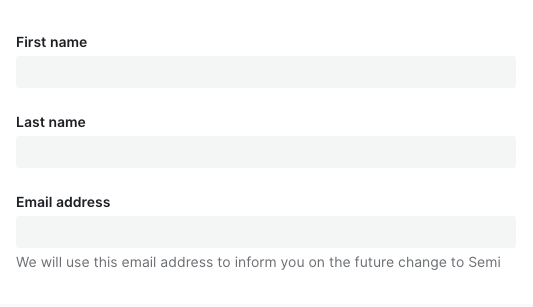 | 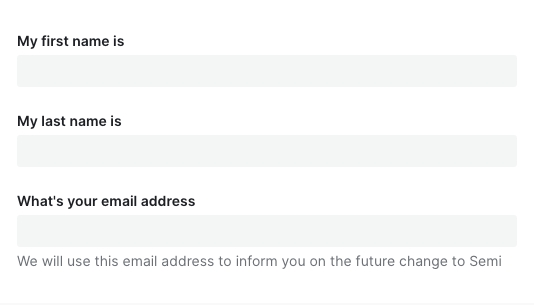 |
设计变量
| Sass 变量 | 值 | 用法 |
|---|---|---|
| $spacing-form_field_horizontal-paddingRight | $spacing-base | 水平布局表单项右侧内边距 |
| $spacing-form_field_group_horizontal-paddingRight | $spacing-base | 水平布局表单组标题右侧内边距 |
| $spacing-form_field_vertical-paddingTop | $spacing-base-tight | 表单项顶部内边距(垂直布局) |
| $spacing-form_field_vertical-paddingBottom | $spacing-base-tight | 表单项底部内边距(垂直布局) |
| $spacing-form_field_group_vertical-paddingTop | $spacing-base-tight | 垂直布局表单组顶部内边距 |
| $spacing-form_field_group_vertical-paddingBottom | $spacing-base-tight | 垂直布局表单组底部内边距 |
| $spacing-form_label-paddingRight | $spacing-base | 表单项标签右侧边距(水平布局) |
| $spacing-form_label-paddingTop | ($height-control-default - 20px) * 0.5 | 表单项标签顶部内边距(水平布局) |
| $spacing-form_label-marginBottom | $spacing-extra-tight | 表单项标签底部外边距 |
| $spacing-form_label-marginTop | 0px | 表单项标签顶部外边距 |
| $spacing-form_label_extra-marginLeft | $spacing-extra-tight | 表单项标签额外信息左侧边距 |
| $spacing-form_label_required-marginLeft | $spacing-extra-tight | 表单项标签必填标志左侧边距 |
| $spacing-form_label_posLeft-marginRight | 0 | 表单项左侧标签右侧外边距 |
| $spacing-form_label_posLeft-marginBottom | 0 | 表单项左侧标签底部外边距 |
| $spacing-form_label_posTop-paddingTop | $spacing-extra-tight | 表单项顶部标签顶部边距 |
| $spacing-form_label_posTop-paddingBottom | $spacing-extra-tight | 表单项顶部标签底部边距 |
| $spacing-form_extra_posMid-marginTop | $spacing-extra-tight | 表单项额外提示信息顶部外边距 - 额外信息处于中间时 |
| $spacing-form_extra_posMid-marginBottom | $spacing-extra-tight | 表单项额外提示信息底部外边距 - 额外信息处于中间时 |
| $spacing-form_extra_posBottom-marginTop | $spacing-extra-tight | 表单项额外提示信息顶部外边距 - 额外信息处于底部时 |
| $spacing-form_switch_rating_marginY | ($height-control-default - 24px) * 0.5 | Switch / Rating 表单项顶部内边距(水平布局) |
| $color-form_requiredMark_disabled-text-default | var(--semi-color-danger) | 禁用表单项必填标记颜色 |
| $color-form_label_disabled-text-default | var(--semi-color-disabled-text) | 禁用表单项标签文字颜色 |
| $font-form_label-fontWeight | $font-weight-bold | 表单项标签字重 |
| $color-form_label-text-default | var(--semi-color-text-0) | 表单项标签文字颜色 |
| $color-form_label_optional-text-default | var(--semi-color-tertiary) | 表单项标签可选标记颜色 |
| $color-form_label_extra-text-default | var(--semi-color-tertiary) | 表单项标签图标颜色 |
| $color-form_requiredMark-text-default | var(--semi-color-danger) | 必填标记颜色 |
| $font-form_requiredMark-fontWeight | $font-weight-bold | 表单必填标识字重 |
| $color-form_message_error-text-default | var(--semi-color-danger) | 错误提示颜色 |
| $color-form_alertIcon-icon-default | var(--semi-color-warning) | 警告图标颜色 |
| $spacing-form_statusIcon-marginRight | $spacing-extra-tight | 表单校验状态图标右侧外边距 |
| $spacing-form_message-marginTop | $spacing-extra-tight | 表单错误信息、辅助文字顶部外边距 |
| $color-form_section-text-default | var(--semi-color-text-0) | 表单分组标题文字颜色 |
| $color-form_section-border-default | var(--semi-color-border) | 表单分组标题底部描边颜色 |
| $width-form_section-border | $border-thickness-control | 表单分组标题底部描边宽度 |
| $spacing-form_section-marginTop | $spacing-super-loose - $spacing-base-tight | 表单分组顶部内边距 |
| $spacing-form_section_text-paddingBottom | $spacing-tight | 表单分组标题底部内边距 |
| $spacing-form_section_text-marginBottom | $spacing-extra-tight | 表单分组标题底部外边距 |
| $spacing-form_section_text-paddingTop | 0px | 表单分组标题顶部内边距 |
| $spacing-form_section_text-marginTop | 0px | 表单分组标题顶部外边距 |
FAQ
-
为什么我声明了表单,对值进行了修改,数据没有自动映射到 formState.values 中?
请检查是否正确传入了 field,Field 上的field属性是必填项!!! -
为什么传入了 defaultValue、defaultChecked 不生效?
请参考文档开头表单控件,Field 组件对默认值做了统一处理,你应该使用initValue或者initValues来传入默认值 -
为什么异步更新了 initValue、initValues 后,组件没有发生变化,值没有生效?
initValue、initValues只在 Field、Form mounted 时进行消费,后续做的异步更新并不会起效。
如果你的初始值需要从远程取,那么你可以在获取到值之后,使用formApi.setValue/setValues进行更新。
或者直接给 Form、Field 传入一个新的key强制它重新挂载 -
为什么调用了 formApi.setValues 更新 fields 的值,但是实际渲染并没有更新?
setValues 默认情况下对尚未存在的 field 进行赋值不会生效。如果你的 fields 是动态加载的话,请检查在 setValues 时,该 field 是否已 mounted。
如有需要,可以使用 override 模式formApi.setValues(newValue, { isOverride: true }) -
为什么 rules 中的 validator 校验失败,但是对应的错误信息没有被展示?
async-validator 的自定义 validator 返回值必须是 boolean 类型,否则它不执行任何回调,semi 后续的钩子也不会被调用。建议通过加 !! 或者 Boolean() 强制转换返回类型
-
为什么 getValues 拿不到某个 field?
field 没有初始值的话,
getValues获取不到这一项。可以设置initValues/initValue或者给 form 设置allowEmpty属性。 -
为什么在输入框(如 Input)上敲击 enter 回车键会触发了 Form 的 submit?
这个是标准 HTML 行为,我们不计划进行干预,会与原生保持一致。如果表单内确实只有一个 Input 元素,又不想回车时触发 submit 回调,建议对 Input 的 keydown 事件的 enter 采取 preventDefault 阻止默认行为。
点击 #767 查看相关背景和内容。
-
表单会自动保存历史输入项,不想要这个功能怎么办?
在 v2.3 之前,Form 并没有严格按照 A11y 无障碍标准为输入控件配置for、name、id等属性,因此在之前的版本并没有该功能。v2.3 后我们严格按照 W3C 标准进行了实现。如果你不希望浏览器自动保存历史输入项,也可以通过在 Form 级别或者 Field 级别设置autoComplete=off关掉