表单(Form)
- 按需重绘,避免了不必要的全量渲染, 性能更高
- 简单易用,结构极简,避免了不必要的层级嵌套
- 完善的无障碍支持
- 在 Form 外部可方便地获取 formState / fieldState
提供在外部对表单内部进行操作的方法:formApi / fieldApi - 支持将自定义组件封装成表单控件,你可以通过 Form 提供的扩展机制(withField)快捷接入自己团队的组件
- 支持 Form level / Field level 级别的赋值、校验(同步/异步)
表单控件(Field)
Semi 将所有自带的输入控件(文本输入框、下拉选择、复选框、单选框等)都使用 withField 封装了一次。接管了他们的数据流(value & onChange)
使用的时候,需要使用以 Form 开头的控件(注意:只有这些控件才具有数据同步功能),它们是具名导出,不挂载在 Form 上
目前 Form 提供了如下表单控件
- 表单控件:
FormInput、FormInputNumber、FormTextArea、FormSelect、FormCheckbox、FormCheckboxGroup、FormRadio、FormRadioGroup、FormSwitch、FormDatePicker、FormTimePicker、FormSlider、FormTreeSelect、FormCascader、FormRating、FormAutoComplete、FormUpload、FormPinCode、FormTagInput - 其他部件:
ArrayField,以及挂载在 Form 下的Form.InputGroup、Form.Label、Form.ErrorMessage、Form.Section、Form.Slot
// 具有数据同步功能的表单控件,在 <Form> 内使用时,数据流会被 Form 自动接管
import { Form, FormInput, FormSelect, FormCheckbox, FormCheckboxGroup, FormRadio, FormRadioGroup, FormSwitch, FormDatePicker, FormTimePicker, FormInputNumber, FormTextArea, FormSlider, FormTreeSelect, FormCascader, FormRating, FormUpload, FormTagInput } from '@fibrous/semi-ui-solid';
// 动态表单与 Hooks
import { ArrayField, useFormApi, useFormState, useFieldApi, useFieldState, withField } from '@fibrous/semi-ui-solid';
// 普通 Input,在 <Form> 内部使用时,Form 不会对其做任何处理
import { Input } from '@fibrous/semi-ui-solid';
Form 提供的 Field 级别组件,它的 value(或者 valueKey 指定的其他属性)、onChange(或 onKeyChangeFnName 指定的其他回调)都会被 Form 接管,所以
代码演示
声明表单的多种写法
Semi Form 同时支持多种写法
基本写法
使用 FormInput、FormSelect 等以 Form 开头的表单控件,给表单控件添加field属性,将其放置于 Form 内部即可
还可以给每个表单控件设置label属性,不传入时默认与 field 相同
label可以直接传入字符串或 JSX,亦可以以 object 方式声明,配置 text、extra、required、optional、align、width 等属性应对更复杂的场景,其中 text、extra 都可以是 JSX(如下例的帮助图标)
代码
import { IconHelpCircle } from '@fibrous/semi-icons-solid';
import { Form, FormInput, FormSelect, Tooltip } from '@fibrous/semi-ui-solid';

export default function FormDemo() {
    return (
        <Form layout="horizontal" onValueChange={(values) => console.log(values)}>
            <FormInput field="UserName" label="用户名" style={{ width: '80px' }} />
            <FormInput
                field="Password"
                label={{
                    text: '密码',
                    extra: (
                        <Tooltip content="详情">
                            <IconHelpCircle aria-label="帮助" style={{ color: 'var(--semi-color-text-2)' }} />
                        </Tooltip>
                    ),
                }}
                style={{ width: '176px' }}
            />
            <FormSelect field="Role" label={{ text: '角色', optional: true }} style={{ width: '176px' }}>
                <FormSelect.Option value="admin">管理员</FormSelect.Option>
                <FormSelect.Option value="user">普通用户</FormSelect.Option>
                <FormSelect.Option value="guest">访客</FormSelect.Option>
            </FormSelect>
        </Form>
    );
}
支持的其他写法
当你需要在 Form 结构内部直接获取到 formState、formApi、values 等值时,你还可以使用以下的写法
render、child render function、component 三种写法收到的参数相同:{ formState, values, formApi }。它们都只调用一次,参数里的 formState、values 是随表单更新的属性,需要在返回的 JSX 中读取(如 form.values.name);不要在函数体顶部解构它们,否则只能取到初始值
通过 render 属性传入
即 render props
代码
import { Form, FormInput, FormSelect } from '@fibrous/semi-ui-solid';

export default function FormDemo() {
    return (
        <Form
            render={(form) => (
                <>
                    <FormSelect field="Role" label="角色" style={{ width: '176px' }}>
                        <FormSelect.Option value="admin">管理员</FormSelect.Option>
                        <FormSelect.Option value="user">普通用户</FormSelect.Option>
                        <FormSelect.Option value="guest">访客</FormSelect.Option>
                    </FormSelect>
                    <FormInput field="UserName" label="用户名" style={{ width: '80px' }} />
                    <FormInput field="Password" label="密码" style={{ width: '176px' }} />
                    <code style={{ 'margin-top': '24px' }}>{JSON.stringify(form.formState)}</code>
                </>
            )}
            layout="horizontal"
            onValueChange={(values) => console.log(values)}
        />
    );
}
通过 child render function
Form 的 children 是一个 function,return 出所有表单控件。函数需要声明参数,没有参数的函数会被当作普通 children 处理
代码
import { Form, FormInput, FormSelect } from '@fibrous/semi-ui-solid';

export default function FormDemo() {
    return (
        <Form layout="horizontal" onValueChange={(values) => console.log(values)}>
            {(form) => (
                <>
                    <FormSelect field="Role" label="角色" style={{ width: '176px' }}>
                        <FormSelect.Option value="admin">管理员</FormSelect.Option>
                        <FormSelect.Option value="user">普通用户</FormSelect.Option>
                        <FormSelect.Option value="guest">访客</FormSelect.Option>
                    </FormSelect>
                    <FormInput field="UserName" label="用户名" style={{ width: '80px' }} />
                    <FormInput field="Password" label="密码" style={{ width: '176px' }} />
                    <code style={{ 'margin-top': '24px' }}>{JSON.stringify(form.formState)}</code>
                </>
            )}
        </Form>
    );
}
通过 component 属性
通过 component 属性直接将整个内部结构以组件形式传入,formState、values、formApi 作为该组件的 props
代码
import { Form, FormInput, type FormRenderProps } from '@fibrous/semi-ui-solid';

function Fields(props: FormRenderProps) {
    return (
        <>
            <FormInput field="Role" style={{ width: '176px' }} />
            <FormInput field="UserName" style={{ width: '80px' }} />
            <FormInput field="Password" style={{ width: '176px' }} />
            <code style={{ 'margin-top': '24px' }}>{JSON.stringify(props.formState)}</code>
        </>
    );
}

export default function FormDemo() {
    return <Form component={Fields} layout="horizontal" onValueChange={(values) => console.log(values)} />;
}
已支持的表单控件
代码
import { IconUpload } from '@fibrous/semi-icons-solid';
import { Button, Col, Form, FormCascader, FormCheckbox, FormCheckboxGroup, FormDatePicker, FormInput, FormInputNumber, FormRadio, FormRadioGroup, FormRating, FormSelect, FormSlider, FormSwitch, FormTagInput, FormTextArea, FormTimePicker, FormTreeSelect, FormUpload, Row, Space } from '@fibrous/semi-ui-solid';

const today = new Date(2024, 4, 6, 12);

const initValues = {
    name: 'semi',
    business: ['ulikeCam'],
    role: 'ued',
    switch: true,
    files: [
        {
            uid: '1',
            name: 'vigo.png',
            status: 'success',
            size: '130KB',
            preview: true,
            url: '/assets/placeholder/avatar-d.svg',
        },
        {
            uid: '2',
            name: 'resso.jpeg',
            status: 'validateFail',
            size: '222KB',
            percent: 50,
            preview: true,
            fileInstance: new File([new ArrayBuffer(2048)], 'resso.jpeg', { type: 'image/jpeg' }),
            url: '/assets/placeholder/avatar-b.svg',
        },
        {
            uid: '3',
            name: 'douyin.jpeg',
            status: 'uploading',
            size: '222KB',
            percent: 50,
            preview: true,
            fileInstance: new File([new ArrayBuffer(2048)], 'dy.jpeg', { type: 'image/jpeg' }),
            url: '/assets/placeholder/avatar-a.svg',
        },
    ],
};

const treeData = [
    {
        label: '亚洲',
        value: 'Asia',
        key: '0',
        children: [
            {
                label: '中国',
                value: 'China',
                key: '0-0',
                children: [
                    {
                        label: '北京',
                        value: 'Beijing',
                        key: '0-0-0',
                    },
                    {
                        label: '上海',
                        value: 'Shanghai',
                        key: '0-0-1',
                    },
                ],
            },
        ],
    },
    {
        label: '北美洲',
        value: 'North America',
        key: '1',
    },
];

const style = { width: '90%' };

export default function FormDemo() {
    return (
        <Form initValues={initValues} style={{ padding: '10px', width: '100%' }} onValueChange={(v) => console.log(v)}>
            <Form.Section text="基本信息">
                <Row>
                    <Col span={12}>
                        <FormInput field="name" label="名称(Input)" initValue="mikeya" style={style} trigger="blur" />
                    </Col>
                    <Col span={12}>
                        <FormDatePicker field="date" label="日期(DatePicker)" style={style} initValue={today} placeholder="请选择生效日期" />
                    </Col>
                </Row>
                <Row>
                    <Col span={12}>
                        <FormSelect field="role" style={style} label="角色(Select)" placeholder="请选择你的角色">
                            <FormSelect.Option value="operate">运营</FormSelect.Option>
                            <FormSelect.Option value="rd">开发</FormSelect.Option>
                            <FormSelect.Option value="pm">产品</FormSelect.Option>
                            <FormSelect.Option value="ued">设计</FormSelect.Option>
                        </FormSelect>
                    </Col>
                    <Col span={12}>
                        <FormSelect field="business" multiple style={style} placeholder="请选择业务线" label="业务线(多选Select)" extraText={<div style={{ color: 'var(--semi-blue-5)', 'font-size': '14px', 'user-select': 'none', cursor: 'pointer' }}>没有找到合适的业务线?</div>}>
                            <FormSelect.Option value="abc">Semi</FormSelect.Option>
                            <FormSelect.Option value="ulikeCam">轻颜相机</FormSelect.Option>
                            <FormSelect.Option value="toutiao">今日头条</FormSelect.Option>
                        </FormSelect>
                    </Col>
                </Row>
                <Row>
                    <Col span={12}>
                        <FormCascader placeholder="请选择所在地区" treeData={treeData} field="area" label="地区(Cascader)" style={style} />
                    </Col>
                    <Col span={12}>
                        <FormTreeSelect field="tree" style={style} label="节点(TreeSelect)" placeholder="请选择服务节点" treeData={treeData} filterTreeNode />
                    </Col>
                </Row>
                <Row>
                    <Col span={12}>
                        <FormTagInput field="product" label="产品(TagInput)" initValue={['abc', 'ulikeCam']} placeholder="请输入产品" style={style} />
                    </Col>
                </Row>
                <Row>
                    <Col span={24}>
                        <FormUpload field="files" label="证明文件(Upload)" action="//semi.design/api/upload">
                            <Button icon={<IconUpload />} theme="light">
                                点击上传
                            </Button>
                        </FormUpload>
                    </Col>
                </Row>
            </Form.Section>
            <Form.Section text="资源详情">
                <Row>
                    <Col span={12}>
                        <FormTextArea style={{ ...style, height: '120px' }} field="description" label="申请理由(TextArea)" placeholder="请填写申请资源理由" />
                    </Col>
                    <Col span={12}>
                        <FormCheckboxGroup field="type" direction="horizontal" label="申请类型(CheckboxGroup)" initValue={['user', 'admin']} rules={[{ required: true }]}>
                            <FormCheckbox value="admin">admin</FormCheckbox>
                            <FormCheckbox value="user">user</FormCheckbox>
                            <FormCheckbox value="guest">guest</FormCheckbox>
                            <FormCheckbox value="root">root</FormCheckbox>
                        </FormCheckboxGroup>
                        <FormRadioGroup field="isMonopolize" label="是否独占资源(Radio)" rules={[{ type: 'boolean' }, { required: true, message: '必须选择是否独占 ' }]}>
                            <FormRadio value={1}>是</FormRadio>
                            <FormRadio value={0}>否</FormRadio>
                        </FormRadioGroup>
                    </Col>
                </Row>
                <Row>
                    <Col span={12}>
                        <FormTimePicker field="time" label="截止时刻(TimePicker)" style={{ width: '90%' }} />
                    </Col>
                    <Col span={12}>
                        <FormInputNumber field="number" label="申请数量(InputNumber)" initValue={20} style={style} />
                    </Col>
                </Row>
                <Row>
                    <Col span={12}>
                        <FormSlider field="range" label="资源使用报警阈值(%)(Slider)" initValue={10} style={{ width: '90%' }} />
                    </Col>
                    <Col span={12}>
                        <FormSwitch field="switch" label="开关(Switch)" />
                    </Col>
                </Row>
                <Row>
                    <Col span={12}>
                        <FormRating field="rating" label="满意度(Rating)" initValue={2} style={{ width: '90%' }} />
                    </Col>
                </Row>
            </Form.Section>
            <FormCheckbox value="false" field="agree" noLabel>
                我已阅读并清楚相关规定(Checkbox)
            </FormCheckbox>
            <Space>
                <Button type="primary" htmlType="submit" class="btn-margin-right">
                    提交(submit)
                </Button>
                <Button htmlType="reset">重置(reset)</Button>
            </Space>
        </Form>
    );
}
表单控件值的绑定
每个表单控件都需要以field属性绑定一个字段名称,用于将表单项的值正确映射到FormState values / errors / touched 中
字段可以是简单的字符串,可以是包含.或者[]的字符串, 支持多级嵌套
下面是字段名称以及他们在 FormState 中的映射路径的示例
| Field | Resolution |
|---|---|
| username | formState.values.username |
| user[0] | formState.values.user[0] |
| siblings.1 | formState.values.siblings[1] |
| siblings['2'] | formState.values.siblings[2] |
| parents[0].name | formState.values.parents[0].name |
| parents[1]['name'] | formState.values.parents[1].name |
代码
import { Col, Form, FormInput, Row, TextArea, Toast } from '@fibrous/semi-ui-solid';

export default function FormDemo() {
    return (
        <Form onSubmit={(values) => Toast.info({ content: JSON.stringify(values) })}>
            {(form) => (
                <Row>
                    <Col span={12}>
                        <FormInput field="username" aria-label="username" placeholder="请尝试输入值" />
                        <FormInput field="user[0]" aria-label="user[0]" placeholder="请尝试输入值" />
                        <FormInput field="siblings.1" aria-label="siblings.1" placeholder="请尝试输入值" />
                        <FormInput field="siblings['2']" aria-label="siblings['2']" placeholder="请尝试输入值" />
                        <FormInput field="parents[0].name" aria-label="parents[0].name" placeholder="请尝试输入值" />
                        <FormInput field="parents[1]['name']" aria-label="parents[1]['name']" placeholder="请尝试输入值" />
                    </Col>
                    <Col span={10} offset={1} style={{ 'margin-top': '12px' }}>
                        <Form.Label text="FormState实时映射值:" />
                        <TextArea aria-label="FormState实时映射值" value={JSON.stringify(form.formState.values)} />
                    </Col>
                </Row>
            )}
        </Form>
    );
}
表单布局
- 垂直布局:表单控件之间上下垂直排列(默认)
Semi Design Next 更推荐表单采用垂直布局
代码
import { Button, Form, FormCheckbox, FormInput, Toast } from '@fibrous/semi-ui-solid';

export default function FormDemo() {
    const handleSubmit = (values: Record<string, unknown>) => {
        console.log(values);
        Toast.info('表单已提交');
    };
    return (
        <Form onSubmit={(values) => handleSubmit(values)} style={{ width: '400px' }}>
            {(form) => (
                <>
                    <FormInput field="phone" label="PhoneNumber" style={{ width: '100%' }} placeholder="Enter your phone number" />
                    <FormInput field="password" label="Password" style={{ width: '100%' }} placeholder="Enter your password" />
                    <FormCheckbox field="agree" noLabel>
                        I have read and agree to the terms of service
                    </FormCheckbox>
                    <div style={{ display: 'flex', 'justify-content': 'space-between', 'align-items': 'center' }}>
                        <p>
                            <span>Or</span>
                            <Button theme="borderless" style={{ color: 'var(--semi-color-primary)', 'margin-left': '10px', cursor: 'pointer' }}>
                                Sign up
                            </Button>
                        </p>
                        <Button disabled={!form.values.agree} htmlType="submit" type="tertiary">
                            Log in
                        </Button>
                    </div>
                </>
            )}
        </Form>
    );
}- 水平布局:表单控件之间水平排列你可以通过设置
layout='horizontal'来使用水平布局
代码
import { Form, FormInput } from '@fibrous/semi-ui-solid';

export default function FormDemo() {
    return (
        <Form layout="horizontal">
            <FormInput field="phone" label="PhoneNumber" placeholder="Enter your phone number" />
            <FormInput field="password" label="Password" placeholder="Enter your password" />
        </Form>
    );
}- labelPosition、labelAlign
你可以通过设置 labelPosition、labelAlign 控制 label 在 Field 中出现的位置,文本对齐的方向
代码
import { createSignal } from 'solid-js';
import { Form, FormCheckbox, FormCheckboxGroup, FormInput, FormInputNumber, FormRadio, FormRadioGroup, FormSelect, FormSwitch, Select, type FormProps } from '@fibrous/semi-ui-solid';

const rules = [
    { required: true, message: 'required error' },
    { type: 'string' as const, message: 'type error' },
    { validator: (_rule: unknown, value: unknown) => value === 'semi', message: 'should be semi' },
];

export default function FormDemo() {
    const [labelPosition, setLabelPosition] = createSignal<FormProps['labelPosition']>('left');
    const [labelAlign, setLabelAlign] = createSignal<FormProps['labelAlign']>('left');
    const labelWidth = () => (labelPosition() === 'left' ? '180px' : 'auto');

    return (
        <>
            <div style={{ 'border-bottom': '1px solid var(--semi-color-border)', 'padding-bottom': '12px' }}>
                <Form.Label style={{ 'margin-left': '10px' }}>切换Label位置:</Form.Label>
                <Select onChange={(value) => setLabelPosition(value as FormProps['labelPosition'])} value={labelPosition()} style={{ width: '200px' }} prefix="labelPosition">
                    <Select.Option value="top">top</Select.Option>
                    <Select.Option value="left">left</Select.Option>
                </Select>
                <Form.Label style={{ 'margin-left': '10px' }}>切换Label文本对齐方向:</Form.Label>
                <Select onChange={(value) => setLabelAlign(value as FormProps['labelAlign'])} value={labelAlign()} style={{ width: '200px' }} prefix="labelAlign">
                    <Select.Option value="left">left</Select.Option>
                    <Select.Option value="right">right</Select.Option>
                </Select>
            </div>
            <Form labelPosition={labelPosition()} labelWidth={labelWidth()} labelAlign={labelAlign()} style={{ padding: '10px', width: '600px' }}>
                <FormInput field="input" label="手机号码" trigger="blur" style={{ width: '200px' }} rules={rules} />
                <FormSwitch label="是否同意" field="agree" />
                <FormInputNumber field="price" label="价格" style={{ width: '200px' }} />
                <FormSelect label="姓名" field="name" style={{ width: '200px' }}>
                    <FormSelect.Option value="mike">mike</FormSelect.Option>
                    <FormSelect.Option value="jane">jane</FormSelect.Option>
                    <FormSelect.Option value="kate">kate</FormSelect.Option>
                </FormSelect>
                <FormCheckboxGroup label="角色" field="role" direction="horizontal">
                    <FormCheckbox value="admin">admin</FormCheckbox>
                    <FormCheckbox value="user">user</FormCheckbox>
                    <FormCheckbox value="guest">guest</FormCheckbox>
                    <FormCheckbox value="root">root</FormCheckbox>
                </FormCheckboxGroup>
                <FormRadioGroup field="性别">
                    <FormRadio value="1">man</FormRadio>
                    <FormRadio value="2">woman</FormRadio>
                </FormRadioGroup>
            </Form>
        </>
    );
}- 更复杂的布局你还可以结合 Grid 提供的 Row、Col,来对表单进行你想要的排列
代码
import { Col, Form, FormDatePicker, FormInput, FormSelect, Row } from '@fibrous/semi-ui-solid';

const rules = [
    { required: true, message: 'required error' },
    { type: 'string' as const, message: 'type error' },
    { validator: (_rule: unknown, value: unknown) => value === 'semi', message: 'should be semi' },
];

export default function FormDemo() {
    return (
        <Form labelPosition="top" style={{ padding: '10px' }}>
            <Row>
                <Col span={8}>
                    <FormInput field="nickName1" label="用户名" style={{ width: '250px' }} trigger="blur" rules={rules} />
                </Col>
                <Col span={8}>
                    <FormDatePicker field="date1" label="有效日期" style={{ width: '250px' }} />
                </Col>
                <Col span={8}>
                    <FormSelect label="业务线" field="business1" style={{ width: '250px' }}>
                        <FormSelect.Option value="abc">Semi</FormSelect.Option>
                        <FormSelect.Option value="ulikeCam">轻颜相机</FormSelect.Option>
                        <FormSelect.Option value="toutiao">今日头条</FormSelect.Option>
                    </FormSelect>
                </Col>
            </Row>
            <Row>
                <Col span={6}>
                    <FormInput field="nickName2" label="用户名" style={{ width: '200px' }} trigger="blur" rules={rules} />
                </Col>
                <Col span={6}>
                    <FormDatePicker field="date2" label="有效日期" style={{ width: '200px' }} />
                </Col>
                <Col span={6}>
                    <FormSelect label="业务线" field="business2" style={{ width: '200px' }}>
                        <FormSelect.Option value="abc">Semi</FormSelect.Option>
                        <FormSelect.Option value="ulikeCam">轻颜相机</FormSelect.Option>
                        <FormSelect.Option value="toutiao">今日头条</FormSelect.Option>
                    </FormSelect>
                </Col>
                <Col span={6}>
                    <FormSelect field="role" label="角色" style={{ width: '200px' }}>
                        <FormSelect.Option value="operate">运营</FormSelect.Option>
                        <FormSelect.Option value="rd">开发</FormSelect.Option>
                        <FormSelect.Option value="pm">产品</FormSelect.Option>
                        <FormSelect.Option value="ued">设计</FormSelect.Option>
                    </FormSelect>
                </Col>
            </Row>
        </Form>
    );
}
表单分组
字段数量较多的表单应考虑对字段进行分组,可以使用Form.Section对 Fields 进行分组,分组标题通过 text 属性传入(仅影响布局,不会影响数据结构)
代码
import { Button, Form, FormCheckbox, FormDatePicker, FormInput, FormInputNumber, FormRadio, FormRadioGroup, FormSelect, FormSwitch, Space } from '@fibrous/semi-ui-solid';

const today = new Date(2024, 4, 6, 12);

export default function FormDemo() {
    return (
        <Form style={{ width: '560px' }}>
            <Form.Section text="基本信息">
                <FormInput field="name" label="考试名称" initValue="TCS任务平台使用" style={{ width: '560px' }} />
            </Form.Section>
            <Form.Section text="合格标准">
                <div style={{ display: 'flex' }}>
                    <FormInputNumber field="pass" initValue={60} style={{ width: '80px' }} label={{ text: '及格正确率', required: true }} />
                    <FormInputNumber field="number" initValue={10} style={{ width: '80px' }} label={{ text: '合格人数', required: true }} />
                </div>
            </Form.Section>
            <Form.Section text="考试时间">
                <FormDatePicker field="date" type="dateTime" initValue={today} style={{ width: '272px' }} label={{ text: '开始时间', required: true }} />
                <div style={{ display: 'flex' }}>
                    <FormInput field="time" label="考试时长" style={{ width: '176px' }} initValue="60" addonAfter="分钟" />
                    <FormCheckbox initValue noLabel field="auto" style={{ 'padding-top': '30px', 'margin-inline-start': '12px' }}>
                        到时间自动交卷
                    </FormCheckbox>
                </div>
                <FormRadioGroup field="type" label="有效时间" direction="vertical" initValue="always">
                    <FormRadio value="always">永久有效</FormRadio>
                    <FormRadio value="user">自定义有效期</FormRadio>
                </FormRadioGroup>
                <FormRadioGroup field="answerTime" label="答案放出时间" direction="vertical" initValue="always" rules={[{ required: true }]}>
                    <FormRadio value="always">自动放出</FormRadio>
                    <FormRadio value="user">
                        <div style={{ display: 'inline-block' }}>
                            自定义放出时间
                            <FormDatePicker type="dateTimeRange" noLabel field="customTime" style={{ width: '464px', display: 'inline-block' }} />
                        </div>
                    </FormRadio>
                </FormRadioGroup>
            </Form.Section>
            <Form.Section text="考试人员">
                <div style={{ display: 'flex' }}>
                    <FormSwitch field="open" label={{ text: '对外开放', required: true }} checkedText="开" uncheckedText="关" />
                </div>
                <FormSelect field="users" label={{ text: '考生', required: true }} style={{ width: '560px' }} multiple initValue={['1', '2', '3', '4']}>
                    <FormSelect.Option value="1">曲晨一</FormSelect.Option>
                    <FormSelect.Option value="2">夏可曼</FormSelect.Option>
                    <FormSelect.Option value="3">曲晨三</FormSelect.Option>
                    <FormSelect.Option value="4">蔡妍</FormSelect.Option>
                </FormSelect>
            </Form.Section>
            <Space>
                <Button type="primary" theme="solid" style={{ width: '120px', 'margin-top': '12px', 'margin-inline-end': '4px' }}>
                    创建考试
                </Button>
                <Button style={{ 'margin-top': '12px' }}>预览</Button>
            </Space>
        </Form>
    );
}
wrapperCol / labelCol
需要为 Form 内的所有 Field 设置统一的布局时,可以在 Form 上设置 wrapperCol 、labelCol 快速生成布局,无需手动使用 Row、Col 手动布局
wrapperCol、labelCol属性配置参考Col 组件
代码
import { Form, FormInput, FormSelect } from '@fibrous/semi-ui-solid';

export default function FormDemo() {
    return (
        <Form wrapperCol={{ span: 20 }} labelCol={{ span: 2 }} labelPosition="left" labelAlign="right">
            <FormInput field="name" style={{ width: '250px' }} label="姓名" trigger="blur" placeholder="请输入姓名" />
            <FormSelect field="role" label="角色" placeholder="请选择角色" style={{ width: '250px' }}>
                <FormSelect.Option value="operate">运营</FormSelect.Option>
                <FormSelect.Option value="rd">开发</FormSelect.Option>
                <FormSelect.Option value="pm">产品</FormSelect.Option>
                <FormSelect.Option value="ued">设计</FormSelect.Option>
            </FormSelect>
        </Form>
    );
}
隐藏Label
Form 会自动为 Field 控件插入 Label。如果你不需要自动插入 Label 模块, 可以通过在 Field 中设置noLabel=true将自动插入 Label 功能关闭(此时 Field 仍然具备自动展示 ErrorMessage 的能力,因此 DOM 结构与原始控件依然会有区别)
如果你希望与原始控件保持 DOM 结构一致,可以使用 pure=true,此时除了数据流被接管外,DOM结构不会有任何变化(你需要自行负责 ErrorMessage的渲染,同时它也无法被 formProps.wrapperCol 属性影响)
代码
import { Form, FormInput } from '@fibrous/semi-ui-solid';

export default function FormDemo() {
    return (
        <Form onSubmit={(values) => console.log(values)} style={{ width: '400px' }}>
            <FormInput field="name" label="姓名" trigger="blur" noLabel style={{ width: '250px' }} placeholder="请输入姓名" />
            <FormInput field="purename" pure placeholder="DOM结构与普通 Input 组件完全一致" />
        </Form>
    );
}
内嵌 Label
通过将 labelPosition 设为inset,可以将 Label 内嵌在表单控件中。目前支持这项功能的组件有Input、InputNumber、DatePicker、TimePicker、Select、TreeSelect、Cascader、TagInput、AutoComplete。其余字段在 labelPosition 为inset时按top布局,并在开发模式下给出警告。
用 withField 封装的自定义组件在 labelPosition 为inset时会收到 insetLabel 与 insetLabelId 两个 props:组件需要自行渲染内嵌标签,并把 insetLabelId 写到承载标签的元素上;不渲染内嵌标签的组件不应使用inset。
代码
import { Form, FormDatePicker, FormInput, FormSelect } from '@fibrous/semi-ui-solid';

const today = new Date(2024, 4, 6, 12);

export default function FormDemo() {
    return (
        <Form labelPosition="inset" layout="horizontal">
            <FormInput field="name" label="姓名" trigger="blur" style={{ width: '250px' }} placeholder="请输入姓名" initValue="semi" />
            <FormSelect field="role" label="角色" style={{ width: '250px' }} initValue="rd">
                <FormSelect.Option value="operate">运营</FormSelect.Option>
                <FormSelect.Option value="rd">开发</FormSelect.Option>
                <FormSelect.Option value="pm">产品</FormSelect.Option>
                <FormSelect.Option value="ued">设计</FormSelect.Option>
            </FormSelect>
            <FormDatePicker field="date" label="开始日期" style={{ width: '250px' }} initValue={today} />
        </Form>
    );
}
导出 Label、ErrorMessage 使用
如果你需要 Form.Label、Form.ErrorMessage 模块自行组合使用,可以从 Form 中导出
- Label 的 API 详见 Label
- ErrorMessage 的 API 详见 ErrorMessage
例如:当自带的 Label、ErrorMessage 布局不满足业务需求,需要自行组合位置,但又希望能直接使用 Label、ErrorMessage 的默认样式时
import { Form } from '@fibrous/semi-ui-solid';
const { Label, ErrorMessage } = Form;
使用 Form.Slot 放置自定义组件
当你的自定义组件,需要与 Field 组件保持同样的布局样式时,你可以通过 Form.Slot 放置你的自定义组件
在 Form 组件上设置的 labelWidth、labelAlign、wrapperCol、labelCol 会自动作用在 Form.Slot 上
Slot 属性配置详见Form.Slot
代码
import { Form, FormInput } from '@fibrous/semi-ui-solid';

export default function FormDemo() {
    return (
        <Form onChange={(v) => console.log(v)} onSubmit={(v) => console.log(v)} style={{ width: '600px' }} labelPosition="left" labelWidth={100}>
            <FormInput field="特效名称" style={{ width: '250px' }} />
            <Form.Slot label={{ text: 'SlotA' }} error="我是SlotA的ErrorMessage">
                <div style={{ display: 'flex', 'align-items': 'center', height: '32px', 'margin-top': '8px' }}>我是Semi Form SlotA, 我是自定义的节点</div>
            </Form.Slot>
            <Form.Slot label={{ text: 'SlotB', width: 160, align: 'right' }}>
                <div style={{ display: 'flex', 'align-items': 'center', height: '100%' }}>我是Semi Form SlotB, 我的Label Align、Width与众不同</div>
            </Form.Slot>
        </Form>
    );
}
使用 helpText、extraText 放置提示信息
可以通过helpText放置自定义提示信息(字符串或 JSX),与校验信息(error)公用同一区块展示,两者均有值时,优先展示校验信息。
可以通过extraText放置额外的提示信息,当需要错误信息和提示文案同时出现时,可以使用这个配置,常显,位于 helpText/error 后
当传入 validateStatus 时,优先展示 validateStatus 值对应的 UI 样式。不传入时,以 field 内部校验状态为准。
代码
import { createSignal } from 'solid-js';
import { Form, FormInput, type CommonFieldProps, type FormElement, type InputValidateStatus as ValidateStatus } from '@fibrous/semi-ui-solid';

export default function FormDemo() {
    const [weak, setWeak] = createSignal(false);
    const [validateStatus, setValidateStatus] = createSignal<ValidateStatus>('default');
    let form: FormElement | undefined;

    const validator: CommonFieldProps['validator'] = (val) => {
        if (!val) {
            setValidateStatus('error');
            return <span>密码不能为空</span>;
        } else if (val.length <= 3) {
            setValidateStatus('warning');
            setWeak(true); // 展示 helpText
            return ''; // 校验通过
        }
        setWeak(false);
        setValidateStatus('success');
        return '';
    };

    const random = () => {
        const pw = (Math.random() * 100000).toString().slice(0, 5);
        form?.formApi.setValue('Password', pw);
        form?.formApi.setError('Password', '');
        setWeak(false);
        setValidateStatus('success');
    };

    return (
        <Form showValidateIcon ref={(node) => (form = node)} onSubmit={() => console.log('submit success')} onSubmitFail={(errors) => console.log(errors)}>
            <FormInput
                validator={validator}
                field="Password"
                validateStatus={validateStatus()}
                helpText={weak() ? <span style={{ color: 'var(--semi-color-warning)' }}>密码强度:弱</span> : ''}
                extraText={
                    <button
                        type="button"
                        style={{
                            padding: 0,
                            border: 'none',
                            background: 'none',
                            font: 'inherit',
                            color: 'var(--semi-color-link)',
                            'font-size': '14px',
                            'user-select': 'none',
                            cursor: 'pointer',
                        }}
                        onClick={random}
                    >
                        没有想到合适的密码?点击随机生成一个
                    </button>
                }
            />
        </Form>
    );
}
通过配置 extraTextPosition,你可以控制 extraText 的显示位置。可选值 bottom、middle
例如如当你希望将 extraText 提示信息显示在 Label 与 Field 控件中间时
该属性可在 Form 上统一配置,亦可在每个 Field 上单独配置,同时传入时,以 Field 的配置为准。
代码
import { Form, FormCheckboxGroup, FormInputNumber } from '@fibrous/semi-ui-solid';

const options = [
    { label: '飞书通知', value: 'lark' },
    { label: '邮件通知', value: 'email' },
    { label: '顶部横幅通知', value: 'notification' },
];

const notifyText = '未勾选时,默认为红点提醒,消息默认进入收件人消息列表。对于重要通知,可同时勾选相应的通知方式。';
const forceText = '对于对话框通知,可指定该消息必须在指定时长后才可置为已读。';

export default function FormDemo() {
    return (
        <Form extraTextPosition="middle">
            <FormCheckboxGroup direction="horizontal" field="notify" label="通知方式" extraText={notifyText} options={options} />
            <FormInputNumber field="force" label="强制读取(可选)" placeholder="秒" extraText={forceText} extraTextPosition="bottom" />
        </Form>
    );
}
使用 InputGroup 组合多个 Field
当你需要将一些表单控件组合起来使用时,你可以用Form.InputGroup将其包裹起来,组内的表单控件不再单独渲染 Label 与错误信息,它们的错误信息合并显示在整个 Group 下方
而在Form.InputGroup中一般仅需要一个属于整个 Group 的 Label,你可以在 Form.InputGroup 中设置 label 属性,插入一个属于 Group 的Label
label可配置属性详见Label
代码
import { Button, Form, FormInput, FormSelect } from '@fibrous/semi-ui-solid';

export default function FormDemo() {
    return (
        <Form onSubmit={(values) => console.log(values)} labelPosition="top" style={{ width: '400px' }}>
            <Form.InputGroup label={{ text: <span>手机号码</span>, required: true }} labelPosition="top">
                <FormSelect style={{ width: '150px' }} field="phonePrefix" initValue="+86" rules={[{ required: true }]} showClear>
                    <FormSelect.Option value="+1">美国+1</FormSelect.Option>
                    <FormSelect.Option value="+852">香港+852</FormSelect.Option>
                    <FormSelect.Option value="+86">中国+86</FormSelect.Option>
                    <FormSelect.Option value="+81">日本+81</FormSelect.Option>
                </FormSelect>
                <FormInput initValue="18912345678" style={{ width: '250px' }} field="phoneNumber" rules={[{ required: true }]} showClear />
            </Form.InputGroup>
            <FormInput field="姓名" trigger="blur" initValue="Semi" />
            <Button htmlType="submit">提交</Button>
        </Form>
    );
}
Modal 弹出层中的表单
你可以将 Form 放置于 Modal 中,以弹窗形式承载
在提交时,通过 formApi.validate()对 Field 进行集中校验
代码
import { createSignal } from 'solid-js';
import { Button, Col, Form, FormInput, FormSelect, Modal, Row, type FormApi } from '@fibrous/semi-ui-solid';

const message = '该项为必填项';

export default function FormDemo() {
    const [visible, setVisible] = createSignal(false);
    let formApi: FormApi | undefined;

    const handleOk = () => {
        formApi
            ?.validate()
            .then((values) => {
                console.log(values);
            })
            .catch((errors) => {
                console.log(errors);
            });
    };

    return (
        <>
            <Button onClick={() => setVisible(true)}>打开弹窗</Button>
            <Modal title="新建" visible={visible()} onOk={handleOk} style={{ width: '600px' }} onCancel={() => setVisible(false)}>
                <Form getFormApi={(api) => (formApi = api)}>
                    <Row>
                        <Col span={5}>
                            <FormSelect field="region" label="国家/地区" placeholder="请选择" style={{ width: '100%' }} rules={[{ required: true, message }]}>
                                <FormSelect.Option value="China">中国</FormSelect.Option>
                                <FormSelect.Option value="US">美国</FormSelect.Option>
                                <FormSelect.Option value="Europe">欧洲</FormSelect.Option>
                                <FormSelect.Option value="Japan">日本</FormSelect.Option>
                            </FormSelect>
                        </Col>
                        <Col span={15} offset={2}>
                            <FormInput field="owner" label="业务执行人" trigger="blur" rules={[{ required: true, message }]} />
                        </Col>
                    </Row>
                    <Row>
                        <Col span={5}>
                            <FormSelect field="area" label="投放区域" placeholder="请选择" style={{ width: '100%' }} rules={[{ required: true, message }]}>
                                <FormSelect.Option value="China">中国</FormSelect.Option>
                                <FormSelect.Option value="US">美国</FormSelect.Option>
                                <FormSelect.Option value="Europe">欧洲</FormSelect.Option>
                                <FormSelect.Option value="Japan">日本</FormSelect.Option>
                            </FormSelect>
                        </Col>
                        <Col span={15} offset={2}>
                            <FormInput field="department" label="业务执行部门" trigger="blur" rules={[{ required: true, message }]} />
                        </Col>
                    </Row>
                </Form>
            </Modal>
        </>
    );
}
配置初始值与校验规则
- 你可以通过
rules为每个 Field 表单控件配置校验规则
Form 内部的校验库基于 async-validator,更多配置规则可查阅其官方文档 - 你可以通过 form 的
initValues为整个表单统一设置初始值,也可以在每个 field 中通过initValue设置初始值(后者优先级更高) - 可以通过 trigger 为每个 Field 配置不同的校验触发时机,默认为 change(即值变化时,自动进行校验)。还支持 change、blur、mount、custom 或以上的组合。也支持通过 FormProps 统一配置,若都配置时,以 FieldProps 为准
- 可以通过 stopValidateWithError 开关,决定使用 rules 校验时,当碰到第一个检验不通过的 rules 后,是否继续触发后续 rules 的校验。也支持通过 FormProps 统一配置,若都配置时,以 FieldProps 为准
代码
import { Button, Form, FormInput } from '@fibrous/semi-ui-solid';

const initValues = {
    name: 'semi',
    shortcut: 'se',
};

const style = { width: '100%' };

const rules = [
    { required: true, message: 'required error' },
    { type: 'string' as const, message: 'type error' },
    { validator: (_rule: unknown, value: unknown) => value === 'semi', message: 'should be semi' },
    {
        validator: (_rule: unknown, value: unknown) => Boolean(typeof value === 'string' && value.startsWith('se')),
        message: 'should startsWith se',
    },
];

export default function FormDemo() {
    return (
        <Form initValues={initValues}>
            <FormInput field="name" style={style} trigger="blur" rules={rules} />
            <FormInput field="shortcut" style={style} stopValidateWithError rules={rules} />
            <Button htmlType="submit">提交</Button>
        </Form>
    );
}
自定义校验(Form 级别)
你可以通过 validator 给Form整体设置自定义校验函数。submit 或调用 formApi.validate() 时会进行调用
同步校验
校验通过时,你应该返回一个空字符串;
校验失败时,你应该返回错误信息(Object,key 为 fieldName,value 为对应的错误信息)
代码
import { Button, Form, FormInput } from '@fibrous/semi-ui-solid';

interface FormValues {
    name?: string;
    sex?: string;
}

const syncValidate = (values: FormValues) => {
    const errors: Record<string, unknown> = {};
    if (values.name !== 'mike') {
        errors.name = 'you must name mike';
    }
    if (values.sex !== 'female') {
        errors.sex = 'must be woman';
    }
    errors.familyName = [{ before: 'before error balabala ', after: 'after error balabala' }, 'familyName[1] error balabala'];
    return errors;
};

export default function FormDemo() {
    return (
        <Form validator={syncValidate} layout="horizontal">
            <FormInput field="name" trigger="blur" />
            <FormInput field="familyName[0].before" trigger="blur" />
            <FormInput field="familyName[0].after" trigger="blur" />
            <FormInput field="familyName[1]" trigger="blur" />
            <div style={{ display: 'flex', 'align-items': 'flex-end' }}>
                <Button type="primary" htmlType="submit" class="btn-margin-right">
                    Submit
                </Button>
                <Button htmlType="reset">reset</Button>
            </div>
        </Form>
    );
}
异步校验
异步校验时,你应当返回一个 promise,在 promise.then()中 你需要 return 对应的错误信息
代码
import { Button, Form, FormInput } from '@fibrous/semi-ui-solid';

const sleep = (ms: number) => new Promise((resolve) => setTimeout(resolve, ms));

interface FormValues {
    name?: string;
    sex?: string;
}

const asyncValidate = (values: FormValues) =>
    sleep(2000).then(() => {
        const errors: FormValues = {};
        if (values.name !== 'mike') {
            errors.name = 'you must name mike';
        }
        if (values.sex !== 'female') {
            errors.sex = 'sex not valid';
        }
        return errors;
    });

export default function FormDemo() {
    return (
        <Form validator={asyncValidate} layout="horizontal">
            <FormInput field="name" trigger="blur" />
            <FormInput field="familyName[0].before" trigger="blur" />
            <FormInput field="familyName[1]" trigger="blur" />
            <FormInput field="sex" trigger="blur" />
            <div style={{ display: 'flex', 'align-items': 'flex-end' }}>
                <Button type="primary" htmlType="submit" class="btn-margin-right">
                    Submit
                </Button>
                <Button htmlType="reset">reset</Button>
            </div>
        </Form>
    );
}
自定义校验(Field 级别)
你可以通过 validator 指定单个表单控件的自定义校验函数,支持同步、异步校验(通过返回 promise)
代码
import { Button, Form, FormInput } from '@fibrous/semi-ui-solid';

const sleep = (ms: number) => new Promise((resolve) => setTimeout(resolve, ms));

const validateName = (val?: string) => {
    if (!val) {
        return "【sync】can't be empty";
    } else if (val.length <= 5) {
        return '【sync】must more than 5';
    }
    return '';
};

const asyncValidate = (val?: string) =>
    sleep(2000).then(() => {
        if (!val) {
            return "【async】can't be empty";
        } else if (val.length <= 5) {
            return '【async】must more than 5';
        } else {
            return '';
        }
    });

export default function FormDemo() {
    return (
        <Form>
            <FormInput field="name" label="【name】asyncValidate after 2s" validator={asyncValidate} trigger="blur" />
            <FormInput field="familyName" label="【familyName】syncValidate" validator={validateName} trigger="blur" />
            <Button htmlType="reset">reset</Button>
        </Form>
    );
}
手动触发指定 Field 校验
当你希望手动触发某些特定 Field 的校验操作时,可以通过 formApi.validate 完成。不传入参数时,默认对全部 Field 进行校验,传入参数时,以参数指定为准
静默校验
当你需要获取校验结果但不想触发 UI 更新时(如不显示错误提示、不设置 touched 状态),可以通过 formApi.validate({ silent: true }) 实现。这在根据校验结果决定是否发起后端请求等场景中非常有用。
代码
import { Button, Form, FormInput, Toast, type FormApi } from '@fibrous/semi-ui-solid';

export default function FormDemo() {
    let formApi: FormApi | undefined;

    const handleSilentValidate = () => {
        formApi
            ?.validate({ silent: true })
            .then((values) => {
                Toast.success('表单校验通过,准备发起请求');
                console.log('发起后端请求:', values);
            })
            .catch((errors) => {
                Toast.error('表单校验未通过,但不显示错误提示');
                console.log('校验错误:', errors);
            });
    };

    const handleNormalValidate = () => {
        formApi
            ?.validate()
            .then(() => {
                Toast.success('表单校验通过');
            })
            .catch(() => {
                Toast.error('表单校验未通过,显示错误提示');
            });
    };

    return (
        <Form getFormApi={(api) => (formApi = api)} layout="horizontal">
            <FormInput
                field="username"
                label="用户名"
                rules={[
                    { required: true, message: '用户名不能为空' },
                    { min: 3, message: '用户名至少 3 个字符' },
                ]}
            />
            <FormInput
                field="email"
                label="邮箱"
                rules={[
                    { required: true, message: '邮箱不能为空' },
                    { type: 'email', message: '邮箱格式不正确' },
                ]}
            />
            <div style={{ display: 'flex', gap: '12px', 'margin-top': '12px' }}>
                <Button onClick={handleSilentValidate} type="primary">
                    静默校验(不显示错误)
                </Button>
                <Button onClick={handleNormalValidate}>普通校验(显示错误)</Button>
            </div>
        </Form>
    );
}代码
import { Button, Form, FormCheckboxGroup, FormInput, Space, Toast, type FormApi } from '@fibrous/semi-ui-solid';

const allFields = ['a', 'b', 'c', 'd', 'b.name'];
const options = allFields.map((item) => ({ label: item, value: item }));

const validate = (val?: string) => {
    if (!val) {
        return "can't be empty";
    } else if (val.length <= 5) {
        return <span>我是传入的节点</span>;
    }
    return;
};

export default function FormDemo() {
    let formApi: FormApi | undefined;

    const validatePartial = (type?: 'all') => {
        const scope = type === 'all' ? allFields : (formApi?.getValue('validateScope') ?? []);
        formApi
            ?.validate(scope)
            .then((values) => {
                console.log(values);
                Toast.success('pass');
            })
            .catch((error) => {
                Toast.error('error');
                console.log(error);
            });
    };

    const resetPartial = () => {
        formApi?.reset(formApi.getValue('resetScope'));
    };

    return (
        <Form getFormApi={(api) => (formApi = api)} autoScrollToError layout="horizontal">
            {(form) => (
                <>
                    <div>
                        <FormInput field="a[1]" validator={validate} trigger="blur" />
                        <FormInput field="a[0]" validator={validate} trigger="blur" />
                        <FormInput field="b.name[0]" validator={validate} trigger="blur" />
                        <FormInput field="b.name[1]" validator={validate} trigger="blur" />
                        <FormInput field="b.type" validator={validate} trigger="blur" />
                        <FormInput field="c" validator={validate} trigger="blur" />
                        <FormInput field="d" validator={validate} trigger="blur" />
                    </div>
                    <div>
                        <FormCheckboxGroup options={options} field="validateScope" label="当前希望校验的Field" initValue={['a', 'b']} direction="horizontal" />
                        <FormCheckboxGroup options={options} field="resetScope" label="当前需要Reset的Field" direction="horizontal" />
                        <Space>
                            <Button htmlType="reset">reset</Button>
                            <Button onClick={() => validatePartial('all')}>all validate</Button>
                            <Button onClick={() => validatePartial()}>partial validate {JSON.stringify(form.values.validateScope)}</Button>
                            <Button onClick={resetPartial}>partial reset</Button>
                        </Space>
                    </div>
                </>
            )}
        </Form>
    );
}
表单联动
你可以通过监听 Field 的 onChange,然后使用 formApi(如通过 getFormApi 保存)进行相关修改,来使 Field 之间达到联动
代码
import { Button, Form, FormInput, FormSelect, Row, type FormApi } from '@fibrous/semi-ui-solid';

export default function FormDemo() {
    let formApi: FormApi | undefined;

    const handleSelectChange = (value: unknown) => {
        const text = value === 'male' ? 'Hi male' : 'Hi female!';
        formApi?.setValue('Note', text);
    };

    return (
        <Form getFormApi={(api) => (formApi = api)} onValueChange={(values) => console.log(values)} style={{ width: '250px' }}>
            <span>Note will change after Sex select</span>
            <FormInput field="Note" style={{ width: '250px' }} />
            <FormSelect field="Sex" onChange={handleSelectChange} style={{ width: '250px' }}>
                <FormSelect.Option value="female">female</FormSelect.Option>
                <FormSelect.Option value="male">male</FormSelect.Option>
            </FormSelect>
            <Row>
                <Button type="primary" htmlType="submit" class="btn-margin-right">
                    Submit
                </Button>
                <Button htmlType="reset">reset</Button>
            </Row>
        </Form>
    );
}
动态表单
动态删减表单项
代码
import { Show } from 'solid-js';
import { Button, Form, FormInput, FormRadio, FormRadioGroup } from '@fibrous/semi-ui-solid';

export default function FormDemo() {
    return (
        <Form style={{ width: '450px' }}>
            {(form) => (
                <>
                    <FormInput field="name" label="用户名称:" />
                    <FormRadioGroup field="isAnchor" label="是否已注册主播">
                        <FormRadio value="yes">yes</FormRadio>
                        <FormRadio value="no">no</FormRadio>
                    </FormRadioGroup>
                    <Show when={form.formState.values.isAnchor === 'yes'}>
                        <FormInput field="liveRoom" label="直播间名称" />
                    </Show>
                    <Button htmlType="submit">提交</Button>
                </>
            )}
        </Form>
    );
}
保留空值(allowEmpty)
默认情况下,值变为空的 field 会从 values 中移除。在 Field 上设置 allowEmpty 可以保留它的 key(值为 undefined),在 Form 上设置则对所有 field 生效。清空下面两个选择框,对比 values 中的 key。
代码
import { Form, FormSelect } from '@fibrous/semi-ui-solid';

const initValues = { keep: 'admin', drop: 'admin' };

const roleOptions = [
    { label: '管理员', value: 'admin' },
    { label: '访客', value: 'guest' },
];

export default function FormDemo() {
    return (
        <Form initValues={initValues}>
            {(form) => (
                <>
                    <FormSelect field="keep" label="设置了 allowEmpty" allowEmpty showClear optionList={roleOptions} style={{ width: '176px' }} />
                    <FormSelect field="drop" label="未设置" showClear optionList={roleOptions} style={{ width: '176px' }} />
                    <code>{JSON.stringify(Object.keys(form.values))}</code>
                </>
            )}
        </Form>
    );
}
动态表单保留状态(keepState)
默认情况下,当 Field 组件卸载后,其对应的值(value)、校验信息(error)、交互状态(touched)都会被重置。如果你希望 Field 卸载后保留这些状态(例如在条件渲染的场景中),可以使用 keepState 属性。
代码
import { Show, createSignal } from 'solid-js';
import { Button, Form, FormInput, FormSwitch, Switch } from '@fibrous/semi-ui-solid';

export default function FormDemo() {
    const [show, setShow] = createSignal(true);

    return (
        <Form style={{ width: '450px' }}>
            <FormSwitch field="alwaysShow" label="始终显示的字段" />
            <Switch aria-labelledby="form-keep-state-toggle" checked={show()} onChange={(checked) => setShow(checked)} style={{ 'margin-bottom': '12px' }} />
            <span id="form-keep-state-toggle" style={{ 'margin-left': '8px', color: 'var(--semi-color-text-2)' }}>
                显示条件字段
            </span>
            <Show when={show()}>
                <FormInput field="conditionalField" label="条件字段(keepState)" keepState />
                <FormInput field="noKeepState" label="条件字段(无 keepState)" />
            </Show>
            <Button htmlType="submit">提交</Button>
        </Form>
    );
}
在上面的示例中:
- 设置了
keepState的字段在隐藏再显示后,之前输入的值、校验状态等会被保留 - 未设置
keepState的字段在隐藏再显示后,状态会被重置
使用 ArrayField
针对动态增删的数组类表单项,我们提供了 ArrayField 作用域来简化 add/remove 的操作
ArrayField 的 children 是一个函数,只调用一次,参数为 { arrayFields, add, addWithInitValue }:add、addWithInitValue 用来新增行、新增带有初始值的行,arrayFields 中每一行的 remove 用来删除本行
用 <For each={props.arrayFields}> 渲染各行,行对象在该行存在期间保持同一引用,行的 field 会随前面行的增删更新
ArrayField 详细的 API请查阅下方 ArrayField 注意:ArrayField 的 initValue 类型必须是数组
代码
import { For } from 'solid-js';
import { IconMinusCircle, IconPlusCircle } from '@fibrous/semi-icons-solid';
import { ArrayField, Button, Form, FormInput, FormSelect, TextArea, useFormState } from '@fibrous/semi-ui-solid';

const data = [
    { name: 'Semi D2C', role: 'Engineer' },
    { name: 'Semi C2D', role: 'Designer' },
];

const roleOptions = [
    { label: 'Engineer', value: 'Engineer' },
    { label: 'Designer', value: 'Designer' },
];

function ComponentUsingFormState() {
    const formState = useFormState();
    return <TextArea aria-label="Form state" style={{ 'margin-top': '10px' }} value={JSON.stringify(formState())} />;
}

export default function FormDemo() {
    return (
        <Form style={{ width: '800px' }} labelPosition="left" labelWidth="100px" allowEmpty>
            <ArrayField field="rules" initValue={data}>
                {(props) => (
                    <>
                        <Button onClick={props.add} icon={<IconPlusCircle />} theme="light">
                            Add new line
                        </Button>
                        <Button icon={<IconPlusCircle />} onClick={() => props.addWithInitValue({ name: 'Semi DSM', role: 'Designer' })} style={{ 'margin-left': '8px' }}>
                            Add new line with init value
                        </Button>
                        <For each={props.arrayFields}>
                            {(row) => (
                                <div style={{ width: '1000px', display: 'flex' }}>
                                    <FormInput field={`${row.field}[name]`} label={`${row.field}.name`} style={{ width: '200px', 'margin-right': '16px' }} />
                                    <FormSelect field={`${row.field}[role]`} label={`${row.field}.role`} style={{ width: '120px' }} optionList={roleOptions} />
                                    <Button type="danger" theme="borderless" aria-label="Delete" icon={<IconMinusCircle />} onClick={row.remove} style={{ margin: '12px' }} />
                                </div>
                            )}
                        </For>
                    </>
                )}
            </ArrayField>
            <ComponentUsingFormState />
        </Form>
    );
}
嵌套 ArrayField
ArrayField 支持多级嵌套,如下是一个两级嵌套的例子
代码
import { For } from 'solid-js';
import { IconMinusCircle, IconPlusCircle } from '@fibrous/semi-icons-solid';
import { ArrayField, Button, Card, Form, FormInput, FormSelect, Typography } from '@fibrous/semi-ui-solid';

const selectOption = [
    { label: '发件人地址', value: 'address' },
    { label: '邮件主题', value: 'title' },
    { label: '发送时间', value: 'sendTime' },
    { label: '接收时间', value: 'receiveTime' },
    { label: '正文', value: 'main' },
    { label: '附件名称', value: 'attachmentName' },
];

const typeOption = [
    { label: '包含', value: 'include' },
    { label: '不包含', value: 'exclude' },
];

const initValue = {
    group: [
        {
            name: '收信规则1',
            rules: [
                { ruleType: 'address', type: 'include', text: 'bytedance.com' },
                { ruleType: 'title', type: 'exclude', text: '更新日志' },
            ],
        },
        {
            name: '收信规则2',
            rules: [{ ruleType: 'sendTime', type: 'include', text: '2019' }],
        },
    ],
};

const rowStyle = {
    'margin-top': '12px',
    'margin-left': '12px',
};

function NestedField(props: { field: string }) {
    return (
        <ArrayField field={`${props.field}.rules`}>
            {(rules) => (
                <For each={rules.arrayFields}>
                    {(row, i) => (
                        <div style={{ display: 'flex' }}>
                            <FormSelect field={`${row.field}[ruleType]`} label={`${row.field}.ruleType`} noLabel optionList={selectOption} style={{ width: '120px', 'margin-right': '12px' }} />
                            <FormSelect field={`${row.field}[type]`} label={`${row.field}.type`} noLabel style={{ width: '100px', 'margin-right': '12px' }} optionList={typeOption} />
                            <FormInput field={`${row.field}[text]`} label={`${row.field}.text`} aria-label="条件内容" noLabel style={{ width: '200px' }} />
                            <Button type="danger" theme="borderless" style={rowStyle} aria-label="删除条件" icon={<IconMinusCircle />} onClick={row.remove} />
                            <Button
                                aria-label="新增条件"
                                icon={<IconPlusCircle />}
                                style={rowStyle}
                                disabled={i() !== rules.arrayFields.length - 1}
                                onClick={() =>
                                    rules.addWithInitValue({
                                        ruleType: `条件${rules.arrayFields.length + 1}`,
                                        type: 'include',
                                    })
                                }
                            />
                        </div>
                    )}
                </For>
            )}
        </ArrayField>
    );
}

export default function FormDemo() {
    return (
        <Form onValueChange={(values) => console.log(values)} initValues={initValue} labelPosition="left" style={{ 'text-align': 'left' }} allowEmpty>
            <ArrayField field="group">
                {(group) => (
                    <>
                        <Button
                            icon={<IconPlusCircle />}
                            theme="solid"
                            onClick={() =>
                                group.addWithInitValue({
                                    name: '新规则名称',
                                    rules: [
                                        { ruleType: 'main', type: 'include', text: '' },
                                        { ruleType: 'attachmentName', type: 'include', text: '' },
                                    ],
                                })
                            }
                        >
                            新增收信规则
                        </Button>
                        <For each={group.arrayFields}>
                            {(row) => (
                                <div style={{ width: '1000px', display: 'flex', 'flex-wrap': 'wrap' }}>
                                    <FormInput field={`${row.field}[name]`} labelPosition="top" label="规则名称" style={{ width: '600px' }} />
                                    <Button type="danger" style={{ margin: '36px 0 0 12px' }} aria-label="删除规则" icon={<IconMinusCircle />} onClick={row.remove} />
                                    <Typography.Text strong style={{ 'flex-basis': '100%' }}>
                                        当邮件到达,满足以下条件时:
                                    </Typography.Text>
                                    <Card shadows="hover" style={{ width: '620px', margin: '12px 0 0 24px' }}>
                                        <NestedField field={row.field} />
                                    </Card>
                                </div>
                            )}
                        </For>
                    </>
                )}
            </ArrayField>
        </Form>
    );
}
动态删减表单项 - 通过 formApi
如果不使用 ArrayField,也可以通过 Form 提供的 formApi,手动增删 formState 中的数据。
代码
import { Index, Show } from 'solid-js';
import { Button, Form, FormInput, FormSelect, TextArea, type FormApi } from '@fibrous/semi-ui-solid';

interface Effect {
    name: string;
    type: string;
    key: number;
}

interface FormValues {
    effects: Effect[];
}

const initValues: FormValues = {
    effects: [
        { name: '脸部贴纸', type: '2D', key: 1 },
        { name: '背景贴纸', type: '3D', key: 2 },
    ],
};

export default function FormDemo() {
    let formApi: FormApi<FormValues> | undefined;
    let nextKey = 3;

    const add = () => {
        const effects = formApi?.getValue('effects') ?? [];
        formApi?.setValue('effects', [...effects, { name: '', type: '', key: nextKey++ }]);
    };

    const remove = (key: number) => {
        const effects = (formApi?.getValue('effects') ?? []).filter((effect: Effect) => key !== effect.key);
        formApi?.setValue('effects', effects.length ? effects : undefined);
    };

    return (
        <Form<FormValues> getFormApi={(api) => (formApi = api)} initValues={initValues} style={{ width: '500px' }} labelPosition="left" labelWidth="180px">
            {(form) => (
                <>
                    <Button onClick={add}>添加</Button>
                    {/* fields are bound by position, so rows are tracked by index, not by object identity */}
                    <Show when={form.values.effects}>
                        <Index each={form.values.effects}>
                            {(effect, i) => (
                                <div style={{ width: '1000px', display: 'flex' }}>
                                    <FormInput field={`effects[${i}].name`} aria-label={`特效 ${i + 1} 名称`} style={{ width: '200px', 'margin-right': '12px' }} />
                                    <FormSelect field={`effects[${i}].type`} style={{ width: '90px' }}>
                                        <FormSelect.Option value="2D">2D</FormSelect.Option>
                                        <FormSelect.Option value="3D">3D</FormSelect.Option>
                                    </FormSelect>
                                    <Button type="danger" onClick={() => remove(effect().key)} style={{ margin: '12px' }}>
                                        删除
                                    </Button>
                                </div>
                            )}
                        </Index>
                    </Show>
                    <TextArea aria-label="表单值" style={{ 'margin-top': '10px' }} value={JSON.stringify(form.formState.values)} />
                </>
            )}
        </Form>
    );
}
Hooks 的使用
我们提供了四个 Hooks,使你在不需要通过 props 传递的情况下,也能在放置于 Form 结构内部的组件中轻易访问到 Form 内部状态数据,以及调用 Form、Field 的相关 api。它们依赖 Form 提供的 context;在 Form 外部调用时,useFormApi 返回空对象,useFormState 返回的访问器得到空对象
import { useFormApi, useFormState, useFieldApi, useFieldState } from '@fibrous/semi-ui-solid';useFormApi
useFormApi 允许你在 Form 内部的组件中直接访问父级 Form 组件的 formApi
代码
import { Button, Form, FormInput, useFormApi } from '@fibrous/semi-ui-solid';

function ComponentUsingFormApi() {
    const formApi = useFormApi();
    const change = () => {
        formApi.setValue('name', Math.random());
    };
    return <Button onClick={change}>ChangeName By【formApi】</Button>;
}

export default function FormDemo() {
    return (
        <Form>
            <FormInput field="name" initValue="mike" />
            <ComponentUsingFormApi />
        </Form>
    );
}
useFormState
useFormState 允许你在 Form 内部的组件中直接访问父级 Form 组件的 formState,返回值是访问器(Accessor<FormState>),通过 formState() 读取,在 JSX 中读取时会随表单更新
代码
import { Form, FormInput, useFormState } from '@fibrous/semi-ui-solid';

function ComponentUsingFormState() {
    const formState = useFormState();
    return (
        <pre>
            <code>{JSON.stringify(formState())}</code>
        </pre>
    );
}

export default function FormDemo() {
    return (
        <Form>
            <FormInput field="name" initValue="mike" />
            <h5>FormState read by 【useFormState】:</h5>
            <ComponentUsingFormState />
        </Form>
    );
}
useFieldApi
useFieldApi 允许你在 Form 内部的组件中直接调用指定 Field 的 api,参数可以是字段名,也可以是返回字段名的访问器,后者在字段名变化时跟随变化
代码
import { Button, Form, FormInput, useFieldApi } from '@fibrous/semi-ui-solid';

function ComponentUsingFieldApi() {
    const nameFieldApi = useFieldApi('name');
    const change = () => {
        nameFieldApi.setValue(Math.random());
    };
    return <Button onClick={change}>Click Me!!! changeNameBy【fieldApi】</Button>;
}

export default function FormDemo() {
    return (
        <Form>
            <FormInput field="name" initValue="mike" />
            <ComponentUsingFieldApi />
        </Form>
    );
}
useFieldState
useFieldState 允许你在 Form 内部的组件中直接访问指定 Field 的 State,参数可以是字段名,也可以是返回字段名的访问器,返回值是访问器,fieldState() 得到 { value, error, touched }
代码
import { Form, FormInput, useFieldState } from '@fibrous/semi-ui-solid';

function ComponentUsingFieldState(props: { field: string }) {
    const fieldState = useFieldState(() => props.field);
    return (
        <div>
            <span>【{props.field}】FieldState read by 【useFieldState】:</span>
            <code>{JSON.stringify(fieldState())}</code>
        </div>
    );
}

export default function FormDemo() {
    return (
        <Form layout="horizontal">
            <div style={{ width: '400px' }}>
                <FormInput field="name" initValue="mike" />
                <FormInput field="country" initValue="china" />
            </div>
            <div style={{ width: '500px', 'margin-top': '30px' }}>
                <ComponentUsingFieldState field="name" />
                <ComponentUsingFieldState field="country" />
            </div>
        </Form>
    );
}
通过 render 函数访问 formApi、formState
Solid 不提供 withFormApi、withFormState。Form 的 render 函数(以及 children 函数、component)已经提供了 formApi、formState;需要在子组件内访问时使用上面的 useFormApi、useFormState
访问 formApi
代码
import { Button, Form, FormInput } from '@fibrous/semi-ui-solid';

export default function FormDemo() {
    return (
        <Form>
            {(form) => (
                <>
                    <FormInput field="name" initValue="semi" />
                    <FormInput field="familyName" initValue="design" />
                    <Button htmlType="submit" style={{ 'margin-right': '4px' }}>
                        submit
                    </Button>
                    <Button onClick={() => form.formApi.setValue('name', Math.random())}>Click Me!!! ChangeName By【formApi】</Button>
                </>
            )}
        </Form>
    );
}
访问 formState
代码
import { Form, FormInput } from '@fibrous/semi-ui-solid';

export default function FormDemo() {
    return (
        <Form>
            {(form) => (
                <>
                    <FormInput field="name" initValue="semi" />
                    <FormInput field="familyName" initValue="design" />
                    <code>{JSON.stringify(form.formState)}</code>
                </>
            )}
        </Form>
    );
}
withField 封装自定义表单控件
通过 withField,你可以将其他自定义组件扩展成为表单控件,由 Form 接管其行为
withField 主要做了以下事情
- 负责接管组件的
value(或者valueKey指定的其他属性)、onChange(或onKeyChangeFnName指定的其他回调函数) - 负责在表单控件上方插入 Field 的
Form.Label - 负责在表单控件下方插入 Field 的
Form.ErrorMessage - 负责在表单控件下方插入 Field 的 extraText
withFieldOption 具体配置可参考 withField Option
你的自定义受控组件需要做以下事情:
- 通过
props.value(或者valueKey指定的其他属性)读取值并更新你的组件 UI 渲染结果,不要解构 props,否则值变化时不会更新 - 值发生变化时,调用
props.onChange(或onKeyChangeFnName指定的其他回调函数)并且将最新的值作为入参
withField(YourComponent, withFieldOption);封装原生 input 时,建议像示例那样先包一层组件,避免 Form 注入的 validateStatus 等属性落到 DOM 上;Solid 的原生 onChange 在失焦时才触发,需要随输入同步时把 onKeyChangeFnName 设为 'onInput',并配合 valuePath: 'target.value'。
返回组件的 Props 类型由 YourComponent 的 Props 推断:保留组件自身的属性,加上 Field Props,去掉 value、defaultValue、checked、defaultChecked(值由 Form 接管)。
代码
import { type ComponentProps, splitProps } from 'solid-js';
import { Form, useFormState, withField } from '@fibrous/semi-ui-solid';

// validateStatus stays off the DOM; a native input fires change on blur, so the field listens to input instead
function HtmlInput(props: ComponentProps<'input'> & { validateStatus?: string }) {
    const [, rest] = splitProps(props, ['validateStatus', 'value']);
    return <input {...rest} value={props.value ?? ''} />;
}

const CustomInput = withField(HtmlInput, {
    valueKey: 'value',
    onKeyChangeFnName: 'onInput',
    valuePath: 'target.value',
});

function ComponentUsingFormState() {
    const formState = useFormState();
    return (
        <pre>
            <code>{JSON.stringify(formState())}</code>
        </pre>
    );
}

export default function FormDemo() {
    return (
        <Form>
            <CustomInput field="name" />
            <ComponentUsingFormState />
        </Form>
    );
}代码
import { Form, Input, Select, useFormState, withField } from '@fibrous/semi-ui-solid';

interface BaseInfo {
    name?: string;
    role?: string;
}

interface MyComponentProps {
    id?: string;
    value?: BaseInfo;
    onChange?: (value: BaseInfo) => void;
    'aria-labelledby'?: string;
    'aria-required'?: boolean;
}

const roles = [
    { value: 'rd', label: '开发' },
    { value: 'UED', label: '设计师' },
];

// id and aria-labelledby go on the fieldset (named by the field label); aria-required goes to each control
function MyComponent(props: MyComponentProps) {
    const handleChange = (patch: BaseInfo) => props.onChange?.({ ...props.value, ...patch });
    return (
        <fieldset class="customField" id={props.id} aria-labelledby={props['aria-labelledby']} style={{ border: '0', margin: '0', padding: '0' }}>
            <Input aria-label="名称" aria-required={props['aria-required']} prefix="名称" value={props.value?.name} onChange={(name) => handleChange({ name })} style={{ width: '180px', 'margin-right': '12px' }} />
            <Select aria-label="角色" aria-required={props['aria-required']} prefix="角色" value={props.value?.role} onChange={(role) => handleChange({ role: role as string | undefined })} style={{ width: '200px' }} optionList={roles} />
        </fieldset>
    );
}

const CustomField = withField(MyComponent, { valueKey: 'value', onKeyChangeFnName: 'onChange' });

function ComponentUsingFormState() {
    const formState = useFormState();
    return (
        <pre>
            <code>{JSON.stringify(formState())}</code>
        </pre>
    );
}

export default function FormDemo() {
    return (
        <Form>
            <CustomField field="baseInfo" label={{ text: '基本信息', required: true }} />
            <ComponentUsingFormState />
        </Form>
    );
}
API 参考
Form
import { Form } from '@fibrous/semi-ui-solid';Props
| 属性 | 说明 | 类型 | 默认值 |
|---|---|---|---|
| allowEmpty | 值变为空的字段是否在 values 中保留 key。Form 与字段任一设置为 true 即生效。 | boolean | false |
| autoScrollToError | 提交或调用 formApi.validate 校验失败时,是否自动滚动到出错的字段;传对象时作为 scroll-into-view-if-needed 的选项。 | boolean | ScrollOptions | false |
| children | 表单内容。传入函数时与 render 一样只调用一次,参数为 { formState, values, formApi },需在返回的 JSX 中读取它们,才会随表单更新。 | TypeJSX.Element | ((props: FormRenderProps<Values>) => JSX.Element) | - |
| component | 用于声明表单控件的组件,以 formState、values、formApi 作为 props 渲染;不可与 render、children 同时使用。 | Type(props: FormRenderProps<Values>) => JSX.Element | - |
| disabled | 统一应用在每个字段上的 disabled,字段自身的 disabled 优先。 | boolean | - |
| extraTextPosition | 统一应用在每个字段上的 extraText 位置,middle 在 Label 与控件之间,bottom 在控件之后。字段上的同名属性优先。 | 'middle' | 'bottom' | - |
| form | Form.useForm() 返回的 formApi,用于在 Form 外部控制表单。 | TypeFormApi<Values> & FormApiProxyInternals<Values> | - |
| getFormApi | Form 挂载后调用,参数为 formApi。 | Type(formApi: FormApi<Values>) => void | - |
| id | form 元素的 id,同时写入 x-form-id;不传时自动生成。 | string | - |
| initValues | 表单的初始值,仅在 Form 创建时复制一次。 | Values | - |
| labelAlign | 统一应用在每个字段上的 label 文本对齐方式,字段上的同名属性优先。 | 'left' | 'right' | - |
| labelCol | 统一应用在每个字段上的 label 栅格布局,同 Col 的 span、offset 等属性,需与 wrapperCol 一起设置。 | ColProps | - |
| labelPosition | 统一应用在每个字段上的 label 位置,inset 仅部分字段支持,其余字段按 top 布局。字段上的同名属性优先。 | 'top' | 'left' | 'inset' | "top" |
| labelWidth | 统一应用在每个字段上的 label 宽度,数字单位为 px。 | number | string | - |
| layout | 字段的排列方向,可选 vertical 或 horizontal。 | 'horizontal' | 'vertical' | "vertical" |
| onChange | 表单状态更新时调用,包括字段挂载、卸载、值变更、blur、校验状态与错误信息变更,参数为 formState。 | Type(formState: FormState<Values>) => void | - |
| onErrorChange | 校验状态更新时调用,参数为全部错误和本次变化的字段错误。validate、submit、reset 等批量操作只调用一次,静默校验不调用。 | Type(errors: AllErrors<Values>, changedError?: Partial<Record<FieldPath<Values>, FieldError>>) => void | - |
| onReset | 点击重置按钮或调用 formApi.reset 时调用。 | Type() => void | - |
| onSubmit | 点击提交按钮或调用 formApi.submitForm 且校验通过后调用,参数为 values 与提交事件。 | Type(values: Values, e?: SubmitEvent) => void | - |
| onSubmitFail | 点击提交按钮或调用 formApi.submitForm 且校验失败后调用,参数为 errors、values 与提交事件。 | Type(errors: FormValidateResult<Values>, values: Partial<Values>, e?: SubmitEvent) => void | - |
| onValueChange | 字段的值变化时调用,参数为全部 values 与本次变化的字段值。 | Type(values: Values, changedValue: Partial<Values>) => void | - |
| ref | 取得 form 元素的回调,元素上带有 formApi。 | Type(element: FormElement<Values>) => void | - |
| render | 用于声明表单控件的函数,只调用一次,参数为 { formState, values, formApi };不可与 component、children 同时使用。 | Type(props: FormRenderProps<Values>) => JSX.Element | - |
| showValidateIcon | 校验信息前是否显示对应状态的图标。 | boolean | true |
| stopPropagation | 是否阻止 submit、reset 事件冒泡,用于嵌套 Form 时避免触发外层 Form 的事件。 | { submit?: boolean; reset?: boolean; } | - |
| stopValidateWithError | 使用 rules 校验时,遇到第一条不通过的规则后是否不再校验后续规则。字段上的同名属性优先。 | boolean | - |
| trigger | 统一应用在每个字段上的校验时机,可选 change、blur、mount、custom 或其数组。字段上的同名属性优先。 | FieldValidateTriggerType | - |
| validator | Form 级别的校验函数,submit 与 formApi.validate 时调用,支持返回 Promise。设置后字段自身的 validator 与 rules 不再生效。返回空字符串或空对象表示通过,失败时返回以字段名为 key 的错误对象。 | Type(values: Values) => FormValidateResult<Values> | Promise<FormValidateResult<Values>> | - |
| wrapperCol | 统一应用在每个字段上的控件栅格布局,同 Col 的 span、offset 等属性,需与 labelCol 一起设置。 | ColProps | - |
class、style、ref 与原生属性和事件(如 aria-*、onKeyDown)落在 form 元素上;设置了 labelCol 与 wrapperCol 时 form 外层多一层 Row,其余属性仍落在 form 上。form 元素默认带 novalidate,校验只由 Semi 负责,传 novalidate={false} 可以恢复原生校验。
ref 取得的 form 元素上带有 formApi(类型 FormElement)。
FormState
FormState 存储了所有 Form 内部的状态值,包括各表单控件的值,错误信息、touched 状态
进行表单提交时,实际提交的就是 formState.values
| Name | 说明 | 初始值 | 示例 |
|---|---|---|---|
| values | 表单的值 | {} | { fieldA: 'str', fieldB: true } |
| errors | 表单错误信息集合,你可以通过判断是否有错误信息来决定是否允许用户提交 | {} | { fieldA: 'length not valid'} |
| touched | 用户点击过的 field 集合 | {} | { fieldA: true } |
如何访问 formState
- 通过调用 formApi.getFormState(),在 Form 外部也可以获取 formState
- 通过 child render function 方式声明表单,formState 会作为参数注入
- 通过 render props 方式声明表单,formState 会作为参数注入
- 通过 useFormState,Form 内部的组件访问父级 Form 的 formState,无需繁琐的引用传递
- 通过
Form.useForm()创建的 formState,在 Form 外部以访问器的方式读取
FormApi
我们提供了 FormApi。你在 Form 内部、外部都可以很方便地获取到 formApi,它允许你使用 getter 和 setter 来获取和操作 formState 的值。
下面的表格描述了 formApi 中可用的功能。
| Function | 说明 | example |
|---|---|---|
| getFormProps | 获取 Form 组件上当前所有props的值,例如可用于读取 disabled 等。 | formApi.getFormProps(propNames?: string[]) |
| getFormState | 获取 FormState | formApi.getFormState() |
| submitForm | 可手动触发 submit 提交操作 | formApi.submitForm() |
| reset | 可手动对 form 进行重置 | formApi.reset(fields?: Array <string>) |
| validate | 可手动触发对表单的校验,不传参时默认触发整全体Field的校验(配置Form级别校验器后,Field级别校验器在submit或formApi.validate()时不会再被触发),若想触发部分field的校验,将目标field数组传入即可 支持静默校验:传入 { silent: true } 可在不触发 UI 更新(不显示错误提示、不设置 touched 状态)的情况下获取校验结果,也可通过 { fields: ['fieldA'], silent: true } 对指定字段进行静默校验 | formApi.validate() .then(values=>{}) .catch(errors=>{}) 或 formApi.validate(['fieldA','fieldB']) 或 formApi.validate({ silent: true }) 或 formApi.validate({ fields: ['fieldA'], silent: true }) |
| setValues | 设置整个表单的值。第二个参数中的 isOverride 默认为 false isOverride 为 false 时:遍历 Form 中所有已注册的 field,从 newValues 中取对应字段的值更新到 formState.values 中。如果 newValues 中不包含某个已注册 field 的值,该字段会被设置为 undefined。isOverride 为 true 时:直接用 newValues 整体替换 formState.values,包括 newValues 中存在但表单中没有对应 field 的额外 key 也会写入。推荐用法:如果只需要更新部分字段,建议使用 formApi.setValue(field, value) 逐个更新,或者先获取当前值再合并:formApi.setValues({ ...formApi.getValues(), name: newValue }) | formApi.setValues(newValues: object, { isOverride: boolean }) |
| setValue | 提供直接修改 formState.values 方法,与 setValues 的区别是它仅修改单个 field | formApi.setValue(field: string, newFieldValue: any) |
| getValue | 获取 单个 Field 的值 | formApi.getValue() formApi.getValue(field: string) |
| getValues | 获取 所有 Field 的值 | formApi.getValues() |
| setTouched | 修改 formState.touched | formApi.setTouched(field: string, isTouched: boolean) |
| getTouched | 获取 Field 的 touched 状态 | formApi.getTouched(field: string) |
| setError | 修改 某个 field 的 error 信息 | formApi.setError(field: string, fieldErrorMessage: string) |
| getError | 获取 Field 的 error 状态 | formApi.getError(field: string) |
| getFieldExist | 获取 Form 中是否存在对应的 field | formApi.getFieldExist(field: string) |
| scrollToField | 滚动至指定的 field, 第二个入参将透传至scroll-into-view-if-needed | formApi.scrollToField(field: string, scrollOpts: ScrollIntoViewOptions) |
| scrollToError | 滚动至校验错误的field,可传指定 field 或者 index,传入 index 则滚动到第 index 个错误的 DOM,若不传参则滚动到DOM树中第一个校验出错的位置。 | formApi.scrollToError(ScrollToErrorOptions{field?: string; index?: number; scrollOpts?: ScrollIntoViewOptions }) |
如何获取 formApi
- 通过
Form.useForm()在 Form 外部创建 formApi,然后通过 props.form 传入 Form 组件。这种方式允许你在 Form 渲染前就获取 formApi,适合需要在组件外部控制表单的场景。 - Form 组件挂载后,会执行 props 传入的 getFormApi 回调,你可以在回调函数中保存 formApi 的引用,以便后续进行调用(示例如下代码)
除此之外,我们还提供了其他方式获取 formApi,你可以根据喜好选择不同的调用方式 - 通过 ref 回调获取 form 元素,直接访问元素上的 formApi
- 通过 child render function 方式声明表单,formApi 会作为参数注入
- 通过 render props 方式声明表单,formApi 会作为参数注入
- 通过 useFormApi,在 Form 内部的组件中获取
使用 Form.useForm()
Form.useForm()(也可以直接导入 useForm)用于在 Form 组件外部创建 formApi 实例,适合需要在 Form 渲染前就控制表单的场景。它返回一个数组 [formApi, formState, formValues],其中 formState、formValues 是访问器,通过 Form 的 form 属性绑定后随表单更新,通过 formState()、formValues() 读取。
使用示例:
代码
import { Button, Form, FormInput } from '@fibrous/semi-ui-solid';

export default function FormDemo() {
    const [formApi, formState, formValues] = Form.useForm();

    const handleClick = () => {
        formApi.setValue('username', 'semi');
        console.log('当前表单值:', formValues());
    };

    return (
        <>
            <Button onClick={handleClick}>外部设置值</Button>
            <Button onClick={() => formApi.reset()}>重置表单</Button>

            <Form form={formApi}>
                <FormInput field="username" label="用户名" />
                <FormInput field="email" label="邮箱" />
            </Form>

            <div style={{ 'margin-top': '16px' }}>
                <div>表单值:{JSON.stringify(formValues())}</div>
                <div>touched 状态:{JSON.stringify(formState().touched)}</div>
            </div>
        </>
    );
}import { Button, Form, FormInput } from '@fibrous/semi-ui-solid';
function FormApiDemo() {
let formApiA;
let formB;
const changeValues = () => {
// 使用 FormA 的 formApi,获取到 formApi 后,你可以使用它来对表单进行任何你想做的修改 ~
formApiA?.setValues({ a: 1 });
// 使用 FormB 的 formApi
formB?.formApi.setValues({ b: 2 });
};
return (
<>
{/* 通过 getFormApi 回调获取并保存 formApi */}
<Form getFormApi={(formApi) => (formApiA = formApi)}>
<FormInput field="a" />
</Form>
{/* 通过 ref 回调直接获取 form 元素上的 formApi */}
<Form ref={(node) => (formB = node)}>
<FormInput field="b" />
</Form>
<Button onClick={changeValues}>Change</Button>
</>
);
}Field Props
Field 是 withField 生成的组件,下表列出 Field 自有的属性。
| 属性 | 说明 | 类型 | 默认值 |
|---|---|---|---|
| convert | field 值改变后,在存入 formState 与展示前,对 field 的值进行二次更新 | (fieldValue) => any | |
| field | 该表单控件的值在 formState.values 中的映射路径,Form 会使用该值来区分内部的表单控件 必填!!!(放在各自 Group 内的 FormCheckbox、FormRadio 除外)示例:Bindding Syntax | string | |
| label | 该表单控件的 label 标签文本,不传的时候默认与 field 同名;传入对象时作为 Form.Label 的属性,可配置 text、extra、required、optional、align、width、disabled 等,详见 Label。text、extra 可以是 JSX | LabelProps | JSX.Element | |
| labelPosition | 该表单控件的 label 位置。在Form与Field上同时传入时,以Field props为准 | 'top' | 'left' | 'inset' | |
| labelAlign | 该表单控件的 label 文本的 text-align。在Form与Field上同时传入时,以Field props为准 | 'left' | 'right' | |
| labelWidth | 该表单控件的 label 文本的 width,数字单位为 px。在Form与Field上同时传入时,以Field props为准 | string | number | |
| labelCol | 该表单控件的 label 栅格布局,同Col 组件,覆盖 Form 上的同名属性。与 wrapperCol 一起设置,且 Form 没有同时设置二者时,Field 会在内部自行包一层 Row | ColProps | |
| wrapperCol | 该表单控件的控件栅格布局,同Col 组件,覆盖 Form 上的同名属性。使用方式同 labelCol | ColProps | |
| noLabel | 当你不需要自动添加 label 时,可以将该值置为 true | boolean | |
| noErrorMessage | 当你不需要自动添加 ErrorMessage 模块时,可以将该值置为 true,注意此时 helpText 也不会被展示 | boolean | |
| name | 控件名称,传入时会自动在对应 field wrapper div 追加对应的 className,如:abc => '.semi-form-field-abc',同时传给底层组件,例如可以用于配置 input 的 name 属性 | string | |
| id | 控件的 id,不传时自动生成。label 的 for,以及 label、helpText、extraText、errormessage 的 id 都由它派生 | string | |
| fieldClassName | 整个 fieldWrapper 的 className,作用与 name 参数一致,区别是不会自动追加前缀 | string | |
| fieldStyle | 整个 fieldWrapper 的内联样式 | JSX.CSSProperties | string | |
| initValue | 该表单控件的初始值(仅在 Field mounted 时消费一次,后续更新无效),相比 Form 的 initValues 中的值,它的优先级更高 | any(类型取决于当前组件,详细见各组件的 api) | |
| validator | 该表单控件的自定义校验函数。支持同步、异步校验(通过返回 promise)。返回空字符串或 undefined 表示通过,其他结果(字符串、JSX、数组)为错误信息。设置了 validator 时,rules 不会生效 | (fieldValue, values) => FieldValidateResult | Promise<FieldValidateResult> | |
| rules | 校验规则,校验库基于async-validator | RuleItem[] | |
| validateStatus | 该表单控件的校验结果状态(仅影响样式),可选值:success/error/warning/default,不传时取 Field 自身的校验状态 | string | |
| trigger | 触发校验的时机,可选值:blur/change/custom/mount,或以上值的组合1、设置为 custom 时,仅会由 formApi/fieldApi 触发校验时被触发 2、mount(挂载时即触发一次校验) | FieldValidateTriggerType | 'change' |
| onChange | 值变化时调用的回调,参数是被包装组件该回调的原始参数,最后追加最新的表单值 latestValues;不传 field 的 FormCheckbox、FormRadio 只是普通控件,没有 latestValues(具体参见各组件的 onChange) | (...args, latestValues) => void | |
| onBlur | 失去焦点时调用的回调(具体参见各组件的 onBlur) | (...args) => void | |
| transform | 校验前转换字段值,转换后的值仅会在校验时被消费,对 formState 无影响 | (fieldValue) => any | |
| allowEmpty | 值为空时是否在 values 中保留该 field 的 key(值为 undefined)。Field 与 Form 任一设置即生效 | boolean | false |
| allowEmptyString | 是否允许值为空字符串。默认情况下值为''时,该 field 对应的 key 会从 values 中移除,如果你希望保留该 key,那么需要将 allowEmptyString 设为 true | boolean | false |
| emptyValue | 被视为空值的值。值变化为它时,该 field 的 key 会从 values 中移除(allowEmpty 为 true 时保留为 undefined) | unknown | '' |
| keepState | 是否在 Field 卸载后保留其状态(value、error、touched)。为 true 时,Field 卸载后其值、校验信息、交互状态不会丢失,再次挂载时会自动恢复 | boolean | false |
| stopValidateWithError | 为 true 时,使用 rules 校验,碰到第一个检验不通过的 rules 后,将不再触发后续 rules 的校验 | boolean | false |
| helpText | 自定义提示信息,与校验信息公用同一区块展示,两者均有值时,优先展示校验信息 | JSX.Element | |
| extraText | 额外的提示信息,当需要错误信息和提示文案同时出现时,可以使用这个,位于 helpText/errorMessage 后 | JSX.Element | |
| pure | 是否仅接管数据流,为 true 时不会自动插入 ErrorMessage、Label、extraText 等模块,样式、DOM 结构与原始的组件保持一致 | boolean | false |
| extraTextPosition | 控制extraText的显示位置,可选middle(垂直方向以Label、extraText、Field主体的顺序显示)、bottom (垂直方向以Label、Field主体、extraText的顺序显示);在Form与Field上同时传入时,以Field props为准 | 'middle' | 'bottom' | 'bottom' |
| ...other | 组件的其他可配置属性,与上面的属性平级一并传入即可,例如 Input 的 size/placeholder,Field 会将其连同 class、style、ref、aria-* 一并传至被包装的组件本身,而不是 fieldWrapper |
disabled 取 Form 的值,写在 Field 上的 disabled 优先。
Field Api
我们同样提供了 fieldApi,其功能与 formApi 大部分相似,区别在于 fieldApi 限定了修改的范围,它只能修改所绑定的 field。通过 useFieldApi 获取
| Function | 说明 | example |
|---|---|---|
| setValue | 修改当前 Field 的值 | fieldApi.setValue(newValue: any) |
| getValue | 获取当前 Field 的值 | fieldApi.getValue() |
| setTouched | 修改当前 Field 的 touched | fieldApi.setTouched(true) |
| getTouched | 获取当前 Field 的 touched | fieldApi.getTouched() |
| setError | 修改当前 Field 的错误信息 | fieldApi.setError(newErrorMessage: string) |
| getError | 获取当前 Field 的错误信息 | fieldApi.getError() |
ArrayField
针对动态增删的数组类表单项,我们提供了 ArrayField 作用域来简化 add/remove 的操作
import { ArrayField } from '@fibrous/semi-ui-solid';Props
| 属性 | 说明 | 类型 | 默认值 |
|---|---|---|---|
| children | 每一行的渲染函数,必填,只调用一次,参数为 { arrayFields, add, addWithInitValue },需在返回的 JSX 中读取 arrayFields 才会随行增删更新。 | Type(props: ArrayFieldChildrenProps) => JSX.Element | - |
| field | 数组在 formState.values 中的路径,必填。例如各行字段为 a[0].name、a[1].name 时应传 a。 | string | - |
| initValue | 数组的初始值,必须是数组;与 Form 的 initValues 同时配置时优先。 | any[] | - |
ArrayField 没有自己的 DOM,未声明的属性会被丢弃。children 函数的参数类型如下:
interface ArrayFieldChildrenProps {
    readonly arrayFields: ArrayFieldRow[]; // 当前数组表单,可以用来渲染出每一行
    add: (index?: number | MouseEvent) => void; // 新增空白行;传入数字时插入到该位置,传入事件时被忽略,因此可直接用作 onClick
    addWithInitValue: (lineObject: Record<string, any> | string, index?: number) => void; // 新增一个带初始值的行,index 为插入位置
}

interface ArrayFieldRow {
    key: string; // 一个用于标识当前行的 key
    readonly field: string; // 本行 fieldPath,它等同于 ArrayField 的 field + [index],随前面行的增删更新
    remove: () => void; // 移除本行的操作函数,调用时将直接删除本行
}
Form.Section
import { Form } from '@fibrous/semi-ui-solid';
const { Section } = Form;
Props
| 属性 | 说明 | 类型 | 默认值 |
|---|---|---|---|
| text | 分组标题,没有内容时不渲染标题。 | JSX.Element | - |
class、style、ref 与原生属性落在 section 元素上。
Form.Label
默认情况下,Label 会由 Form 自行插入到每个 Field 中。如果你需要在其他地方自行插入 Label,我们提供了 Label 组件可以导出
import { Form } from '@fibrous/semi-ui-solid';
const { Label } = Form;
Props
| 属性 | 说明 | 类型 | 默认值 |
|---|---|---|---|
| align | Label 文本的对齐方式,可选 left 或 right。 | string | - |
| disabled | 是否为禁用样式。 | boolean | - |
| extra | 跟随在 label 文本后的内容。 | JSX.Element | - |
| name | 所标注控件的 id,写入 label 的 for 属性;不传时使用 for。 | string | - |
| optional | 是否在文本后追加语言包中的可选标识。为 true 时不再显示 required 的 *。 | boolean | - |
| required | 是否显示必填的 * 号。 | boolean | - |
| text | Label 文本;不传时使用 children。 | JSX.Element | - |
| width | Label 宽度,数字单位为 px。 | number | string | - |
class、style、ref 与原生属性落在 label 元素上。
Form.InputGroup
import { Form } from '@fibrous/semi-ui-solid';
const { InputGroup } = Form;
Props
| 属性 | 说明 | 类型 | 默认值 |
|---|---|---|---|
| disabled | 组内字段统一的 disabled,不传时沿用 Form 的 disabled。 | boolean | - |
| extraText | 额外的提示信息,位置由 extraTextPosition 决定。 | JSX.Element | - |
| extraTextPosition | extraText 的位置,middle 在 Label 与 Group 之间,bottom 在 Group 之后,默认为 bottom。 | 'bottom' | 'middle' | - |
| label | 整个 Group 的 Label:对象作为 Label 配置,其中 id 用作 Label 的 id,其他内容作为 Label 文本。 | LabelProps | JSX.Element | - |
| labelPosition | Label 的位置,默认取自 Form,可选 top 或 left。 | 'left' | 'top' | - |
| onBlur | 焦点离开组内任一控件时调用,在组内控件之间移动焦点时也会调用。 | Type(e: FocusEvent) => void | - |
| onFocus | 组内任一控件获得焦点时调用,从组内另一控件移入时也会调用。 | Type(e: FocusEvent) => void | - |
| size | 组内所有控件的尺寸,可选 small、default 或 large。 | InputSize | - |
class、style、ref 落在内部 InputGroup 的 role="group" 元素上,其他原生属性(如 aria-*)传给组内每个字段;aria-labelledby、aria-describedby 与组生成的 id 合并,使用方的在前。设置了 label 时外层带 role="group",没有 label 时没有。Form.InputGroup 只能在 Form 内使用,在 Form 外不渲染任何内容并给出警告。
当 extraTextPosition 为 middle,且 labelPosition 为 left时。由于 extraText 的内容高度不定,Label将不再确保能与 Field / InputGroup 中的首行文本对齐。
Form.Slot
import { Form } from '@fibrous/semi-ui-solid';
const { Slot } = Form;
Props
| 属性 | 说明 | 类型 | 默认值 |
|---|---|---|---|
| error | 错误信息,渲染在内容之后:对象作为 ErrorMessage 的属性,其他内容作为错误内容;不传则不显示。 | ErrorMessageProps | JSX.Element | - |
| label | Label 的文本,或 text、extra、align、width、required、optional 等 Label 配置。 | LabelProps | JSX.Element | - |
| labelPosition | Label 的位置,默认取自 Form,可选 top 或 left。 | 'top' | 'left' | - |
| noLabel | 是否不渲染 Label;Form 同时设置了 labelCol 与 wrapperCol 时,Label 列仍保留。 | boolean | - |
class、style、ref 与原生属性落在根元素上;有 label,或传入 aria-label、aria-labelledby 时根元素带 role="group",使用方传入的 role 优先。label 的宽度、对齐取自 Form 的 labelWidth、labelAlign,label 对象中的 width、align 优先。
Form.ErrorMessage
import { Form } from '@fibrous/semi-ui-solid';
const { ErrorMessage } = Form;- 当 error 为字符串、JSX 时,直接渲染;为 true 时只渲染错误态容器,不显示文本;为 false 时不渲染
- 当 error 为数组时,会自动用逗号聚合数组内的错误信息
Props
| 属性 | 说明 | 类型 | 默认值 |
|---|---|---|---|
| error | 错误信息。字符串与 JSX 直接显示,数组会合并其中的错误;true 只显示错误态容器,没有文本;false 与空值不渲染。 | FieldError | - |
| errorMessageId | 错误文本元素的 id,供 aria-errormessage 引用。 | string | - |
| helpText | 提示信息,与错误信息共用同一区块,两者都有时显示错误信息。 | JSX.Element | - |
| helpTextId | 提示文本元素的 id,供 aria-describedby 引用。 | string | - |
| isInInputGroup | 是否位于 InputGroup 中;为 true 且 showValidateIcon 为 true 时,不论 validateStatus 都显示错误图标。 | boolean | - |
| showValidateIcon | 是否显示 validateStatus 对应的图标。 | boolean | - |
| validateStatus | 信息所属的校验状态,可选 default、error、warning、success。 | string | - |
class、style、ref 与原生属性落在根元素上。
withFieldOption
| key | 描述 | 默认值 |
|---|---|---|
| valueKey | 组件表示值的属性,如 Switch 的 checked、Input 的 value | 'value' |
| onKeyChangeFnName | 组件值变化时的回调属性名,一般为 onChange;原生 input 标签要随输入同步时用 onInput | 'onChange' |
| valuePath | 值属性在回调函数中第一个参数的路径,如 Switch 的 onChange 第一个参数就是值本身,无需设置;RadioGroup 的 onChange(e.target.value),该值为 'target.value';原生 input 的 target.value | '' |
| shouldInject | 为 false 时,没有传 field 的组件原样渲染而不被 Form 接管,如 Group 内的 FormCheckbox、FormRadio;为 true 且没有 field 时开发模式下给出警告 | true |
Accessibility
ARIA
- aria-labelledby、for
- Field 组件,会自动添加 label DOM。控件的 id 取
props.id,未传入时自动生成;label 的for属性与该 id 相同;label 的 id 属性为${控件 id}-label; - 当 Form 或者 Field 的 props.labelPosition 设置为 inset时,此时不存在 label 标签,而是 div 标签。insetLabel 对应的 div 标签会被自动追加 id,值与上述 label 的 id 相同,对应 Field 组件的
aria-labelledby。不支持内嵌标签的字段按 top 布局,aria-labelledby指向实际渲染的 label - Field 组件会被自动追加
aria-labelledby,值与上述 label 的id 相同;使用方传入的aria-labelledby排在前面,两者合并而不是覆盖
- Field 组件,会自动添加 label DOM。控件的 id 取
- aria-required
- 当 Field 配置了必填时(即 props.rules中包含 require: true 或 props.label配置了required: true 且没有 optional: true),Field 组件会被自动追加 aria-required = true(CheckboxGroup、Slider、Upload 和单个 Radio 除外);字段上显式传入的 aria-required 优先
- aria-invalid 、aria-errormessage
- 当 Field 校验未通过,或 validateStatus 为 error 时,Field 组件会被自动添加
aria-invalid= true 属性。 - 当 Field 校验未通过时,Field 组件会被自动追加
aria-errormessage属性,值为 errorMessage 所对应DOM元素的 id (格式:${控件 id}-errormessage);CheckboxGroup 落在组内每个 checkbox 上。
- 当 Field 校验未通过,或 validateStatus 为 error 时,Field 组件会被自动添加
- aria-describedby
- 当 Field 配置了
helpText或extraText时,Field 组件会被自动添加aria-describedby属性,值为 helpText、extraText 所对应DOM元素的 id (格式:${控件 id}-helpText、${控件 id}-extraText);使用方传入的aria-describedby排在前面,两者合并而不是覆盖
- 当 Field 配置了
文案规范
- 表单标题
- 表单标题需要跟随标题的书写规范
- 表单标签
- 标签是输入框的简短描述。标签不是注释信息(help text),因此不应该是输入框的填写说明
- 标签必须要:
- 放在输入框的上方或下方
- 简短(1-3个词)
- 使用语句的大小写规范(首字母大写,其他小写)
- 帮助文本
- 帮助文本使用语句书写规范,首字母大写
- 表单按钮
- 关于表单按钮的文案规范,参考按钮Button组件的文案规范
| ✅ 推荐用法 | ❌ 不推荐用法 |
|---|---|
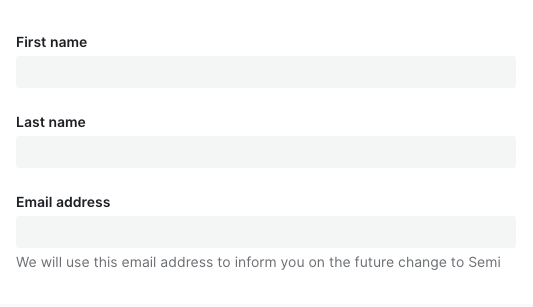 | 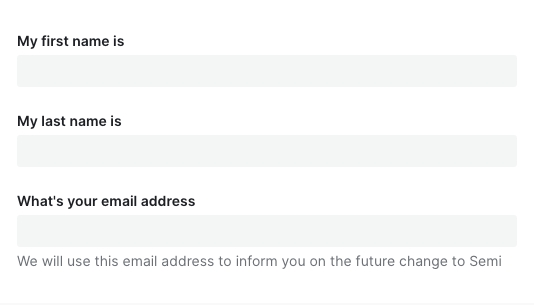 |
设计变量
| Sass 变量 | 值 | 用法 |
|---|---|---|
| $spacing-form_field_horizontal-paddingRight | $spacing-base | 水平布局表单项右侧内边距 |
| $spacing-form_field_group_horizontal-paddingRight | $spacing-base | 水平布局表单组标题右侧内边距 |
| $spacing-form_field_vertical-paddingTop | $spacing-base-tight | 表单项顶部内边距(垂直布局) |
| $spacing-form_field_vertical-paddingBottom | $spacing-base-tight | 表单项底部内边距(垂直布局) |
| $spacing-form_field_group_vertical-paddingTop | $spacing-base-tight | 垂直布局表单组顶部内边距 |
| $spacing-form_field_group_vertical-paddingBottom | $spacing-base-tight | 垂直布局表单组底部内边距 |
| $spacing-form_label-paddingRight | $spacing-base | 表单项标签右侧边距(水平布局) |
| $spacing-form_label-paddingTop | ($height-control-default - 20px) * 0.5 | 表单项标签顶部内边距(水平布局) |
| $spacing-form_label-marginBottom | $spacing-extra-tight | 表单项标签底部外边距 |
| $spacing-form_label-marginTop | 0px | 表单项标签顶部外边距 |
| $spacing-form_label_extra-marginLeft | $spacing-extra-tight | 表单项标签额外信息左侧边距 |
| $spacing-form_label_required-marginLeft | $spacing-extra-tight | 表单项标签必填标志左侧边距 |
| $spacing-form_label_posLeft-marginRight | 0 | 表单项左侧标签右侧外边距 |
| $spacing-form_label_posLeft-marginBottom | 0 | 表单项左侧标签底部外边距 |
| $spacing-form_label_posTop-paddingTop | $spacing-extra-tight | 表单项顶部标签顶部边距 |
| $spacing-form_label_posTop-paddingBottom | $spacing-extra-tight | 表单项顶部标签底部边距 |
| $spacing-form_extra_posMid-marginTop | $spacing-extra-tight | 表单项额外提示信息顶部外边距 - 额外信息处于中间时 |
| $spacing-form_extra_posMid-marginBottom | $spacing-extra-tight | 表单项额外提示信息底部外边距 - 额外信息处于中间时 |
| $spacing-form_extra_posBottom-marginTop | $spacing-extra-tight | 表单项额外提示信息顶部外边距 - 额外信息处于底部时 |
| $spacing-form_switch_rating_marginY | ($height-control-default - 24px) * 0.5 | Switch / Rating 表单项顶部内边距(水平布局) |
| $color-form_requiredMark_disabled-text-default | var(--semi-color-danger) | 禁用表单项必填标记颜色 |
| $color-form_label_disabled-text-default | var(--semi-color-disabled-text) | 禁用表单项标签文字颜色 |
| $font-form_label-fontWeight | $font-weight-bold | 表单项标签字重 |
| $color-form_label-text-default | var(--semi-color-text-0) | 表单项标签文字颜色 |
| $color-form_label_optional-text-default | var(--semi-color-tertiary) | 表单项标签可选标记颜色 |
| $color-form_label_extra-text-default | var(--semi-color-tertiary) | 表单项标签图标颜色 |
| $color-form_requiredMark-text-default | var(--semi-color-danger) | 必填标记颜色 |
| $font-form_requiredMark-fontWeight | $font-weight-bold | 表单必填标识字重 |
| $color-form_message_error-text-default | var(--semi-color-danger) | 错误提示颜色 |
| $color-form_alertIcon-icon-default | var(--semi-color-warning) | 警告图标颜色 |
| $spacing-form_statusIcon-marginRight | $spacing-extra-tight | 表单校验状态图标右侧外边距 |
| $spacing-form_message-marginTop | $spacing-extra-tight | 表单错误信息、辅助文字顶部外边距 |
| $color-form_section-text-default | var(--semi-color-text-0) | 表单分组标题文字颜色 |
| $color-form_section-border-default | var(--semi-color-border) | 表单分组标题底部描边颜色 |
| $width-form_section-border | $border-thickness-control | 表单分组标题底部描边宽度 |
| $spacing-form_section-marginTop | $spacing-super-loose - $spacing-base-tight | 表单分组顶部内边距 |
| $spacing-form_section_text-paddingBottom | $spacing-tight | 表单分组标题底部内边距 |
| $spacing-form_section_text-marginBottom | $spacing-extra-tight | 表单分组标题底部外边距 |
| $spacing-form_section_text-paddingTop | 0px | 表单分组标题顶部内边距 |
| $spacing-form_section_text-marginTop | 0px | 表单分组标题顶部外边距 |
FAQ
-
为什么我声明了表单,对值进行了修改,数据没有自动映射到 formState.values 中?
请检查是否正确传入了 field,Field 上的field属性是必填项!!! -
为什么传入了 defaultValue、defaultChecked 不生效?
请参考文档开头表单控件,Field 组件对默认值做了统一处理,你应该使用initValue或者initValues来传入默认值 -
为什么异步更新了 initValue、initValues 后,组件没有发生变化,值没有生效?
initValue、initValues只在 Field、Form mounted 时进行消费,后续做的异步更新并不会起效。
如果你的初始值需要从远程取,那么你可以在获取到值之后,使用formApi.setValue/setValues进行更新。
或者直接给 Form、Field 传入一个新的key强制它重新挂载 -
为什么调用了 formApi.setValues 更新 fields 的值,但是实际渲染并没有更新?
setValues 默认情况下对尚未存在的 field 进行赋值不会生效。如果你的 fields 是动态加载的话,请检查在 setValues 时,该 field 是否已 mounted。
如有需要,可以使用 override 模式formApi.setValues(newValue, { isOverride: true }) -
为什么 rules 中的 validator 校验失败,但是对应的错误信息没有被展示?
async-validator 的自定义 validator 返回值必须是 boolean 类型,否则它不执行任何回调,semi 后续的钩子也不会被调用。建议通过加 !! 或者 Boolean() 强制转换返回类型
-
为什么 getValues 拿不到某个 field?
field 没有初始值的话,
getValues获取不到这一项。可以设置initValues/initValue或者给 form 设置allowEmpty属性。 -
为什么在输入框(如 Input)上敲击 enter 回车键会触发了 Form 的 submit?
这个是标准 HTML 行为,我们不计划进行干预,会与原生保持一致。如果表单内确实只有一个 Input 元素,又不想回车时触发 submit 回调,建议对 Input 的 keydown 事件的 enter 采取 preventDefault 阻止默认行为。
点击 #767 查看相关背景和内容。
-
表单会自动保存历史输入项,不想要这个功能怎么办?
在 v2.3 之前,Form 并没有严格按照 A11y 无障碍标准为输入控件配置for、name、id等属性,因此在之前的版本并没有该功能。v2.3 后我们严格按照 W3C 标准进行了实现。如果你不希望浏览器自动保存历史输入项,也可以通过在 Form 级别或者 Field 级别设置autoComplete=off关掉